SuCri Module – Initial Execution and Licensing
After successful installation, start SuCri directly from Autodesk Plant 3D or Advance Steel. In this article, you will learn how to register the software during the first execution, activate the license, and integrate the necessary pipe specs into your project.
Prerequisites
- Successfully completed installation of the software.
- An active internet connection for license registration and activation.
- An already opened project in Autodesk Plant 3D or Advance Steel.
Step-by-Step Instructions
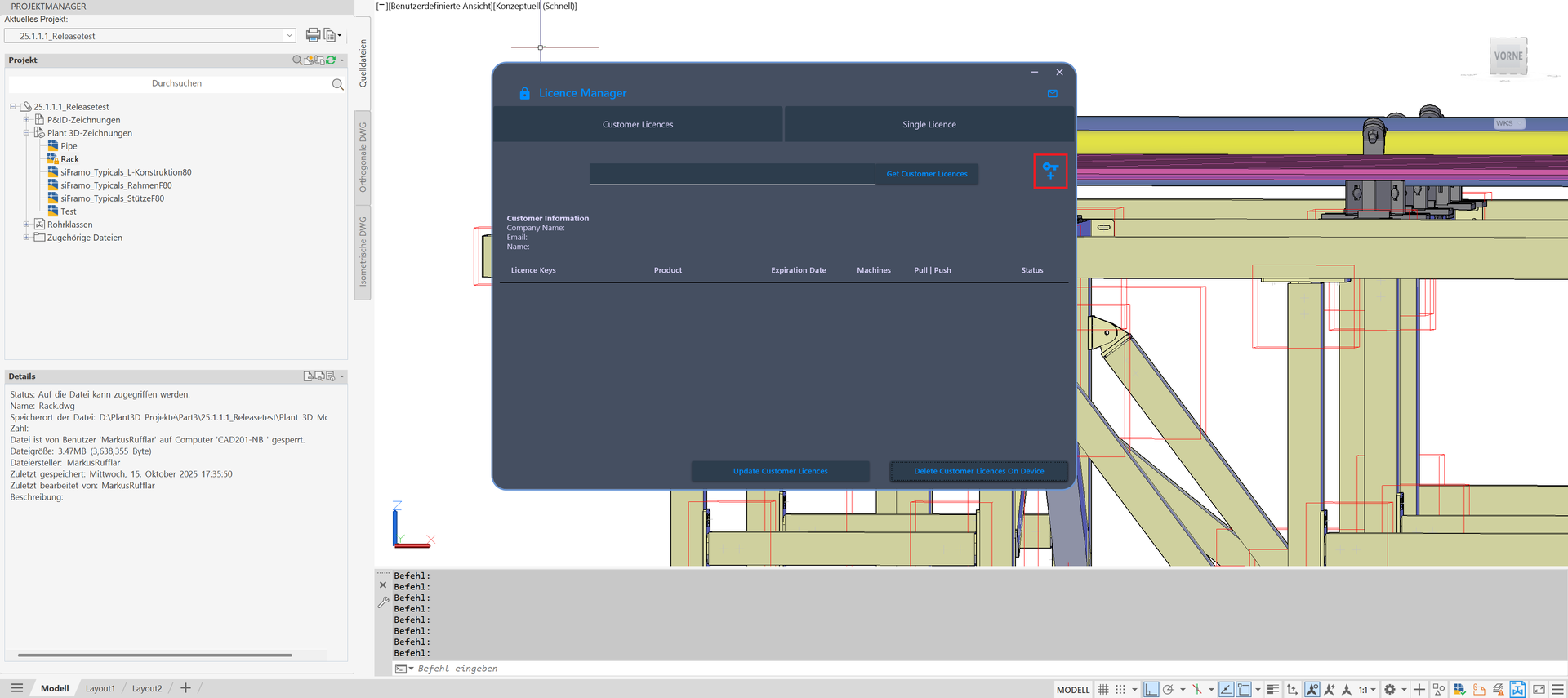
- Open the License Manager via the SuCri Ribbon by clicking on the lock icon.
-
In the following window, click on the key icon to request a trial version or to register your license.
-
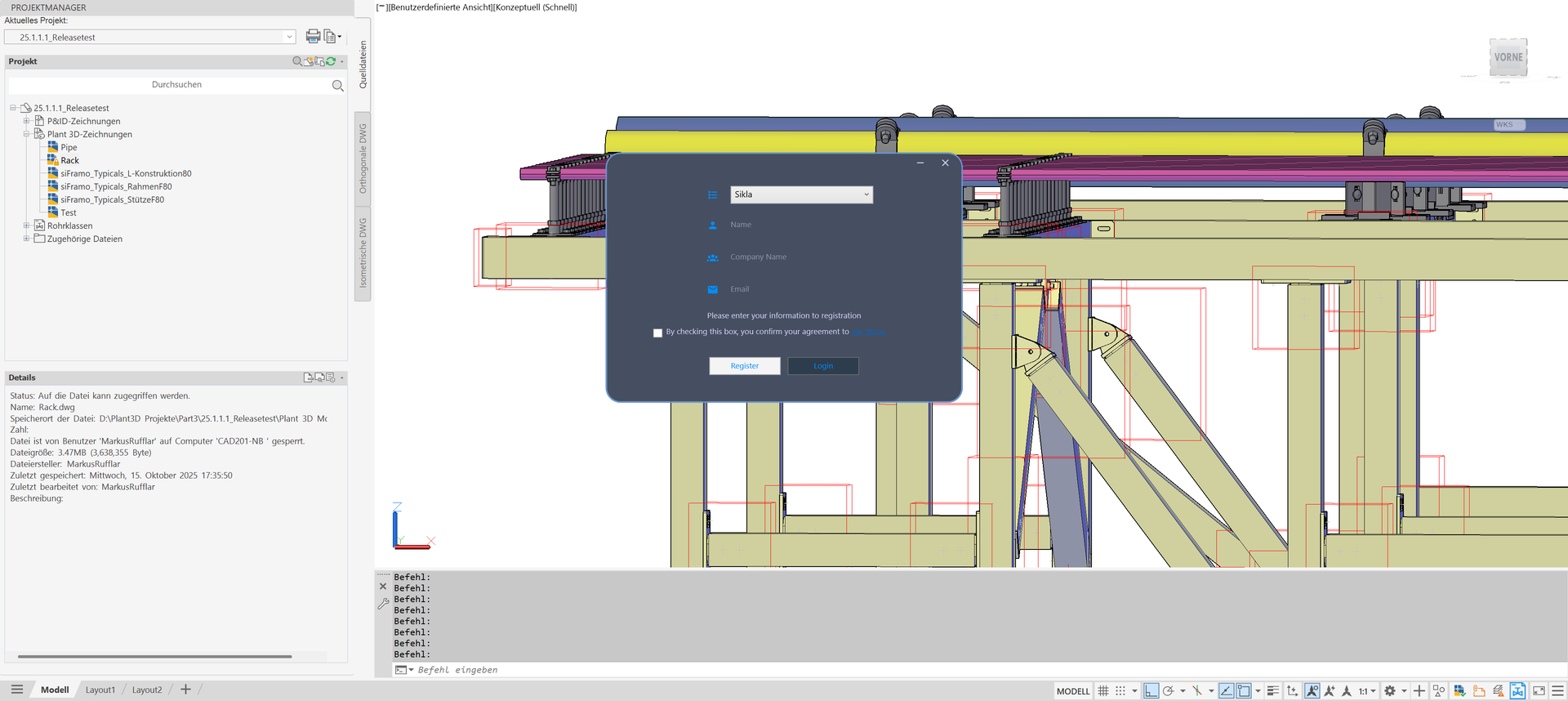
Enter your personal details into the corresponding input fields.
- Read and confirm the Terms of Use and then click the Register button.
- Select the desired product from the license list and transfer the license to your computer using the Pull button.
- Import pipe specs: Open the Project Manager in Plant 3D, navigate to Pipe Specs, right-click and select Copy Specs to Project... and load the provided pipe specs from the IntegaDesign-Cpak folder.
- Activate pipe spec: Go to the Home tab in the ribbon > Insert Part group, select the SuCri pipe spec, and place an initial component in the model space.
Expected Result: The icons in the SuCri ribbon are active and highlighted in color. Components can now be correctly placed in the model from the selected pipe spec.
Important Notes
Tip: If you want to transfer the license to another computer, simply release it in the License Manager using the Push function. Afterward, the license can be obtained on another workstation via Pull.
- Ensure that the license is displayed as active (green) in the License Manager.
- Note that an internet connection is mandatory for the Pull (obtain license) and Push (release license) functions.
Troubleshooting
- Ribbon not visible: Check the Autodesk Add-In settings to see if the plugin is loaded and activated.
- Components missing from selection: Check if the pipe specs were actually copied into the current project. A reference to the global catalog folder is often not sufficient for active use within the project.
- License status remains red: Check your firewall settings. The License Manager must be able to communicate with the registration server.