4.4.18. Update or copy connection
Update or Copy Connection
In this guide, you will learn how to update existing connections in Autodesk Advance Steel or transfer them to other beam combinations. Since the internal copying mechanisms of Advance Steel are not technically supported for these specific components, use the integrated context menu entries for this purpose.
Prerequisites
- The connection box of the product must be visible and selectable in the model.
- The corresponding beams for a new connection must already be placed in the model.
Step-by-Step Instructions
-
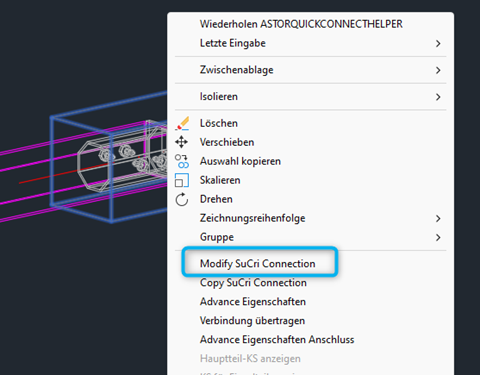
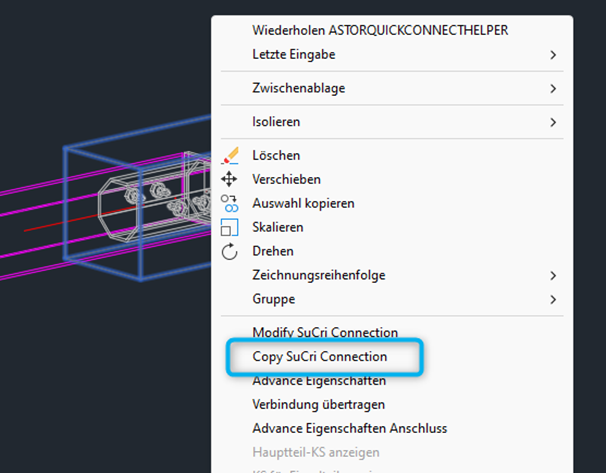
Right-click the connection box of the product in the model to open the context menu.
Result: The context menu displays the specific options Modify SuCri Connection and Copy SuCri Connection. -
Click the menu entry Modify SuCri Connection if you want to change or update the existing connection.
Result: The SuCri dialog opens and lists all alternative products for the selected beam combination. -
Select the menu entry Copy SuCri Connection to copy the connection to other locations in the model.
Result: A selection loop is started. Follow the prompt and select the corresponding beam combinations one after the other.
Important Notes
- End loop: You can exit or cancel the selection loop while copying at any time by pressing the Esc key.
- For technical reasons, use only these specialized commands and not the standard copy functions of Autodesk Advance Steel.
Copyright © 2026 by IntegaDesign GmbH. All Rights Reserved.