4.4.19. Deleting a connection
Deleting a Connection
In this article, you will learn how to correctly remove connections in Autodesk Advance Steel. Since products are placed using intelligent connection technology, there are specific characteristics to consider during the deletion process.
Prerequisites
- The project is open in Autodesk Advance Steel.
- An intelligent connection has already been placed.
Step-by-Step Instructions
-
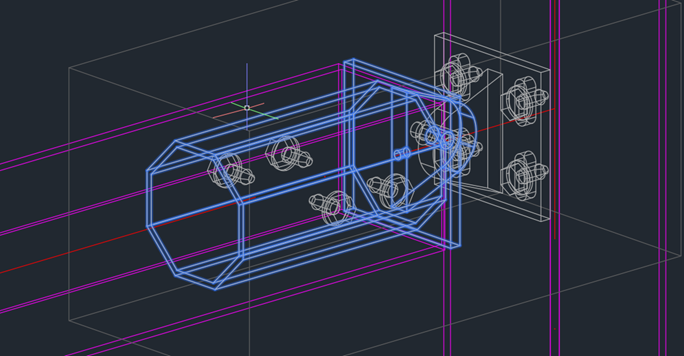
Identify the connection box or an element of the connection in your drawing.
Result: The connection and its dependencies are visually highlighted.
-
To remove the entire connection including all generated elements, select a part or a beam processing (e.g., a cut) created by the connection and press the Delete key.
Result: All elements, welds, bolts, and processings generated by this connection object are completely deleted.
Important Notes
- Dissolving Intelligence: If you only delete the connection box, the inserted parts remain in the drawing. Only the context (the "intelligence") is removed.
- Manual Rework: Deleting the box is useful for manually positioning components that are currently not represented by the standard logic.
- Bills of Materials (BOM): Dissolving the intelligence (deleting the box) has no impact on the tracking of the product in the bill of materials.
- Special Parts & Blocks: Products are managed as special parts that use AutoCAD blocks. Even if you delete all connections of a type, the block definitions remain in the drawing database.
Troubleshooting
It is recommended to periodically purge the drawing database to remove unused block definitions of deleted special parts.
Copyright © 2026 by IntegaDesign GmbH. All Rights Reserved.