7.3.3. How can I display additional columns in the MTO?
Customizing MTO Report Templates for Additional Columns
In this guide, you will learn how to customize MTO (Material Take-Off) reports to output additional component properties in separate columns. This allows for a more detailed material analysis directly from your Plant 3D data.
Prerequisites
- You have access to the local installation directory of the plugins.
- Microsoft Excel is installed on your system.
- The corresponding components possess the properties you wish to export.
Step-by-Step Instructions
-
Open the Report Template Location
Each extension (e.g., Sikla) has its own template. Navigate to the corresponding directory in Windows Explorer. Using the Sikla extension as an example, you will find the file at the following path:
C:\Users\[USERNAME]\AppData\Roaming\Autodesk\ApplicationPlugins\SuCri_Module2.bundle.old\Contents\Vendors\SiklaSearch in this folder for the file: MTOTemplate.xlsx
-
Open and Edit the Template
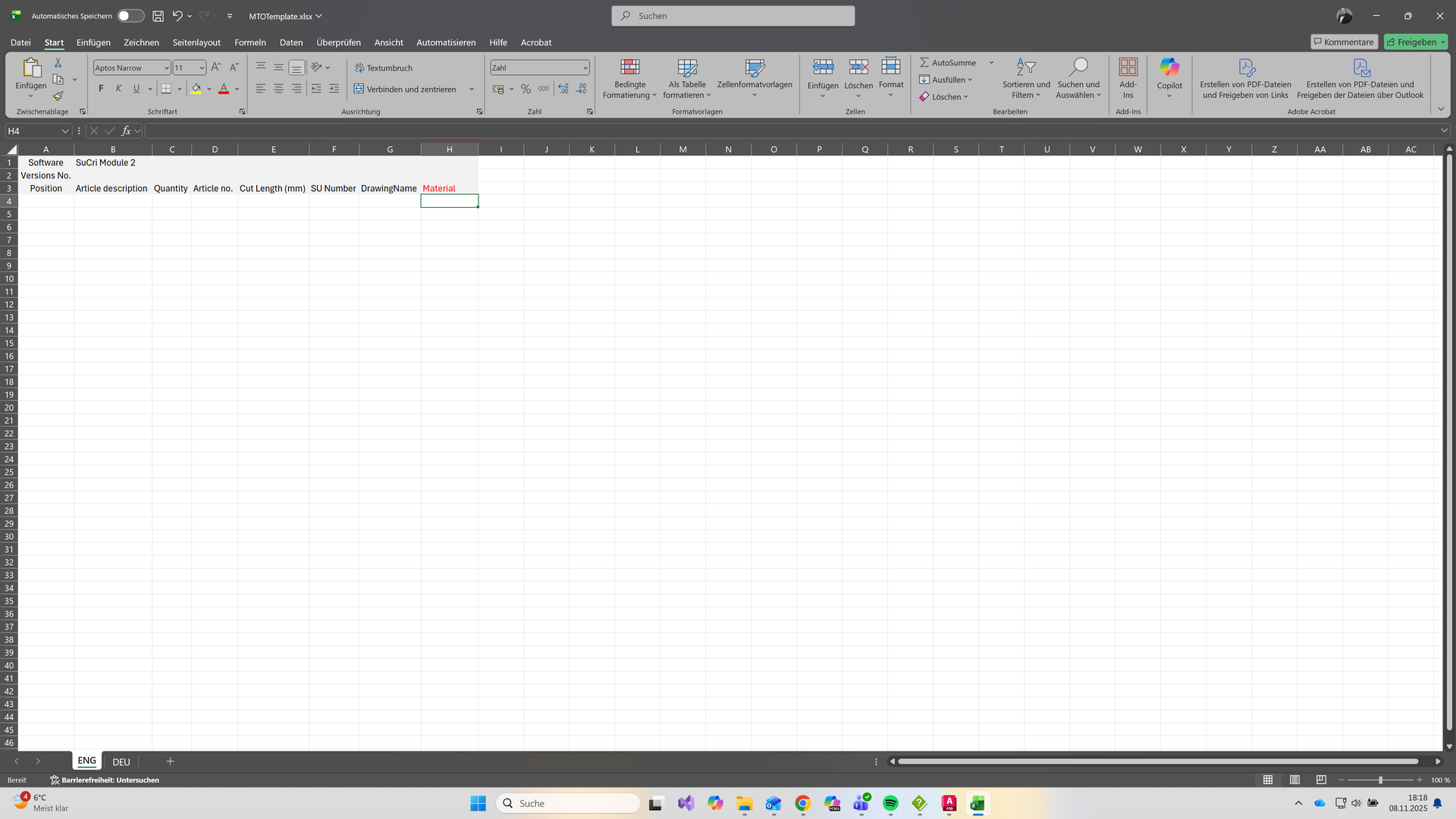
Open the MTOTemplate.xlsx file in Excel. Here you will see the predefined columns and their current mappings.
-
Add a New Column
Insert a new column to the right of the existing columns. Use the exact name of the property you want to extract as the column header (e.g., Material, Length, or Weight). The system automatically pulls the corresponding values from the component properties.
Expected Result: The new column is defined in the Excel template with the correct property name as the header.
-
Save and Verify Test Result
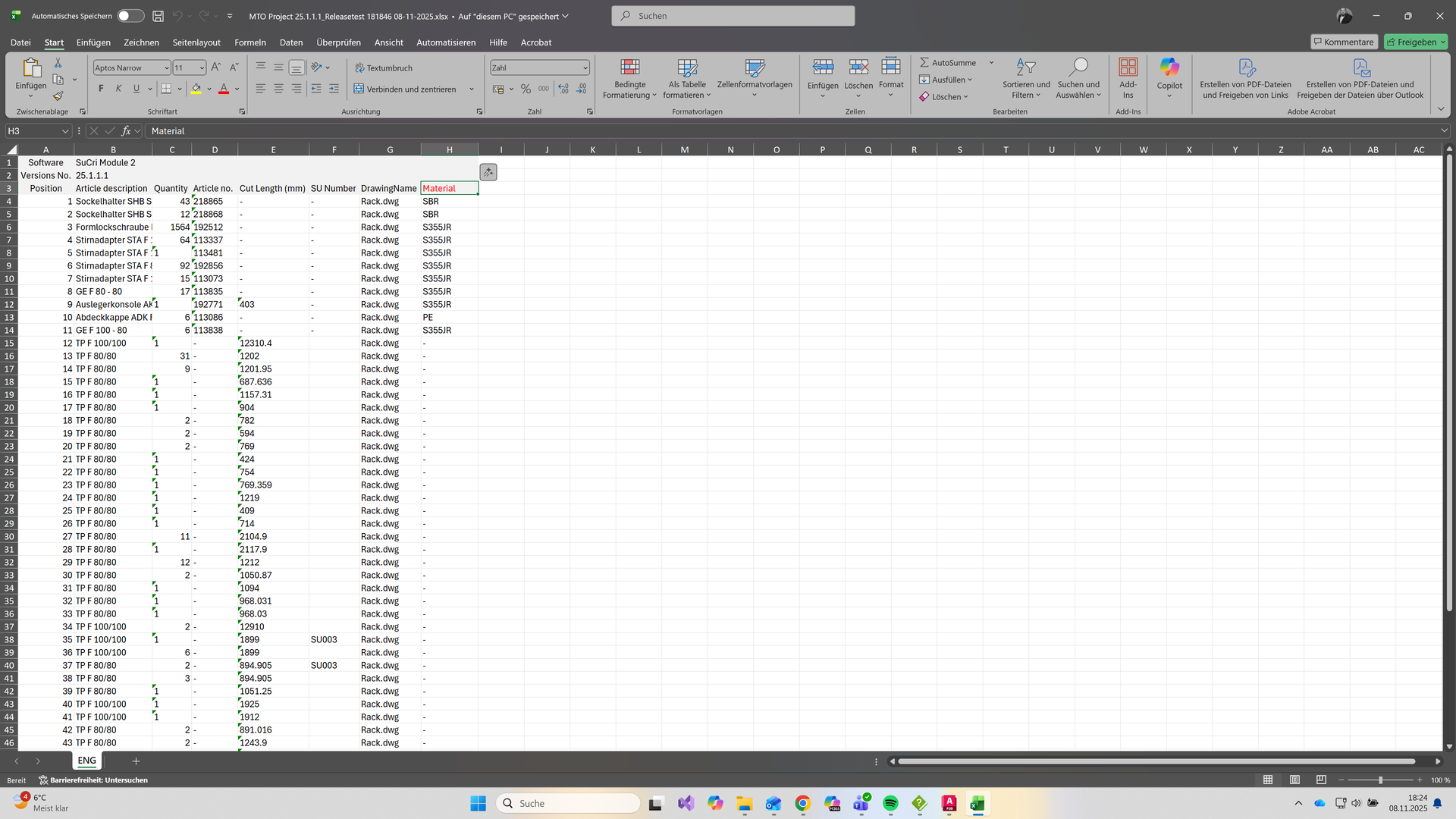
Save the changes in the Excel file and run the report in Plant 3D / SuCri again.
Expected Result: The generated MTO report now contains the newly defined column with the correct data.
Important Notes
- Backup Copy: Always test modifications on a copy of the original file to maintain system consistency.
- Naming: Ensure the exact spelling of property names so that data mapping works correctly.
- Standards: Store your customized standards in the project folder to easily transfer them to other projects.
Troubleshooting
- Column remains empty: Check whether the column name in the Excel template matches the internal property name in Plant 3D exactly.
- Template not found: Ensure you are working in the correct Vendor folder of the currently used extension.