3.4. Module 3 (ADVS)
User Interface of Module 3 (ADVS)
In this article, you will receive a detailed overview of the structural layout and the central functions of the Module 3 (ADVS) user interface. A clear structuring of your work environment enables you to navigate efficiently and operate the software intuitively.
Prerequisites
- Ensure that Module 3 (ADVS) is correctly installed.
- The software must be started in order to access the described interface elements.
Step-by-Step Instructions
-
Understand the UI structure
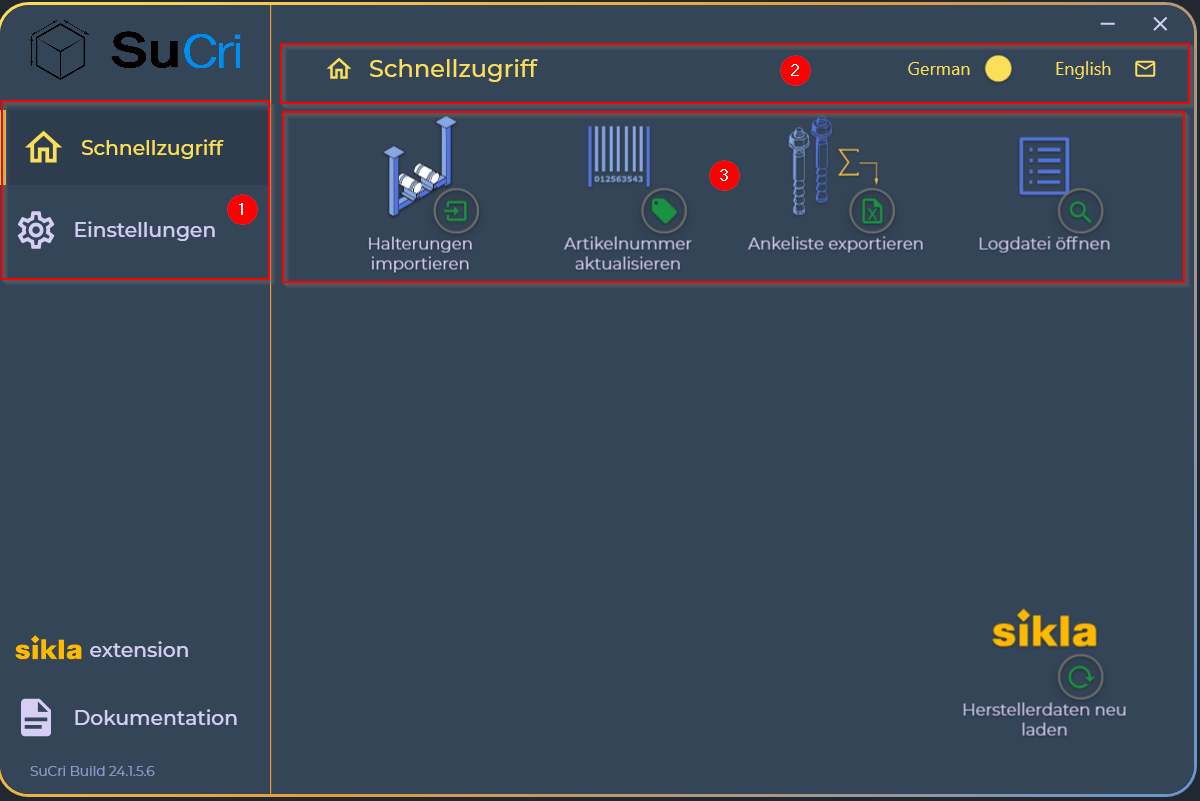
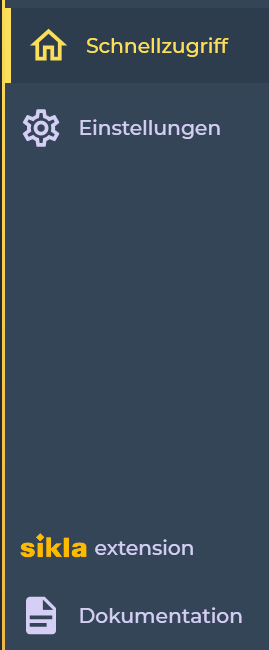
Familiarize yourself with the basic layout. The user interface is divided into four central areas: The Navigation Menu on the left side, the Status Bar at the top right, the Command Panel on the right side, and the Connections Interface in the central main area.
Result: You have gained a visual overview of the entire work environment.
-
Operate the Navigation Menu
Click on the different groups in the left bar to navigate between the functional areas. The available commands in the Command Panel on the right side adapt dynamically to your current selection.
-
Use the Status Bar and support functions
In the upper right corner, you will find specific information about the active panel. You can switch the interface language there or send a direct support request to us via the Email icon.
-
Execute commands in the Command Panel
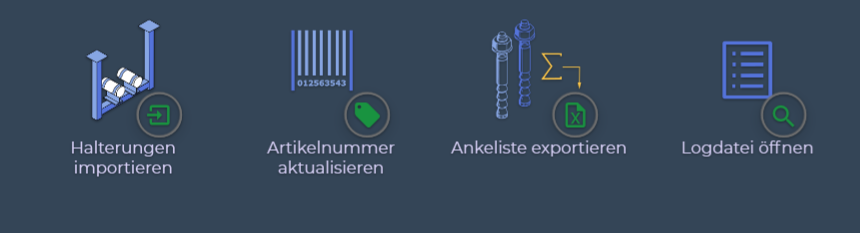
In the right area of the software, select the specific commands of the group that you previously activated by clicking in the Navigation Menu.
-
Place connections via the Connections Interface
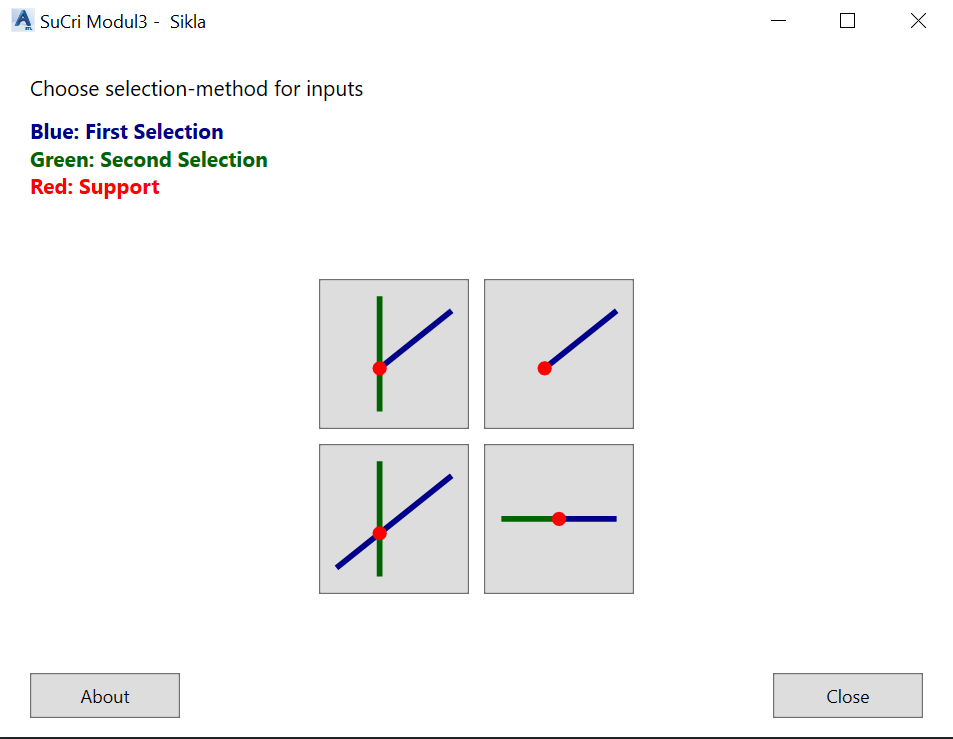
Use the central work area to position the selected connections precisely at the desired locations within your project.

Important Notes
- Color Coding: Please note that each manufacturer uses its own interface color. The arrangement of elements and the logical structure remain identical across all manufacturers.
- Dynamics: Content in the right Command Panel is always dependent on the active selection in the left Navigation Menu.
Troubleshooting
If no functions or icons are displayed in the Command Panel, please check whether an active group is actually selected in the Navigation Menu on the left side. If in doubt, click the desired group again.