3.5. Module 4
3.5. Module 4
This article explains the design and structure of the Module 4 user interface. A sound understanding of the navigation allows you to efficiently control manufacturer-specific functions.
Step-by-Step Guide
The Module 4 interface is divided into three functional areas by default:
- Navigation menu on the left side
- Status bar at the top right
- Command panel on the right side
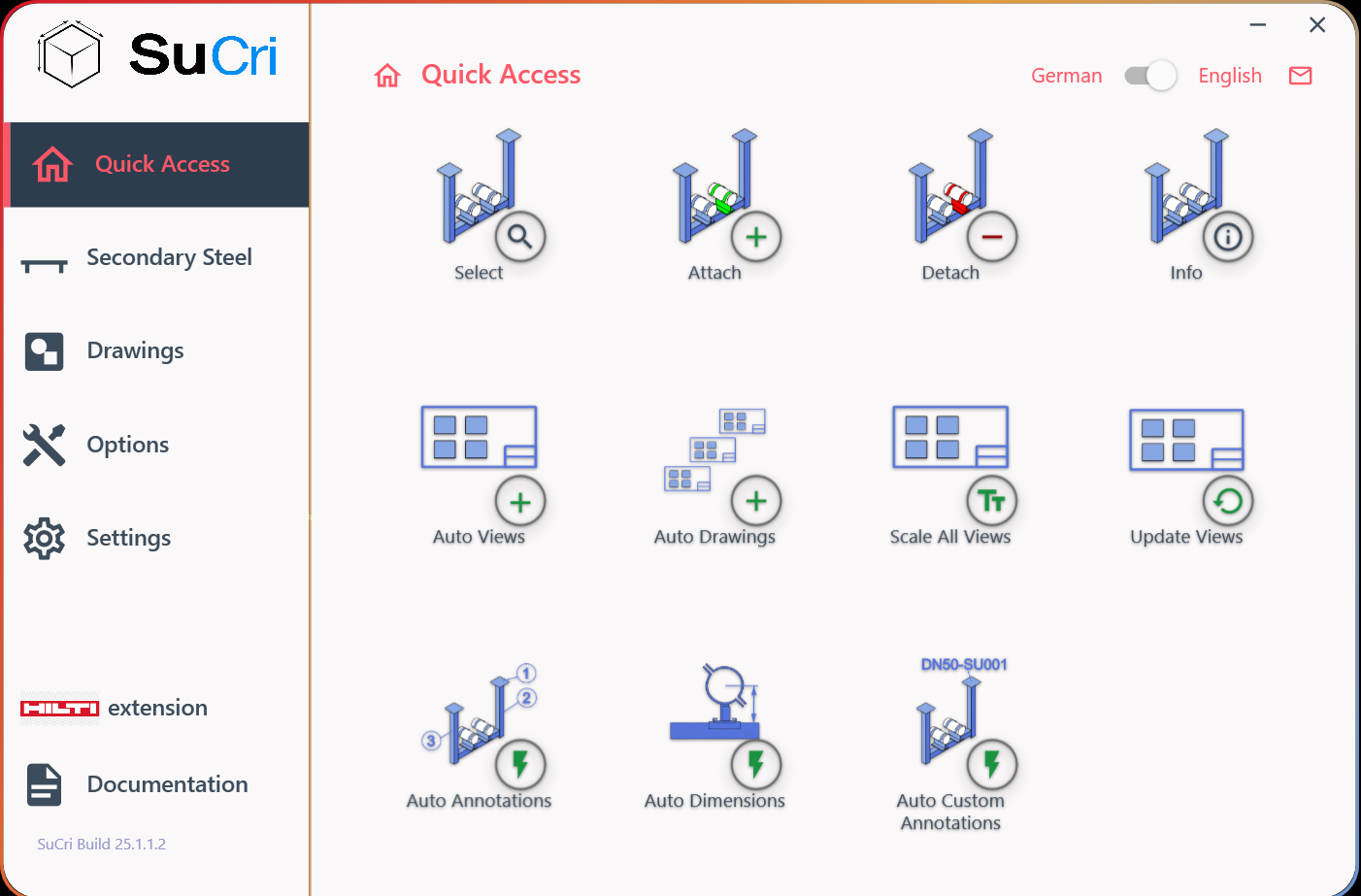
Result: The overall overview shows the clear separation of the work areas.
1. Using the Navigation Menu
Use the navigation menu on the left side to switch between the individual functional groups. When you select a group, the available options in the command panel adjust automatically.
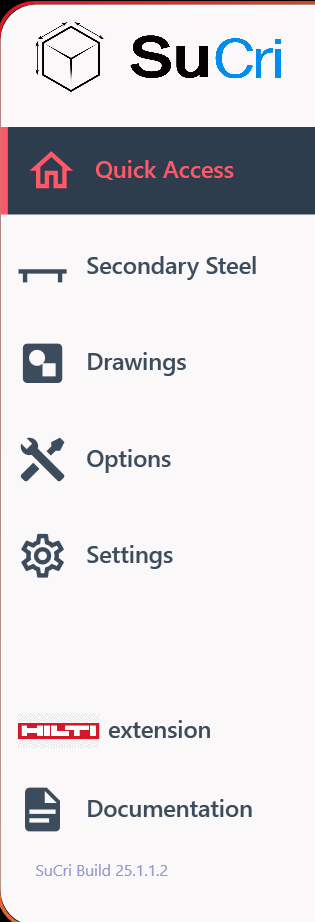
Result: Selecting a group in the menu dynamically updates the right side of the screen.
2. Checking the Status Bar
In the status bar, you will find information about the currently active panel. You can also switch the language here or contact support directly via the email icon.

Result: Administrative settings and status information are visible at all times.
3. Operating the Command Panel
The command panel displays the specific commands and actions of the group that you previously selected in the navigation bar.
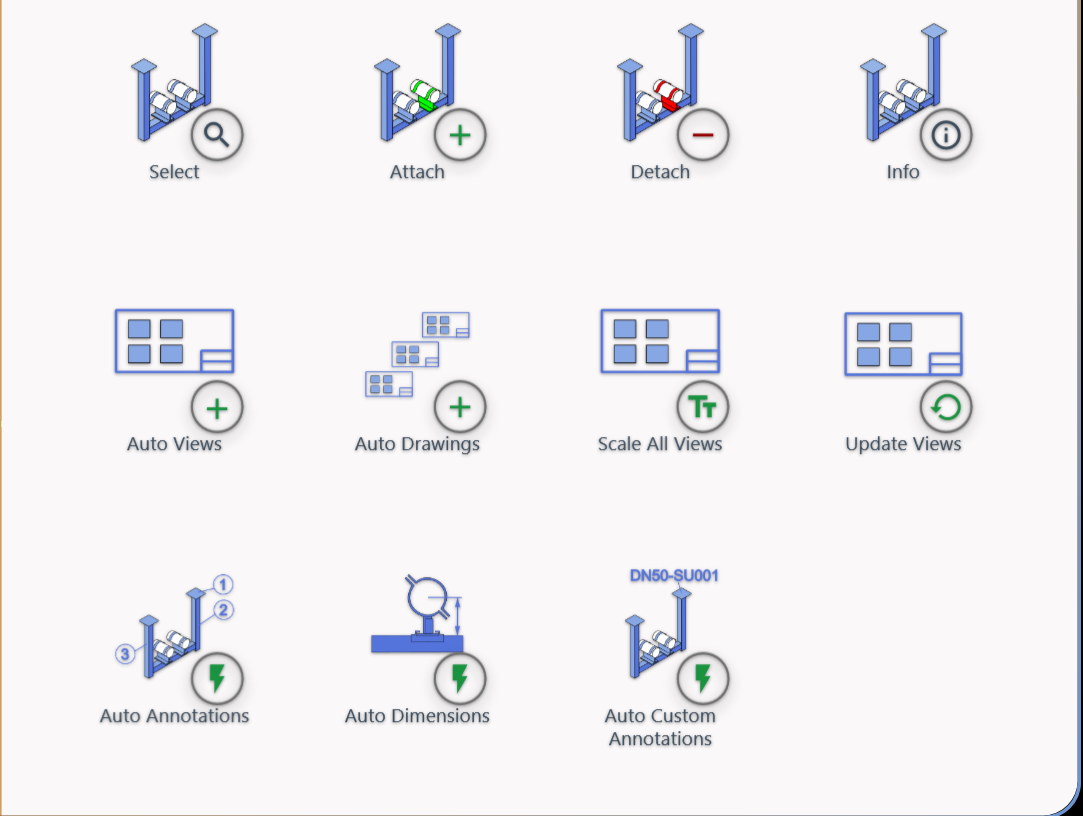
Result: This is where you execute the actual work steps and commands.
Important Notes
Note:
Please note that each manufacturer has its own interface color. Despite different color designs, the structural layout of the interface remains identical and consistent for all manufacturers.