2.2.1. Module 1
2.2.1. Module 1 – Installation and Configuration
In this article, you will learn how to correctly install Module 1 and integrate it into your project. Careful setup of the symbol files and SKEY mappings is crucial for error-free isometric output.
Prerequisites
- The installer for Module 1 is available locally.
- An existing AutoCAD Plant 3D project is available.
- A text editor (e.g., Notepad) is installed for editing XML files.
Step-by-Step Instructions
-
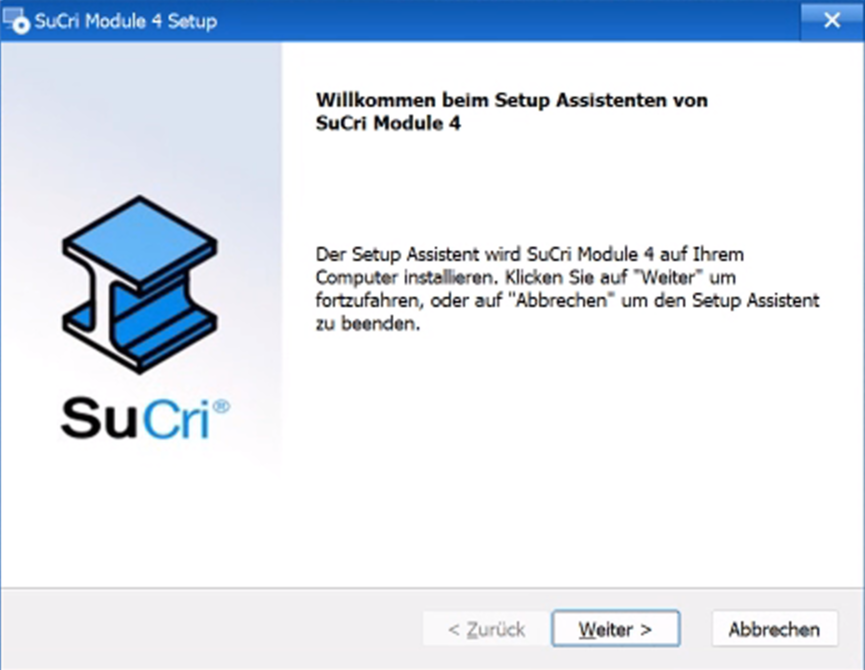
Step 1: Run the installer
Start the included installation program and follow the instructions on the screen.
-
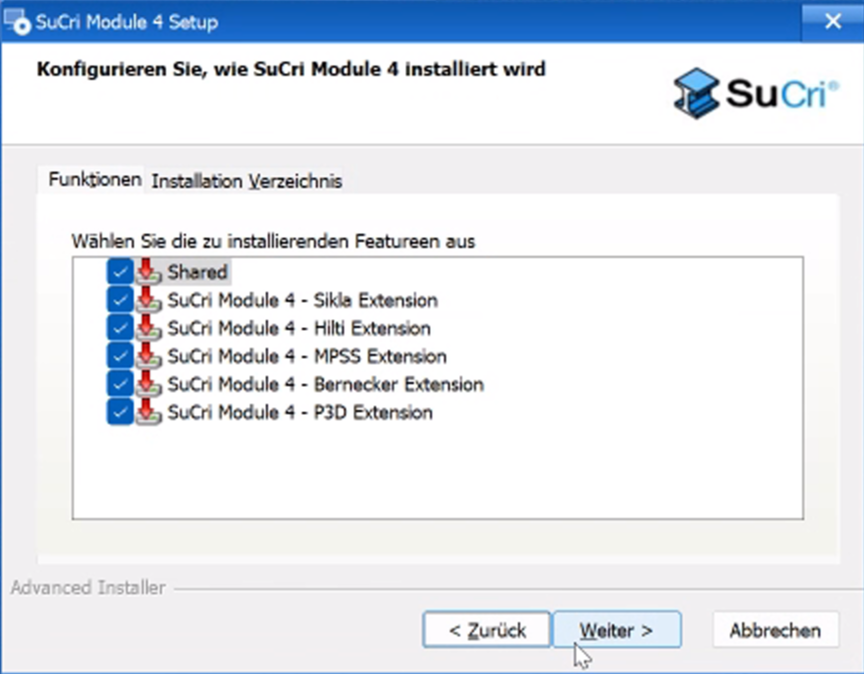
Step 2: Select extensions
In the dialog, select the desired Extensions that you wish to install along with the module.
-
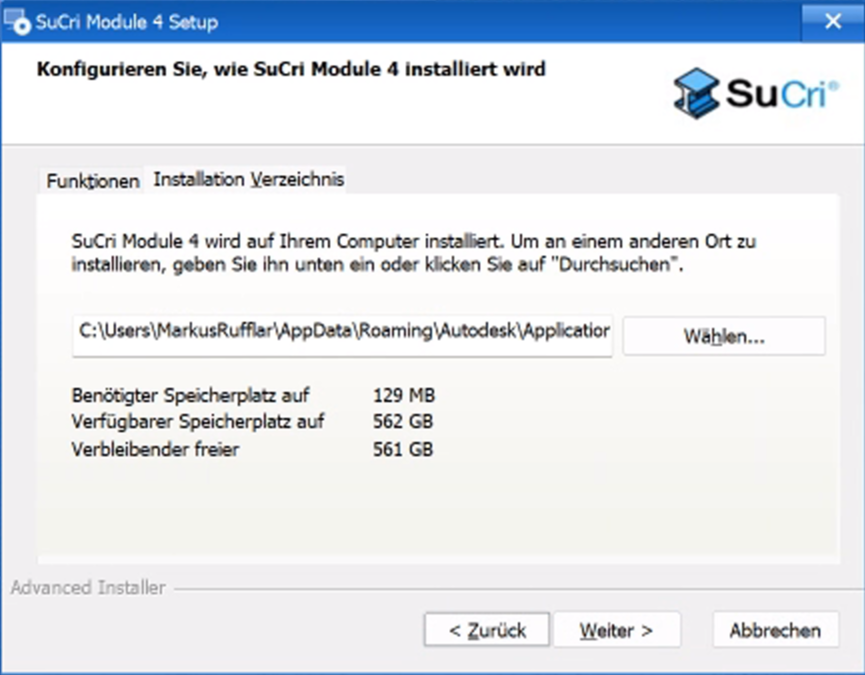
Step 3: Define content path
Set the correct content path for the installation to ensure that all data is stored in the correct directory.
-
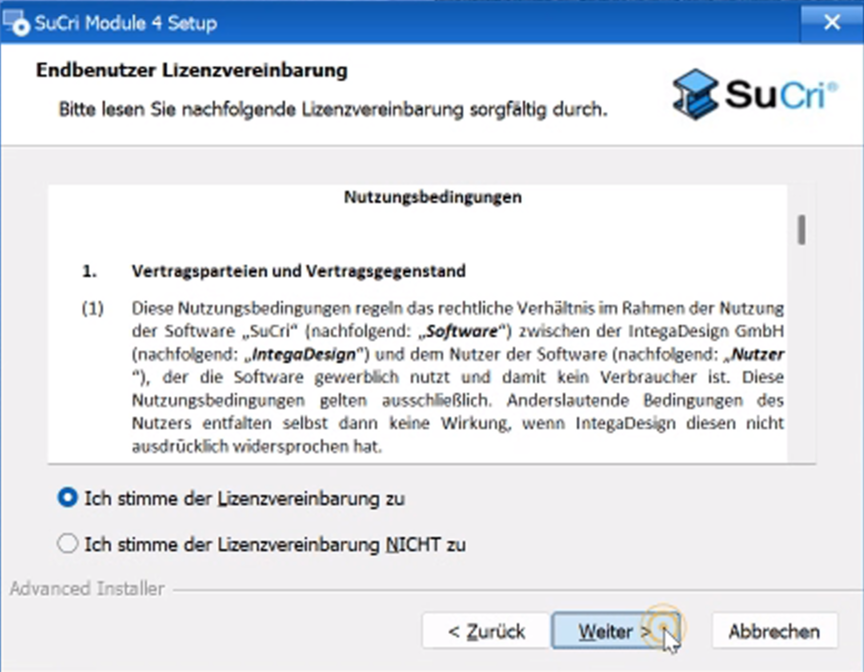
Step 4: Accept terms of use
Read and accept the terms of use to proceed with the process.
-
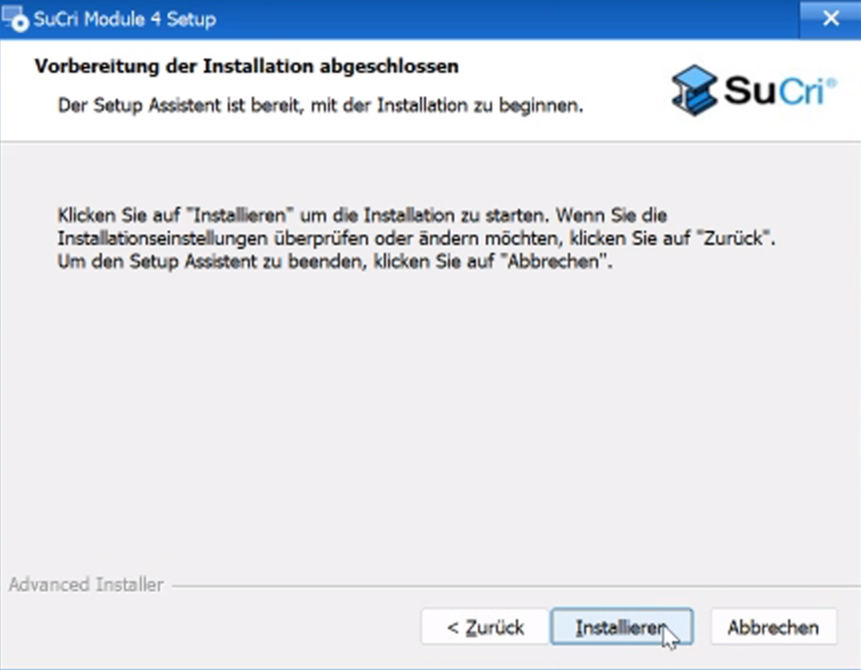
Step 5: Start installation
Click the button to start the installation.
-
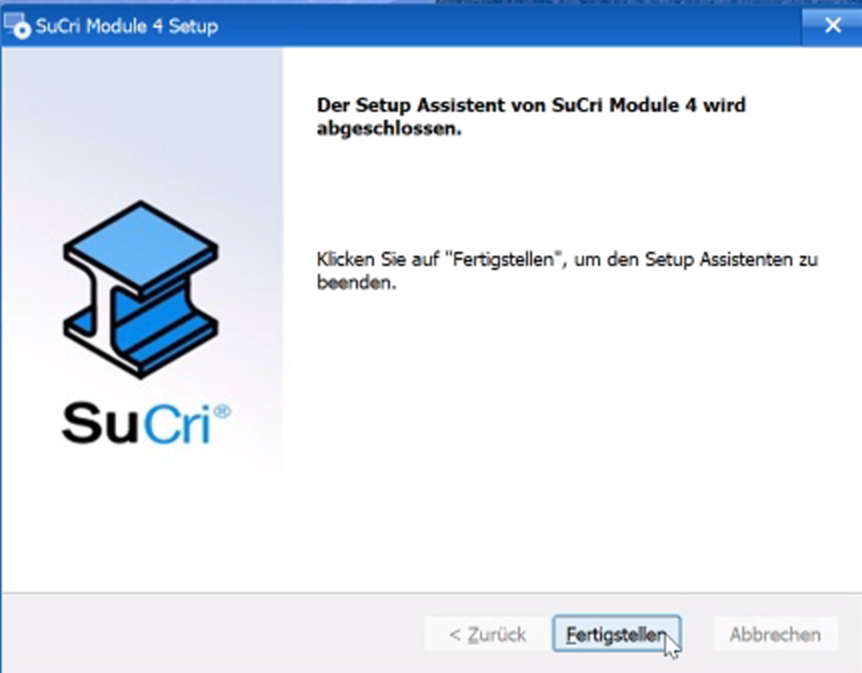
Step 6: Complete installation
After the process is finished, click Finish. The bundle was automatically installed in the path
C:\Users\Username\AppData\Roaming\Autodesk\ApplicationPlugins. -
Step 7: Prepare IsoSymbolStyles.dwg
Open the file
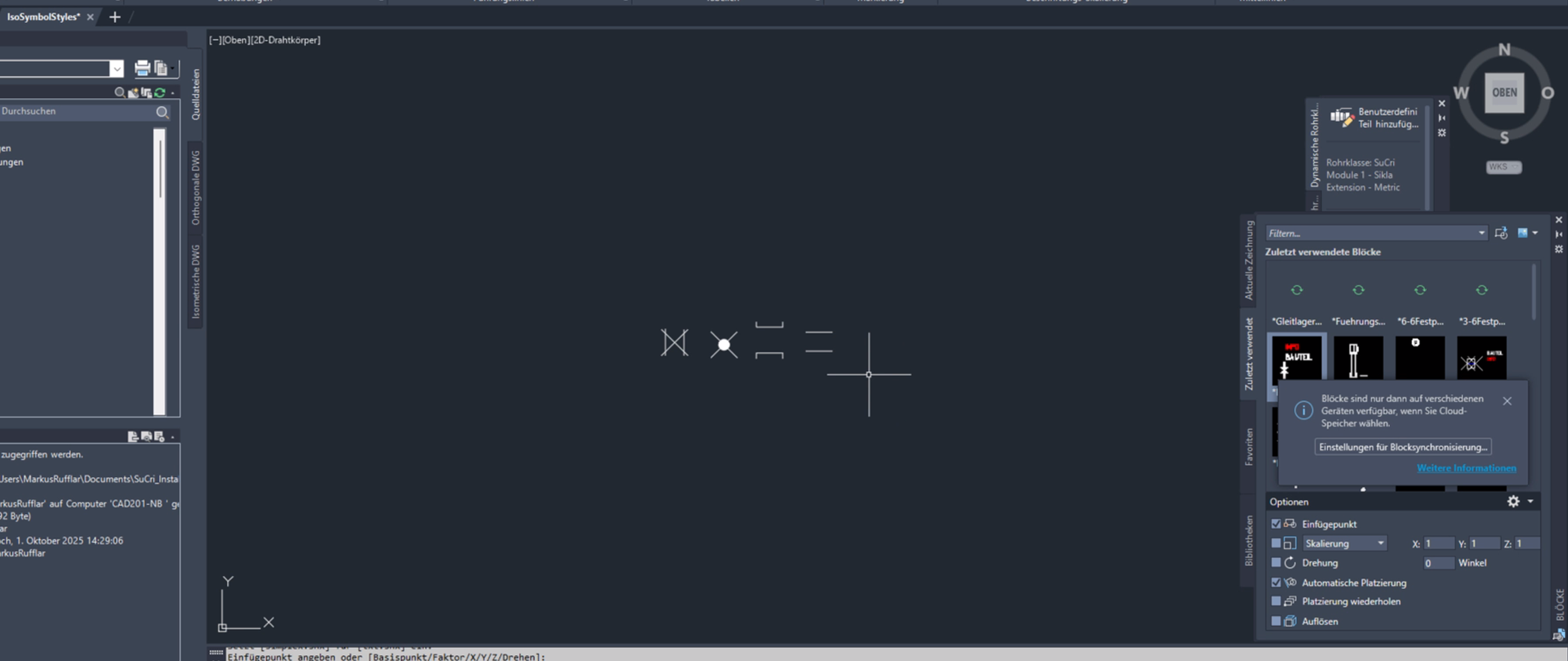
IsoSymbolStyles.dwgfrom the Isometric folder of your project. Navigate in Windows Explorer to the pathC:\AutoCAD Plant 3D 202X Content\CPak IntegaDesign\IsoSymbols. Drag the four included symbol DWGs individually into your open drawing (Scale = 1, Rotation = 0). Delete the placed elements afterwards; the block definitions will remain saved in the file. Save and close the file. -
Step 8: Configure SKEY mapping
Open the
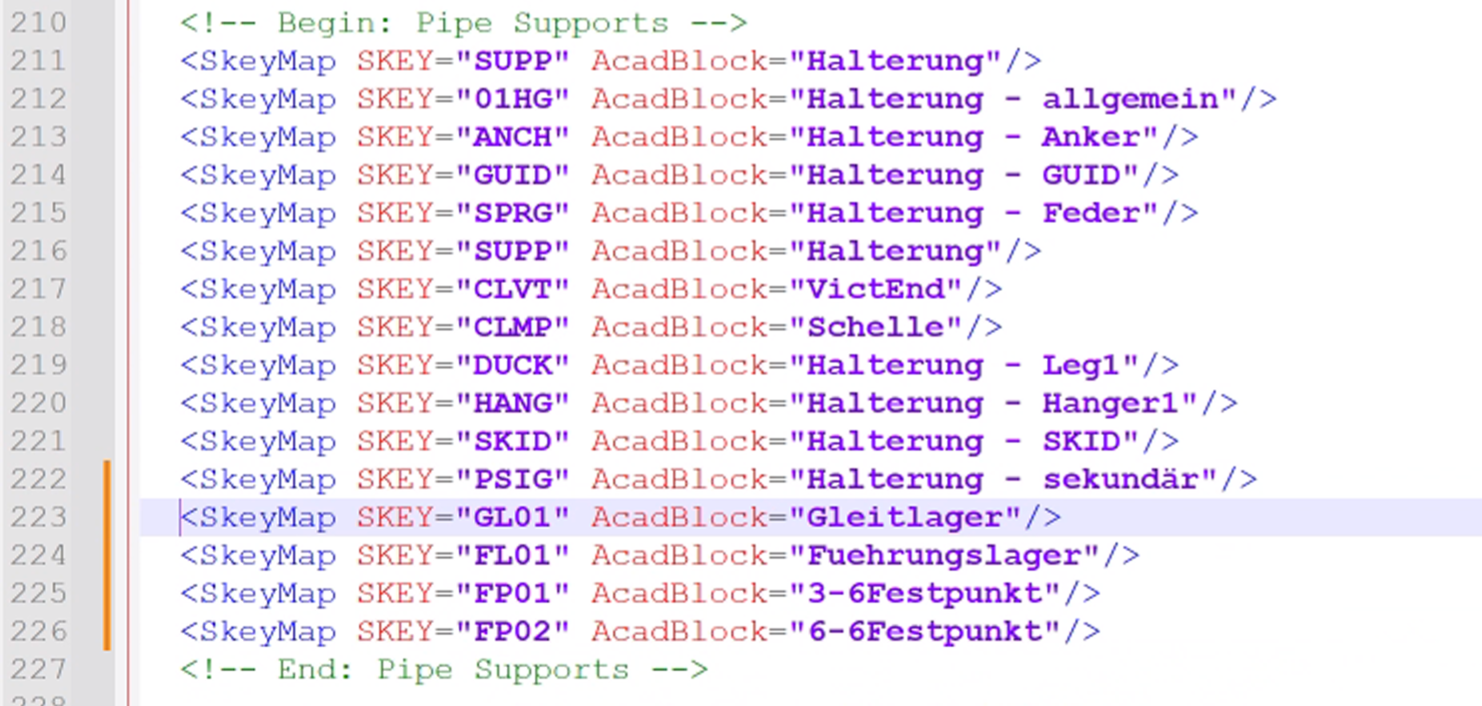
IsoSkeyAcadBlockMap.xmlin your project folder with a text editor. Copy the<SkeyMap …>entries from the included XML file in the IsoSymbols folder and paste them into the "Supports" section. Save and close the file. -
Step 9: Import pipe specs
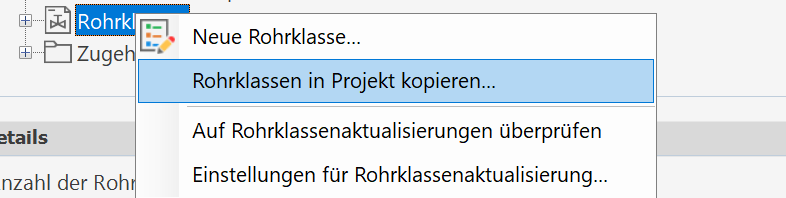
Start AutoCAD Plant 3D and import the included pipe spec via the Project Manager. You can now begin working in the module.
Important Notes
- Avoid duplicates: Ensure that the SKEY designations do not already exist in your project, as duplicate entries cause errors in the isometric output.
- Alternative loading method: Instead of drag-and-drop, the symbol files can also be loaded via the AutoCAD Design Center.
- Customizability: You can create your own pipe specs or adapt existing ones to your standards at any time based on the included catalog.
Troubleshooting
- If the isometric symbols are not displayed correctly, check the
IsoSymbolStyles.dwgto see if the block definitions actually remained in the file after the geometry was deleted. - In case of problems with the SKEYs, ensure that the XML syntax was not corrupted during copying (all tags must be correctly closed).