2.2.7. Uninstalling modules correctly
2.2.7. Correctly Uninstalling Modules
A clean uninstallation is crucial to ensure that no conflicts occur during later updates or re-installations. Residue in the Autodesk directories can lead to loading errors, corrupted functions, or faulty project data.
Prerequisites
- Ensure that AutoCAD Plant 3D or Advance Steel are completely closed during the process, as running processes can prevent the deletion process.
- You require administrator rights to access the Control Panel and the program directories.
Step-by-Step Instructions
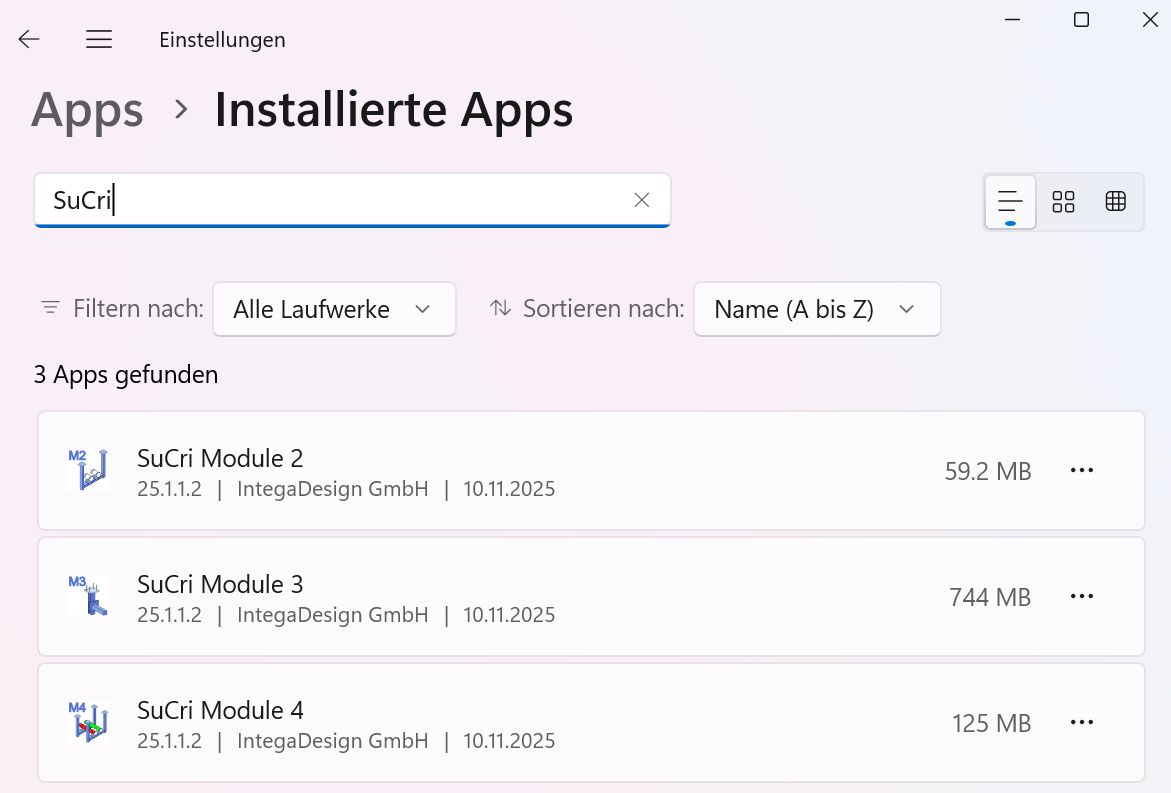
- Open the Windows Control Panel and navigate to the Add or Remove Programs section.
- Search the list of installed programs for the corresponding SuCri module or for a related entry from IntegaDesign GmbH.
- Click on Uninstall and follow the displayed instructions until the process is complete.
- Check the local Autodesk Content areas under the path
C:\AutoCAD Plant 3D 20XX Contentas well as in project-related content folders. - Check whether the folder CPak IntegaDesign has been removed and ensure that the file StructuralCatalog.acat is no longer present within CPak Common.
- Navigate to the Customscripts folder and manually remove all entries associated with the SuCri modules.
- Check the Autodesk user directory under the path
%AppData%\Autodesk\ApplicationPlugins. Delete all entries there (e.g., .bundle folders) that contain the name of the module or the SuCri extensions. - Finally, check the internal working directory under
%AppData%\IntegaDesign GmbHand delete it if necessary.
Expected Result: After completing these steps, the module as well as all associated temporary data and configurations are completely removed from the system.
Important Notes
- Data Cleanup: Manual inspection of the directories is necessary because the Windows uninstallation often does not remove user-specific application data or subsequently loaded content.
- Security: By removing the working directory under AppData, you ensure that no old status values or outdated patcher information are carried over during a new installation.
Troubleshooting
- Files cannot be deleted: Ensure that no Autodesk background process is still active. If necessary, use the Task Manager to terminate remaining processes.