Installing and Configuring Advance Steel Module 3 (ADVS)
In this guide, you will learn how to correctly set up Module 3 for Advance Steel using the provided installer. This process is essential for making the advanced functions and specific database structures available in your CAD environment.
Prerequisites
- The installation package for Module 3 is available locally on your system.
- You have administrator rights on the target computer.
- Advance Steel is closed during the entire installation process.
Step-by-Step Instructions
-
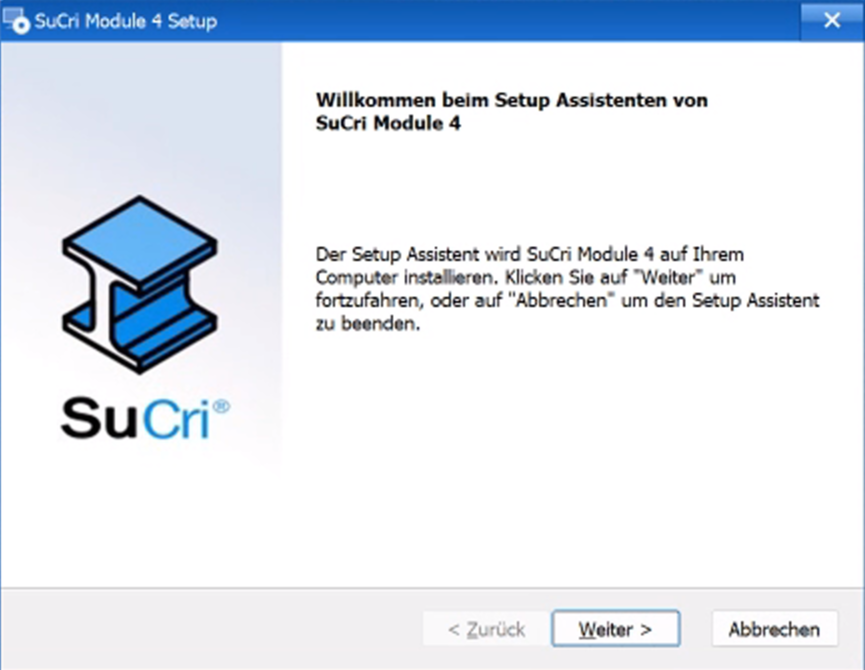
Start the installation by running the provided installation program.
-
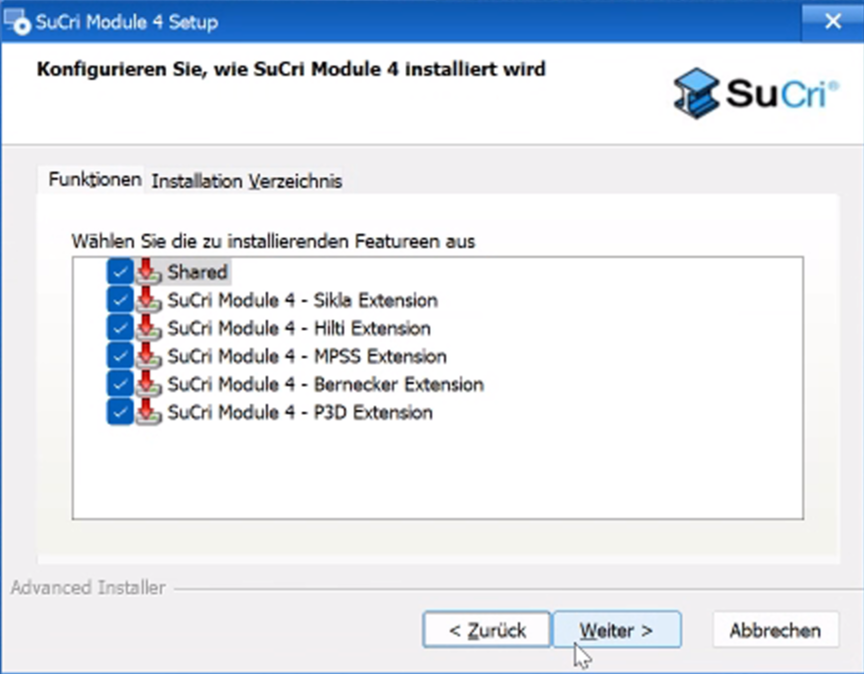
Select your desired Extensions in the dialog.
-
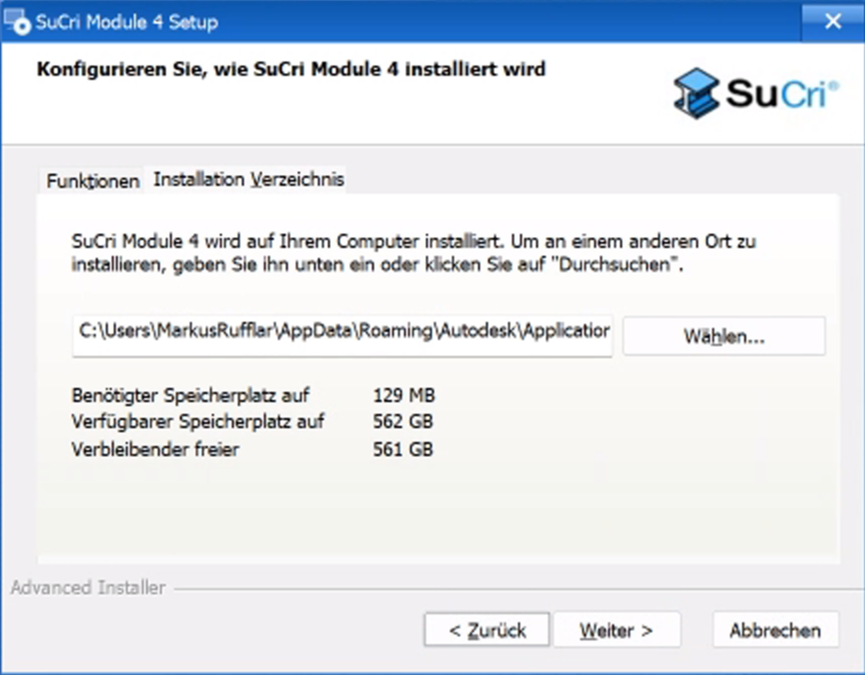
Confirm the installation path. The bundle is installed by default in the APPDATA directory of your user profile.
-
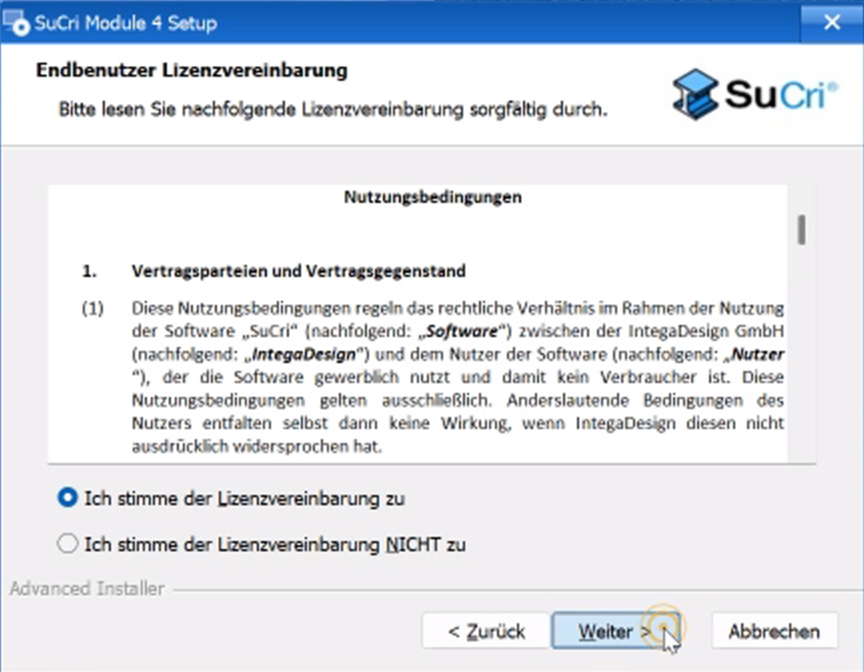
Read and accept the Terms of Use to proceed.
-
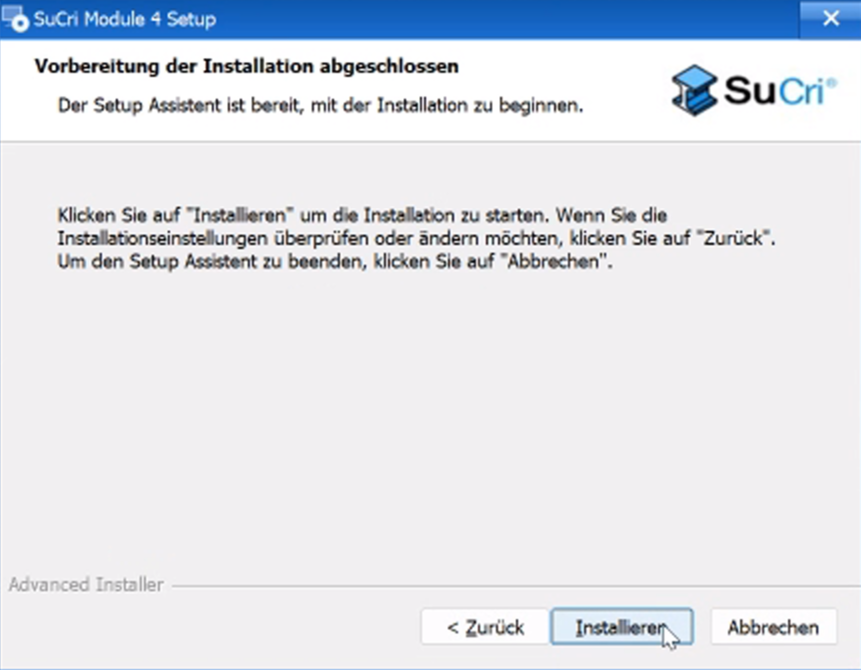
Start the copying process by clicking the Install button.
-
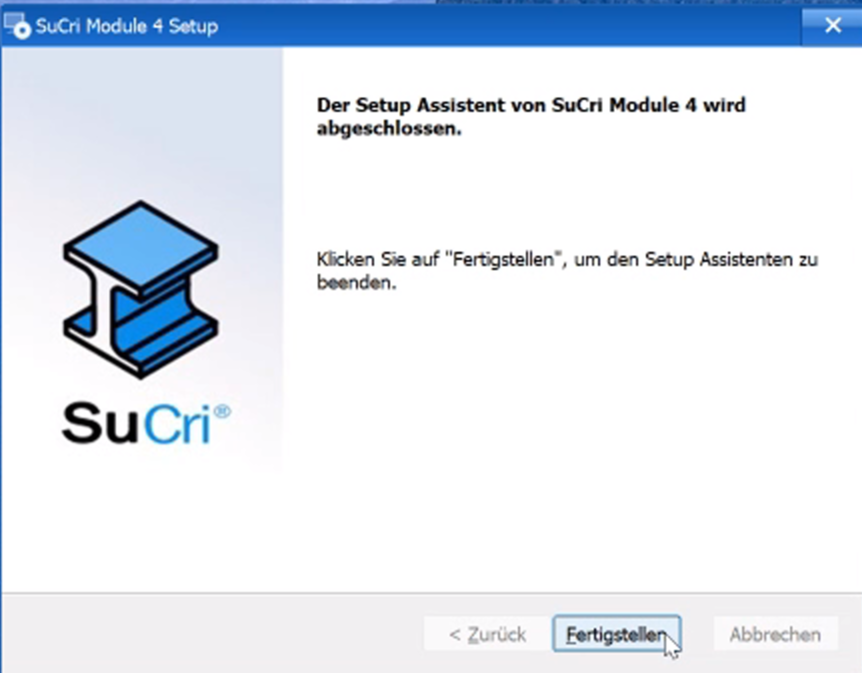
After the process is complete, click Finish.
Result: The plugin bundle has been successfully copied to the
C:\Users\Username\AppData\Roaming\Autodesk\ApplicationPluginsdirectory.
Adjusting the Advance Steel Databases
After the files have been copied, the databases must be updated using the integrated patcher tool:
- Navigate to the folder
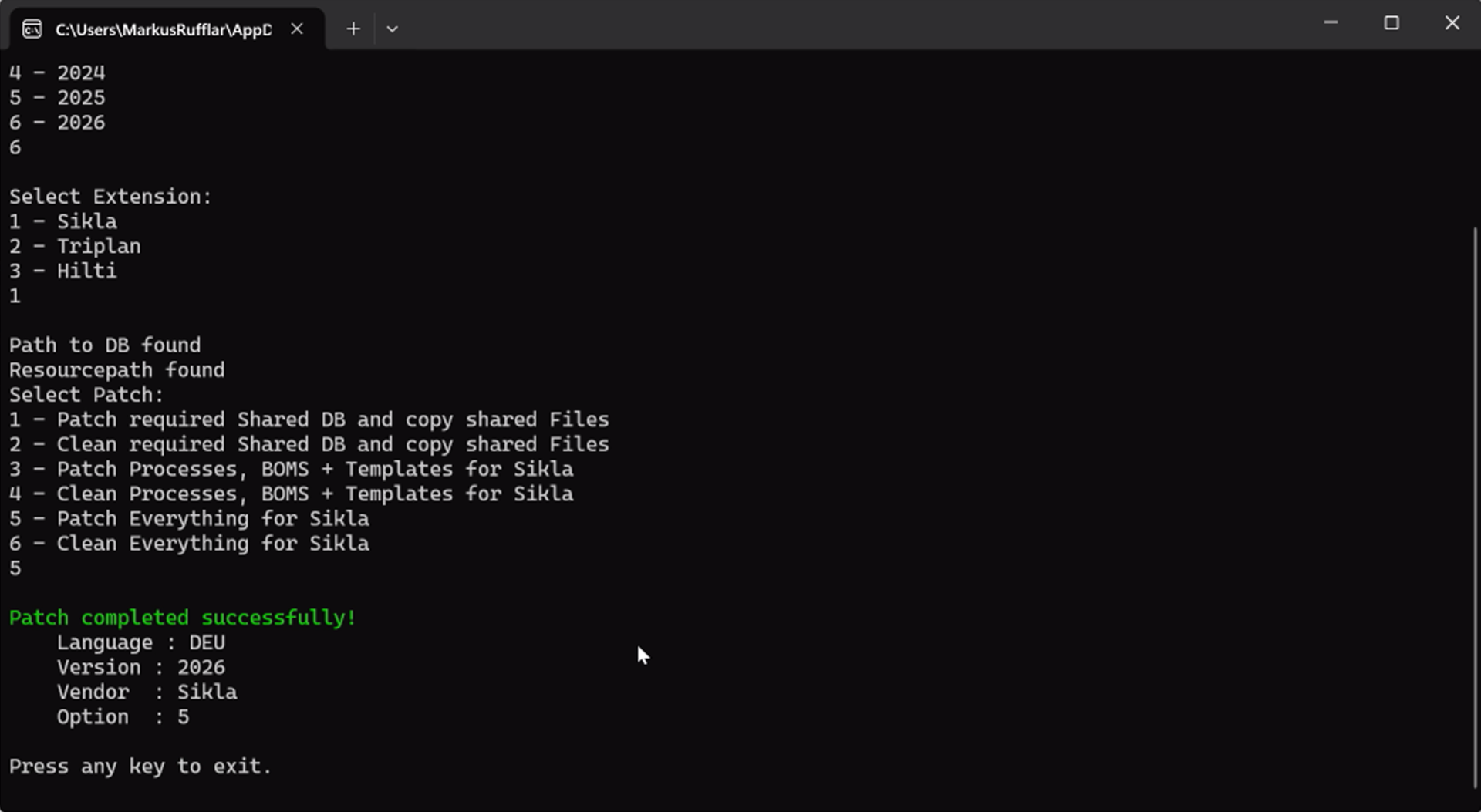
%AppData%\IntegaDesign GmbH\SuCri\Modul3in Windows Explorer. - Run the
SuCri_AS_DB_PATCHER.exeapplication by double-clicking it. -
Procedure for new installation or update:
- If an older version of Module 3 was installed: First select option 6 (Cleanup) to safely reset old structures.
- Restart the patcher and select option 5 to completely regenerate all databases and entries.
- Procedure for existing extensions: If active Module 3 functions are already being used in your environment, select only option 3 to update only the basic information.
Important Notes
-
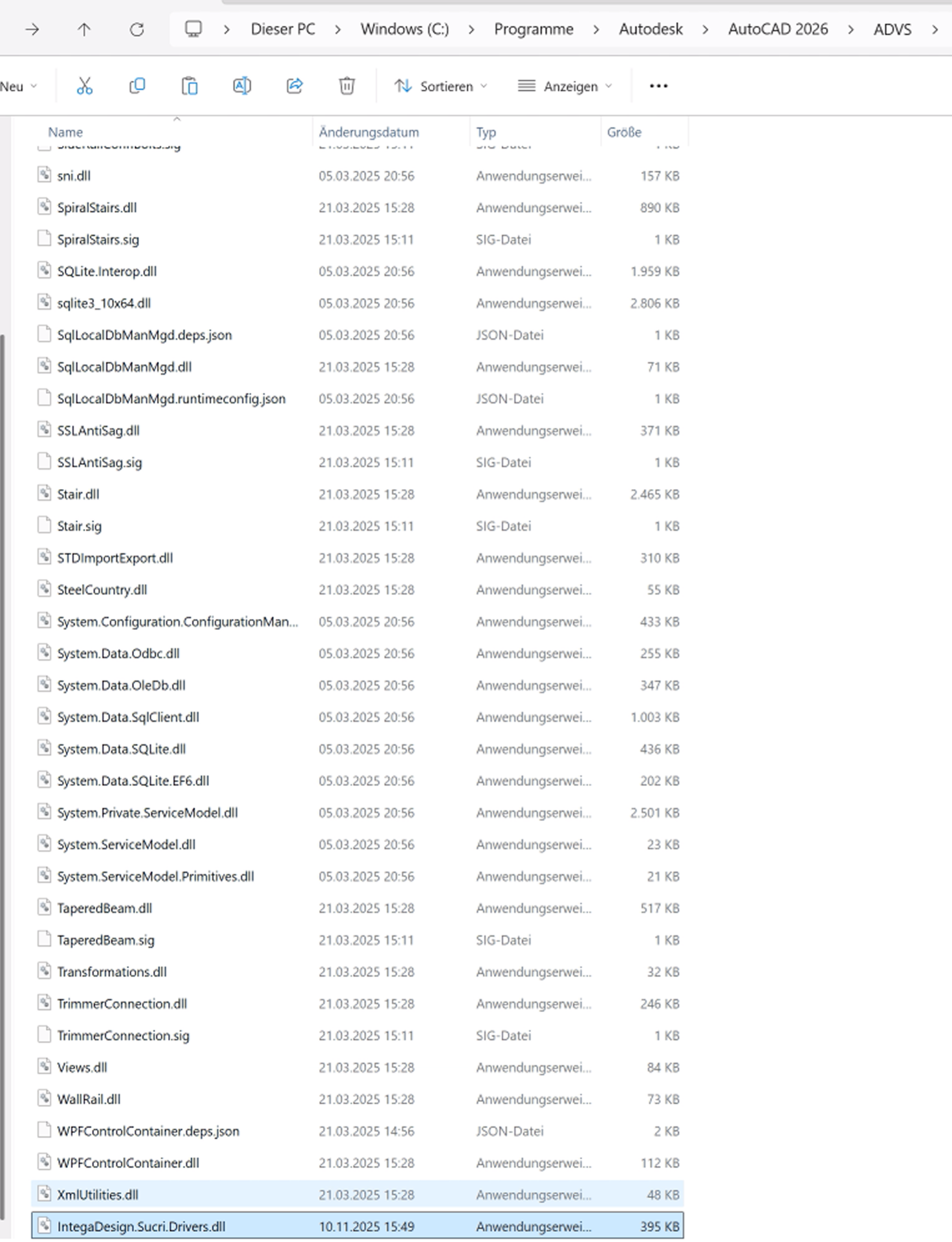
Advance Steel 2025 or newer: A manual copy process is required for these versions. Copy the file
IntegaDesign.Sucri.Drivers.dllmanually.
Source:%AppData%\Autodesk\ApplicationPlugins\SuCri_Modul3.bundle\Binaries\2025
Destination directory (Standard):C:\Program Files\Autodesk\AutoCAD 2025\ADVS - System Permissions: Please note that moving files to the Program Files directory requires administrative rights.
Troubleshooting
Problem: The "All" option is missing in the profile selection within the software.
This behavior usually occurs if incompatible screen scaling or a very high display resolution is active in the Windows system settings.
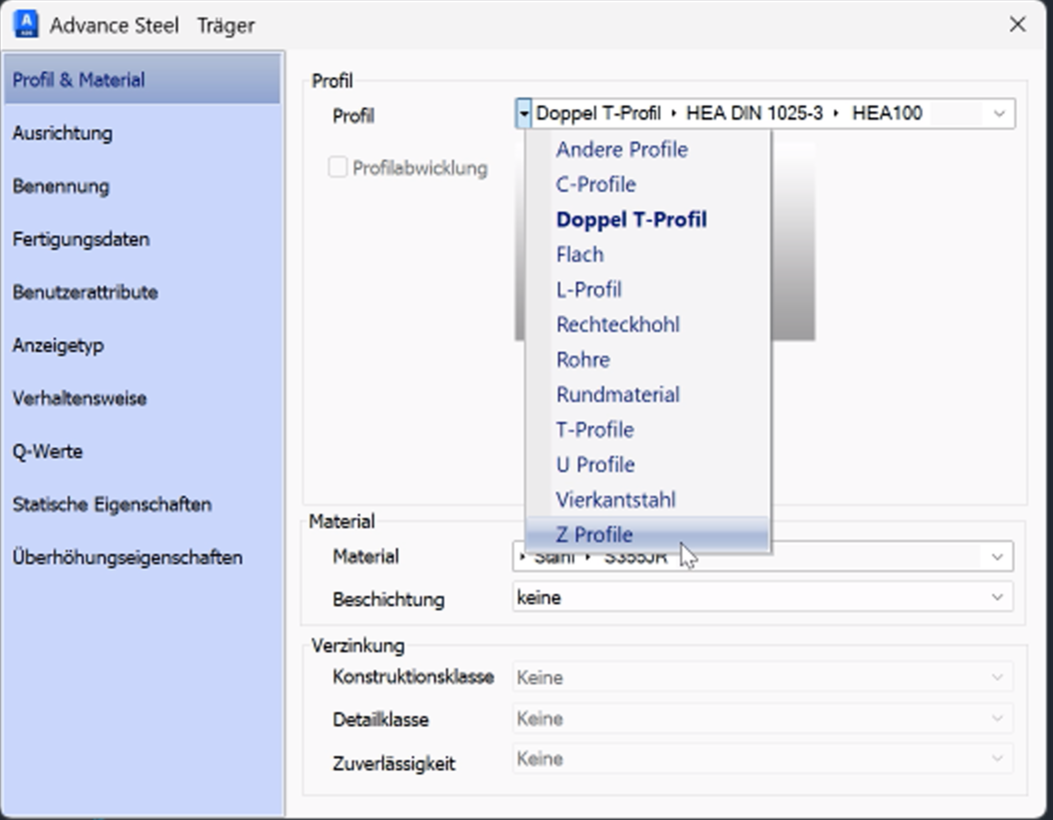
Solution: Adjust the compatibility settings of the Advance Steel shortcut. Enable the Override high DPI scaling behavior option (Setting: System) so that all graphical interface elements can be calculated and displayed correctly.