2.2.3. Module 3 (P3D)
SuCri Module 3 (P3D) – Installation and Configuration
In this guide, you will learn how to correctly install Module 3 for AutoCAD Plant 3D. Using the dedicated installer ensures that all necessary extensions and directories are automatically set up for smooth operation.
Prerequisites
- An active installation of AutoCAD Plant 3D on your system.
- The installation file for Module 3 (P3D).
- Required write permissions for the AppData directory of your Windows user profile.
Step-by-Step Instructions
-
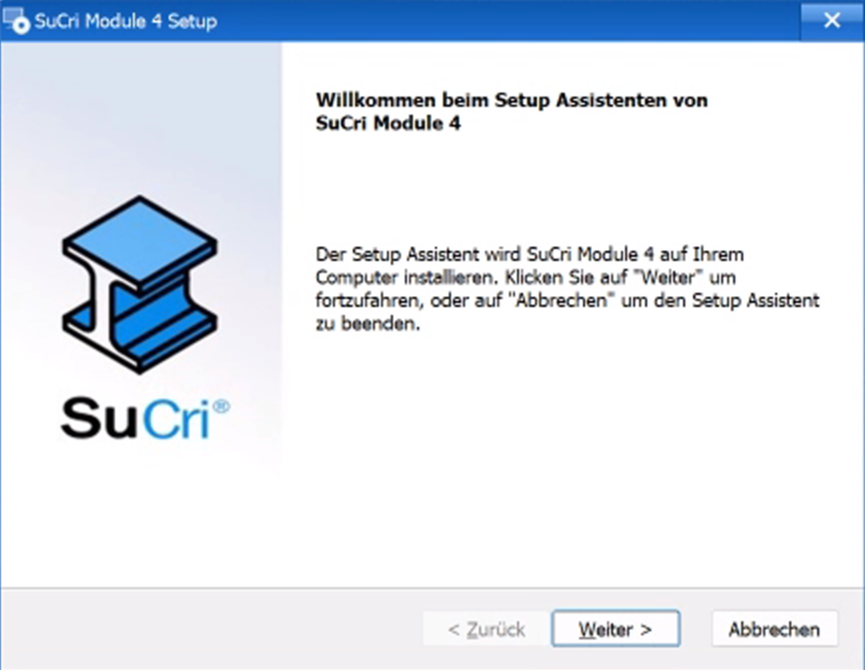
Start the installation by double-clicking the provided installer. Follow the initial on-screen instructions to begin the process.
-
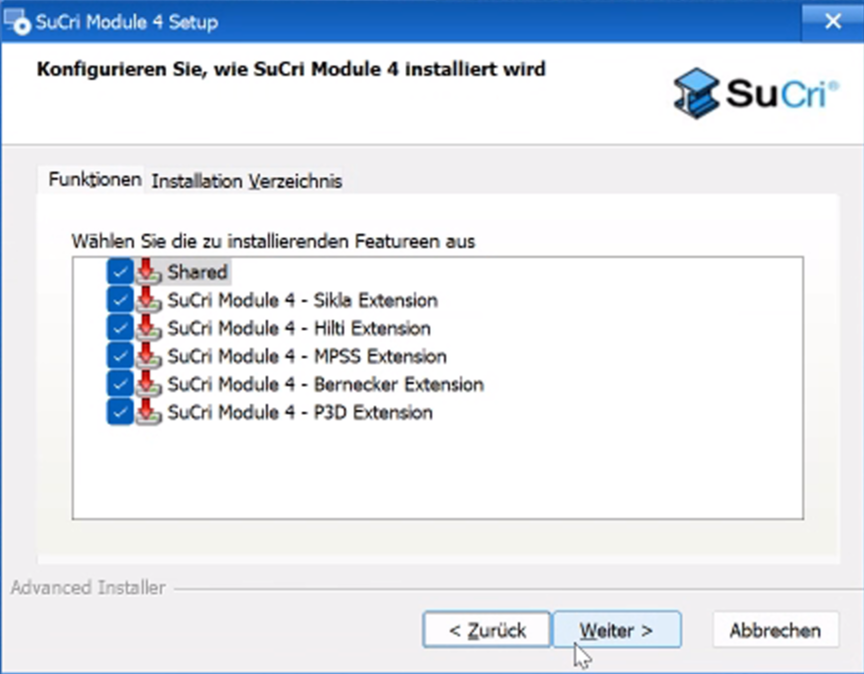
Select your desired extensions in the dialog box that appears. Here you can individually adjust the scope of functions by checking the boxes.
-
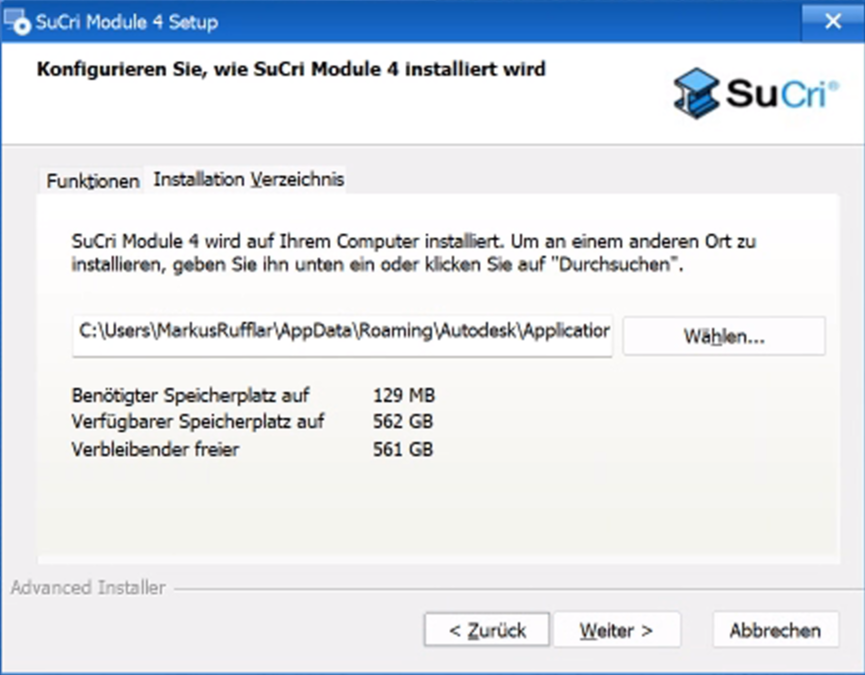
Confirm the installation path. Please note that the software bundle is stored by default in the APPDATA directory of the respective user.
-
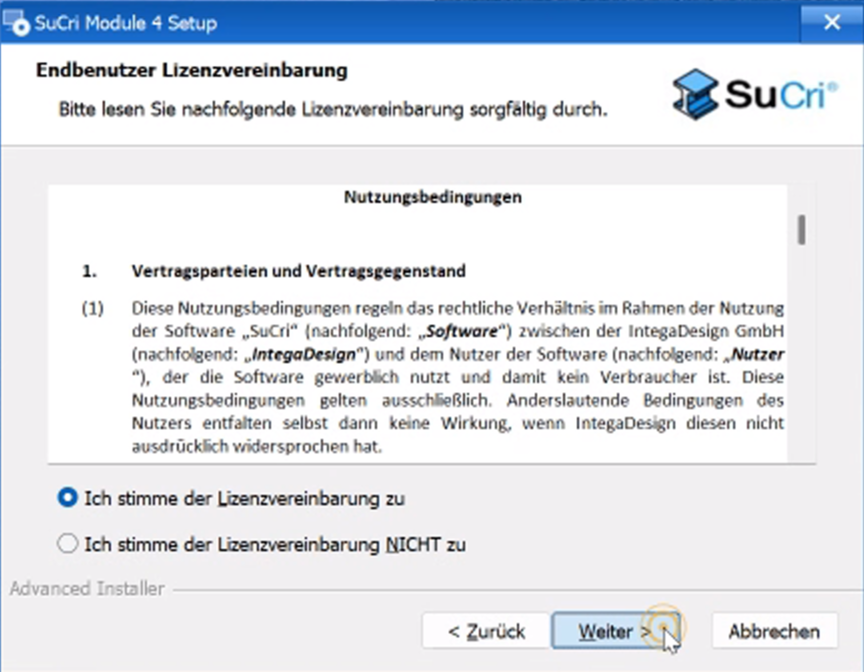
Read and accept the terms of use (End-User License Agreement) to proceed with the installation process.
-
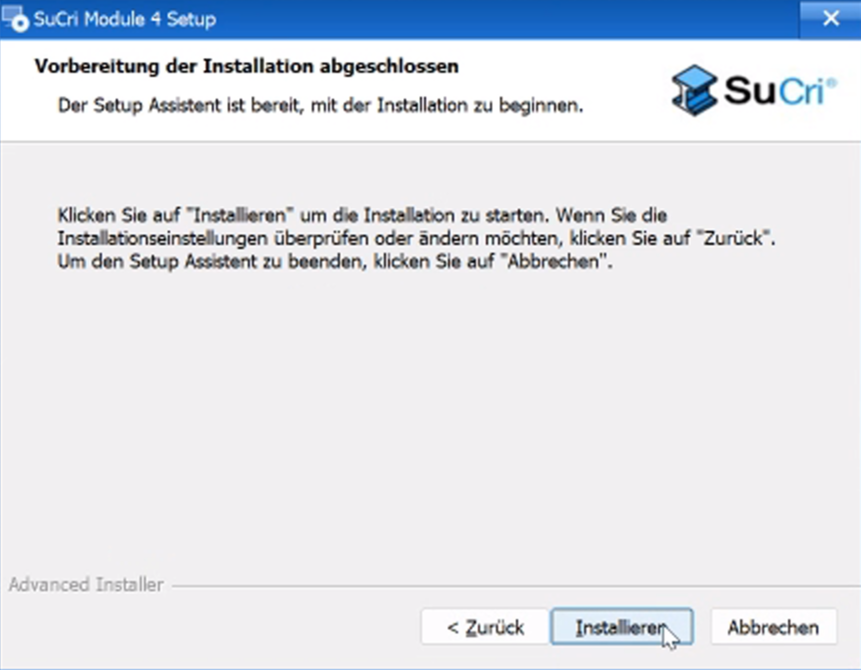
Click the corresponding button to start the actual installation. The files will now be copied to the target directory.
-
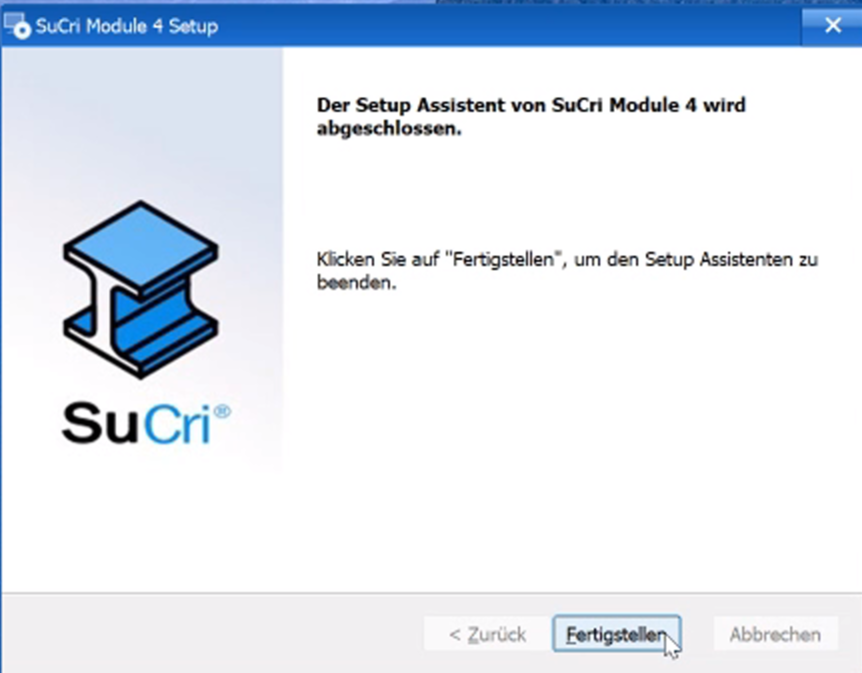
Once the progress bar is complete, click Finish to successfully exit the installer.
Result: Module 3 will now be available directly after the next start of AutoCAD Plant 3D.
Important Notes
- Installation Directory: The bundle is automatically stored in the path
C:\Users\Username\AppData\Roaming\Autodesk\ApplicationPlugins. - Permissions: Ensure that no antivirus software is blocking write access to the AppData directory during installation.
- Updates: When updating the module, you should close all instances of AutoCAD Plant 3D beforehand.
Troubleshooting
- Module does not appear: Check if the folder exists under the specified
ApplicationPluginspath. If not, run the installation again with administrator rights. - Extensions are missing: If certain functions are missing, restart the installer and ensure that all required Extensions are selected in the second step.