2.2.5. Module 4
Module 4 – Installation and Setup
This article describes the complete installation of Module 4 as well as the necessary configuration steps for project templates and bills of materials (BOM). Proper setup ensures that automatic orthographic extractions and mass calculations can be performed without errors in your CAD system.
Prerequisites
- An installed base system (e.g., Autodesk Plant 3D).
- The provided installation program for Module 4.
Step-by-Step Instructions
-
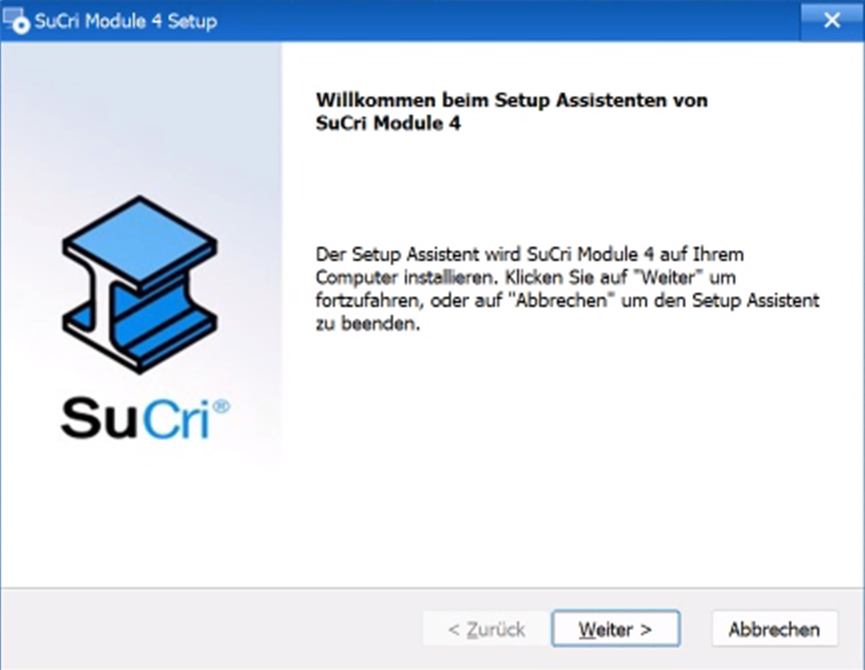
Start Installation
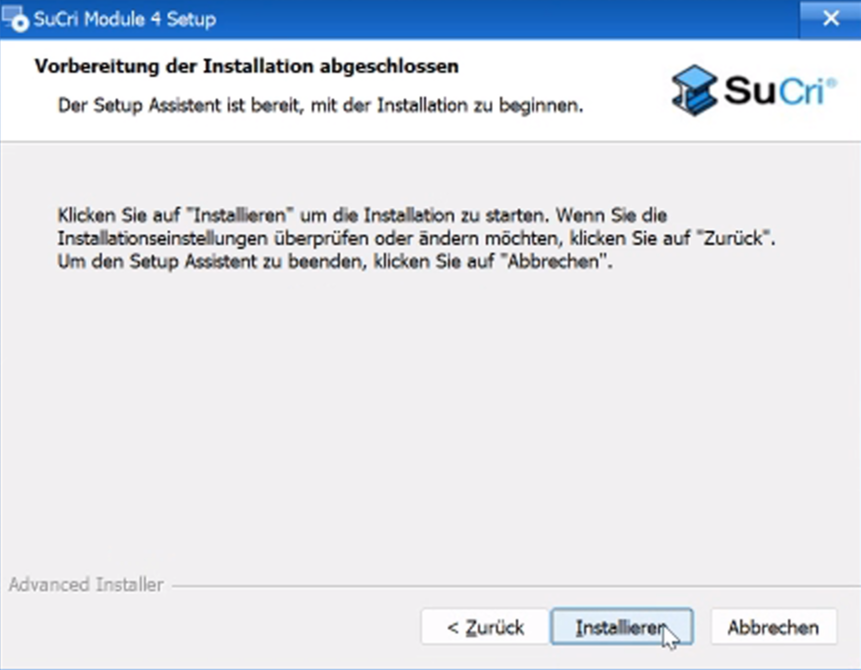
Start the provided installer and follow the on-screen instructions.
The program prepares the components for setup.
-
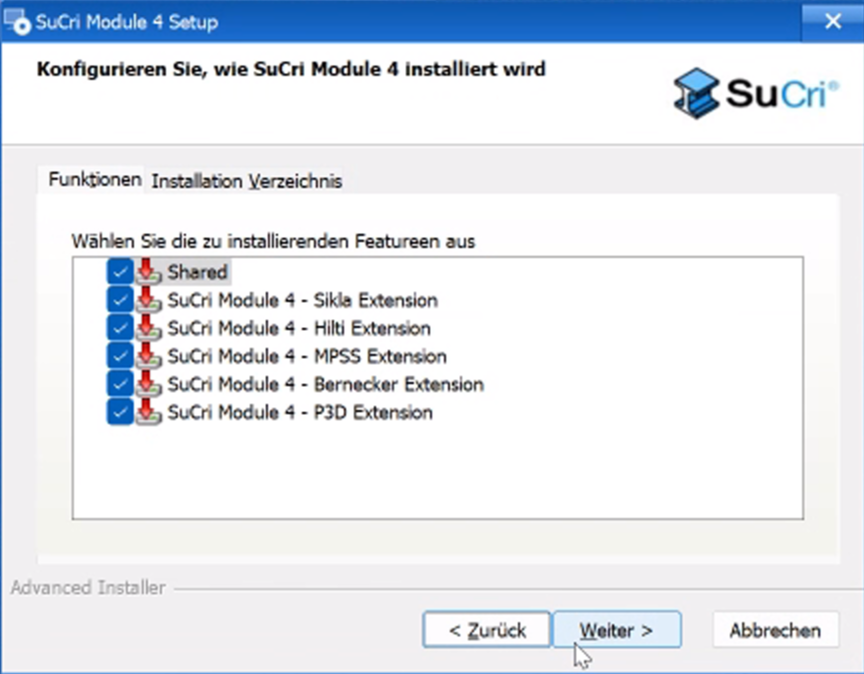
Select Extensions
Select your desired Extensions in the dialog to customize the functional scope individually.
-
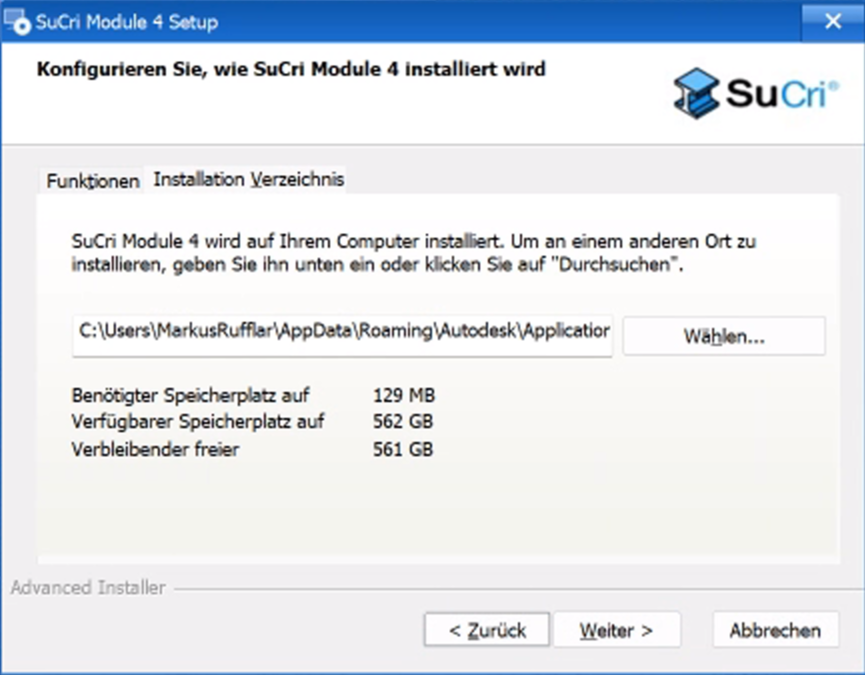
Confirm Installation Path
By default, the program package is automatically installed in the
AppDatadirectory of your user profile. -
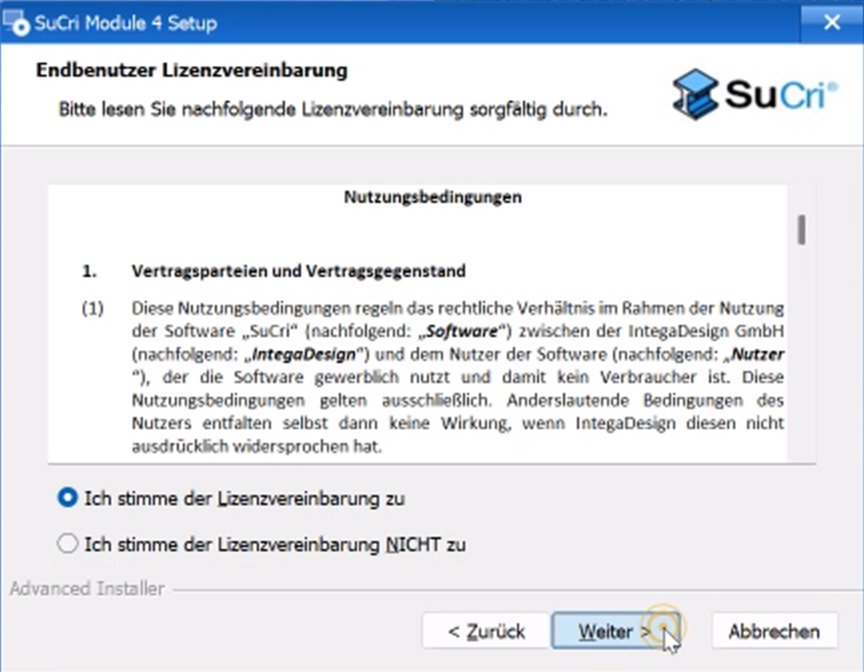
Accept Terms of Use
Read and accept the terms of use to continue the process.
-
Complete the Process
Start the actual installation process by clicking the corresponding button.
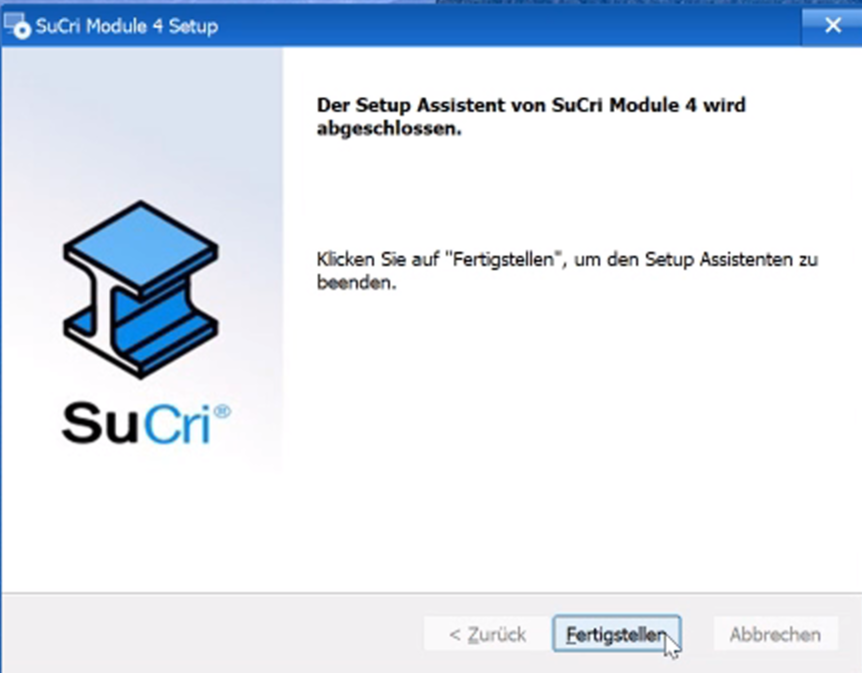
Click Finish after completion. The bundle has been successfully stored in the path
C:\Users\Username\AppData\Roaming\Autodesk\ApplicationPlugins. -
Setting up the Ortho Template
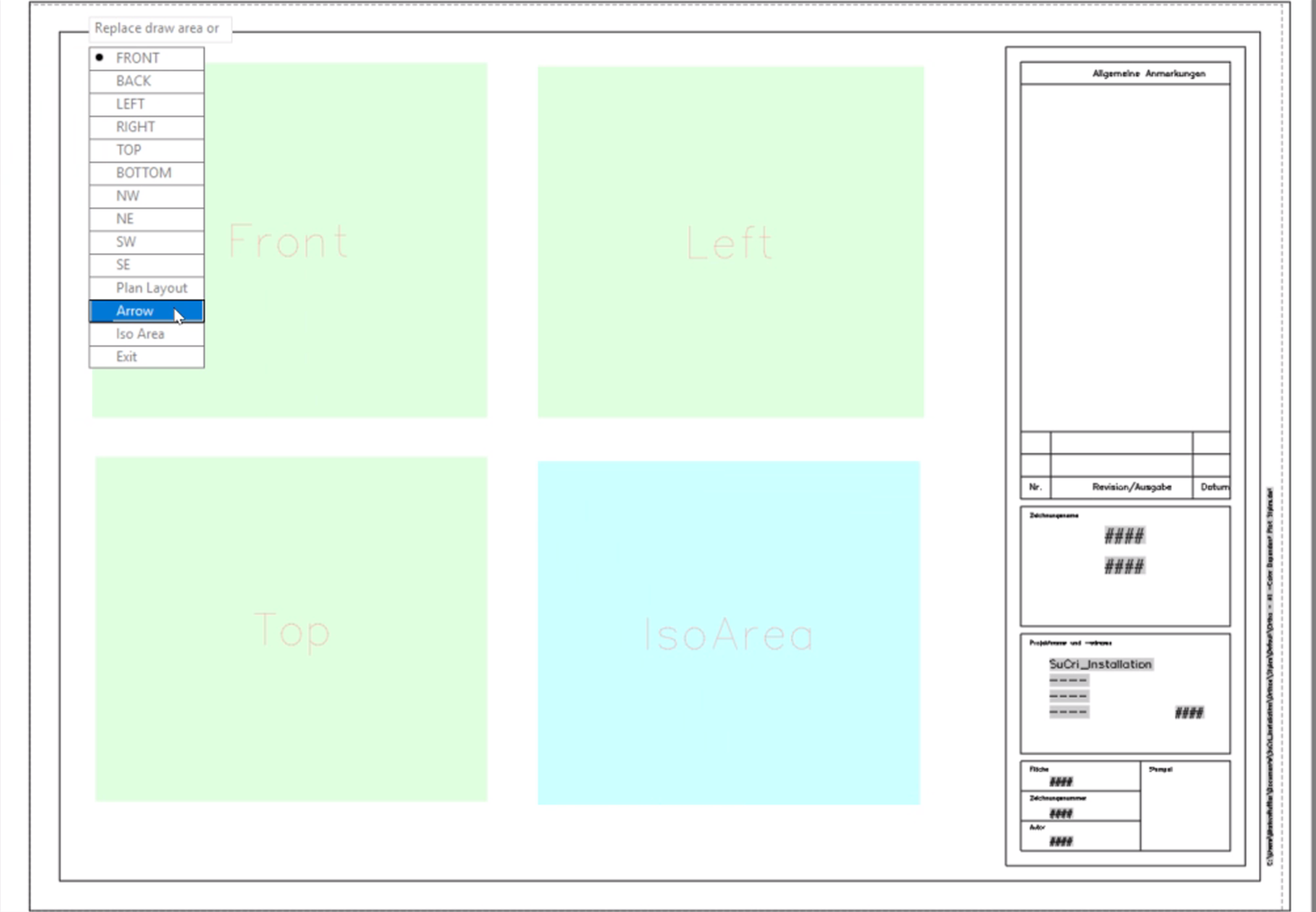
Set up your ortho template. Use the demo videos for guidance and create the required views. This forms the essential basis for all automatic extractions in Module 4.
-
Adjusting the Piping BOM
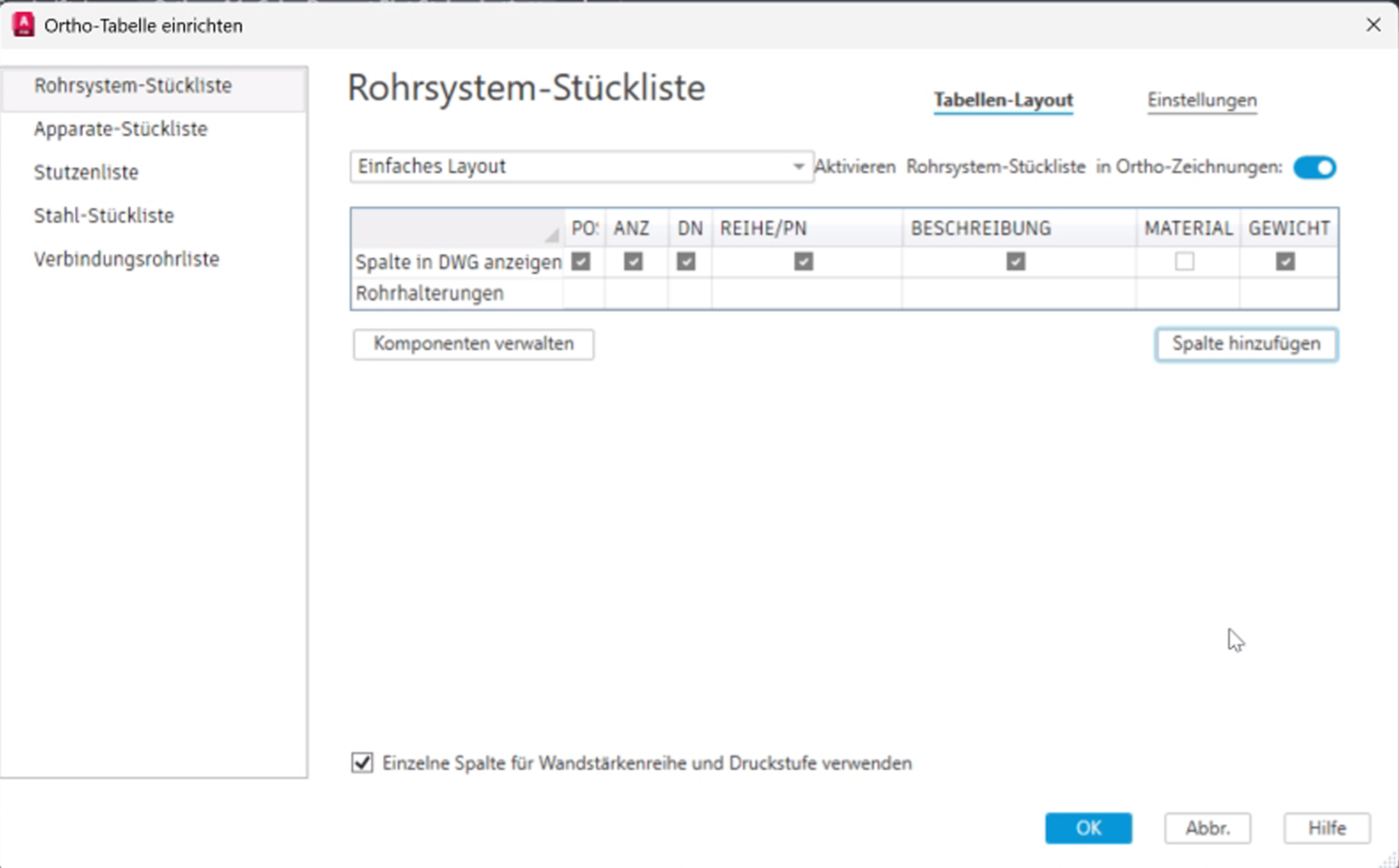
Open the settings for the Piping BOM and click on Manage Components. Deactivate all components except for Pipe supports. Additionally, add the Weight column.
-
Adjusting the Steel BOM
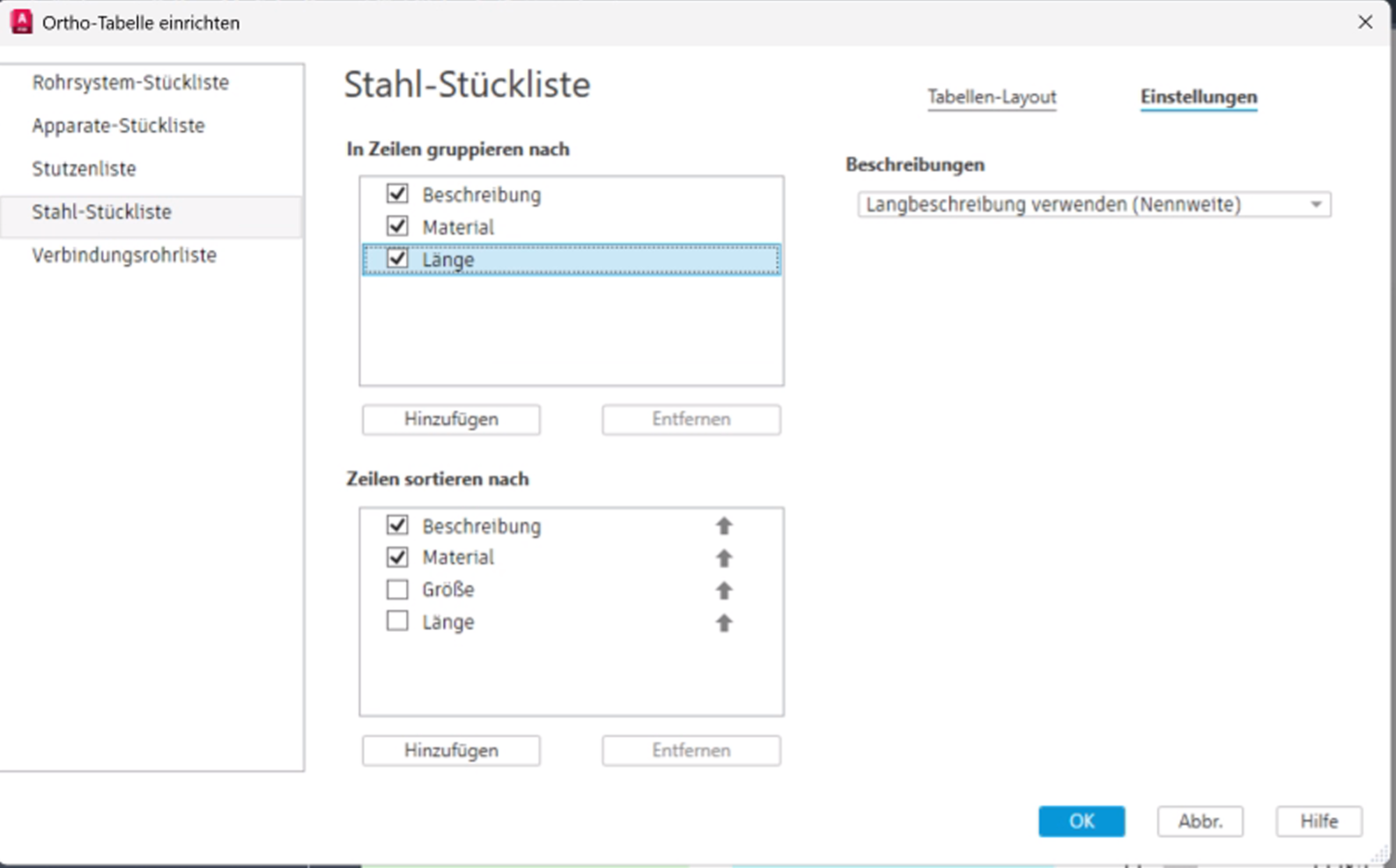
Open the component management of the Steel BOM. Activate only Beams and Plates. Add the Weight column here as well.
In addition, set up Length as a Group Filter. This prevents profiles of the same type with different lengths from being incorrectly combined into a single row.
-
Validation of the Setup
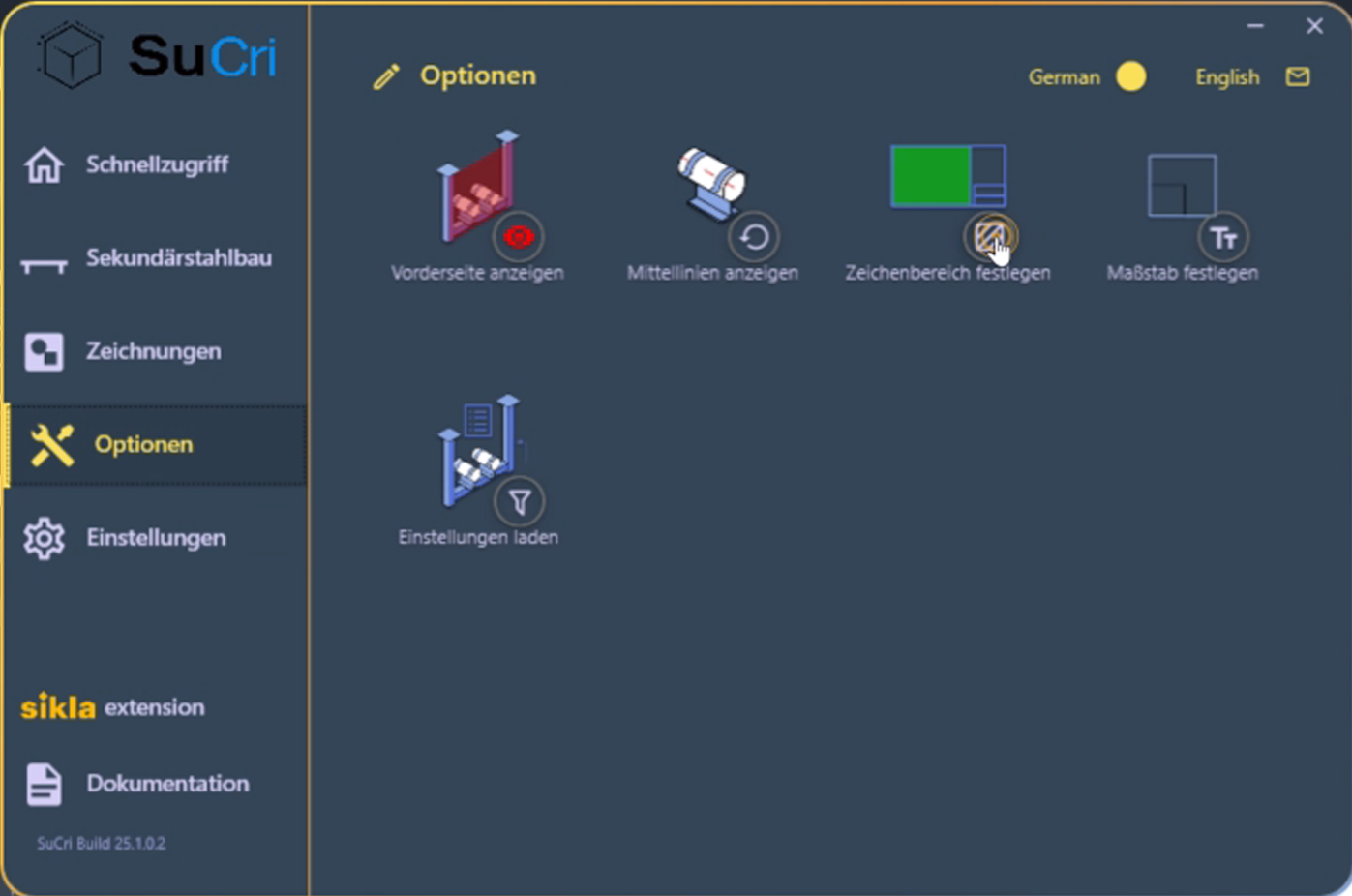
Assign an Assembly Number using the secondary steelwork functions and generate an initial drawing extraction. Expect a correct representation of the components and a consistent bill of materials as the result.
Important Notes
- Template Path: The standard ortho template of a Plant 3D project can be found under the path
Orthos\Styles\Defaultas fileOrtho – A1 – Color Dependent Plot Styles.dwt. - Best Practice: Customize this template individually to match your company's internal standards for layer structures and layouts.
- Precision: Without activating the Length group filter in the BOM settings, a correct quantity and material takeoff is technically not guaranteed.
Troubleshooting
- Missing Weight Information: Check if the Weight column has been correctly added to the BOM settings of the respective template.
- Components are not displayed: Ensure that the correct checkboxes (e.g., for Beams or Pipe supports) are selected in the component management.