Plant 3D MCP
Claude works directly in Plant 3D™
Plant 3D MCP connects Claude, the AI assistant by Anthropic, to your Plant 3D project. Not to lines and blocks, but to what you actually work with: pipe specs, line numbers, tags and the project database. 82 tools, from the line list to the isometric.
About 7 minutes of modelling, in time-lapse
A complete pump station in minutes
Claude builds a pump skid in AutoCAD Plant 3D: base frame, three pumps, suction and discharge lines with valves, instruments and supports. At the end a designer checks the model by hand, because responsibility stays with the engineer.
How you work with it
Simply ask your project
Claude picks the right tool, Plant 3D carries it out.
“List all valves in line 100-P-001 with nominal size and pipe spec.”
“Check the piping for clashes with steel and equipment.”
“Which supports are not on their pipe axis, and where is the support span too long?”
“Create the fabrication isometrics for all lines in area A.”
“Add a platform with railing and stairs to the vessel.”
“Show me the component with tag V-101 in the model.”
Example from the video
You give the instruction, Claude builds in Plant 3D
The pictures show one example: a pump station that Claude built step by step from instructions. This and much more is possible when you work with Claude in a dialogue and tell it what you want to create. What exactly Claude does depends on your instructions.
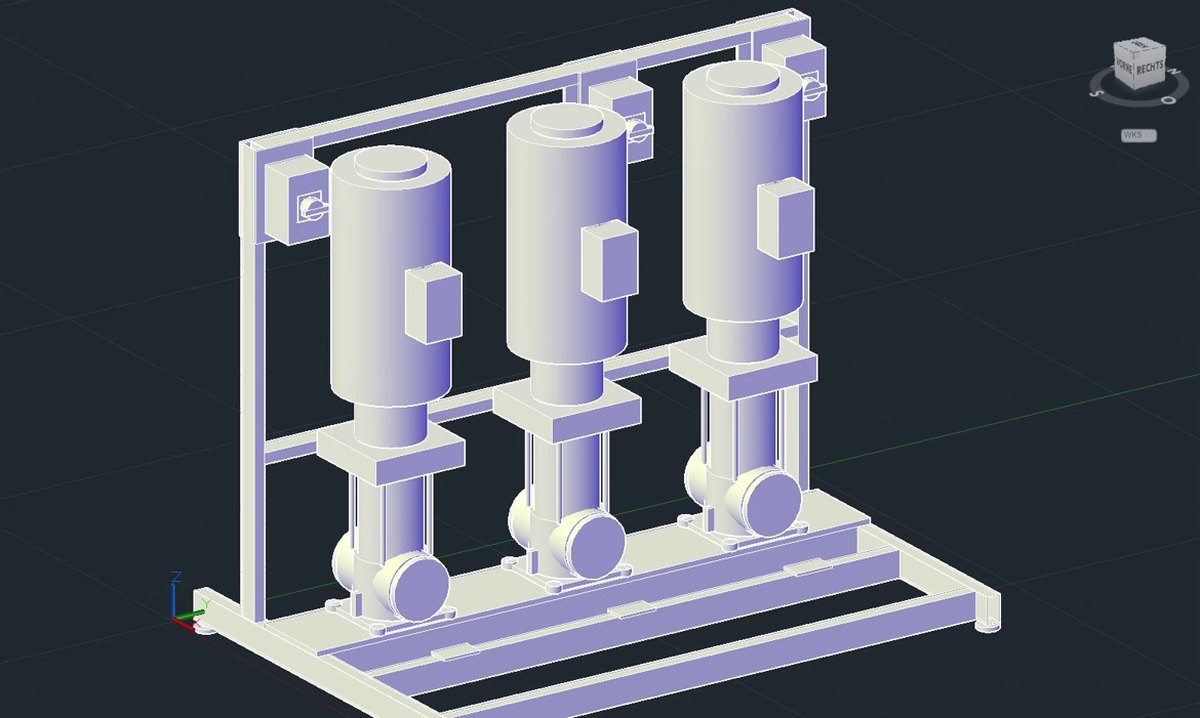
“Build a base frame and put three pumps on it.”
One instruction creates the frame, plates and pumps as real Plant 3D objects. Vessels, platforms or complete steel structures can be described the same way.
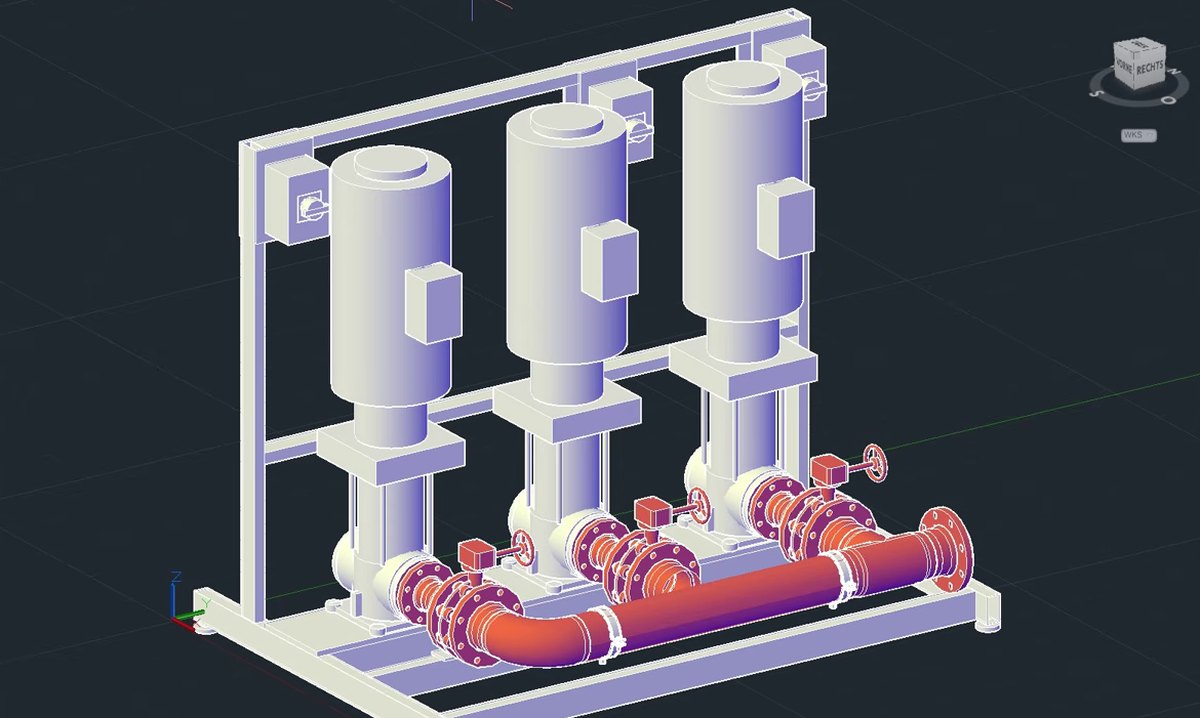
“Connect the suction sides with a header.”
Claude routes pipes and places valves from your project's pipe spec. You decide spec, nominal size and routing, Claude carries it out.
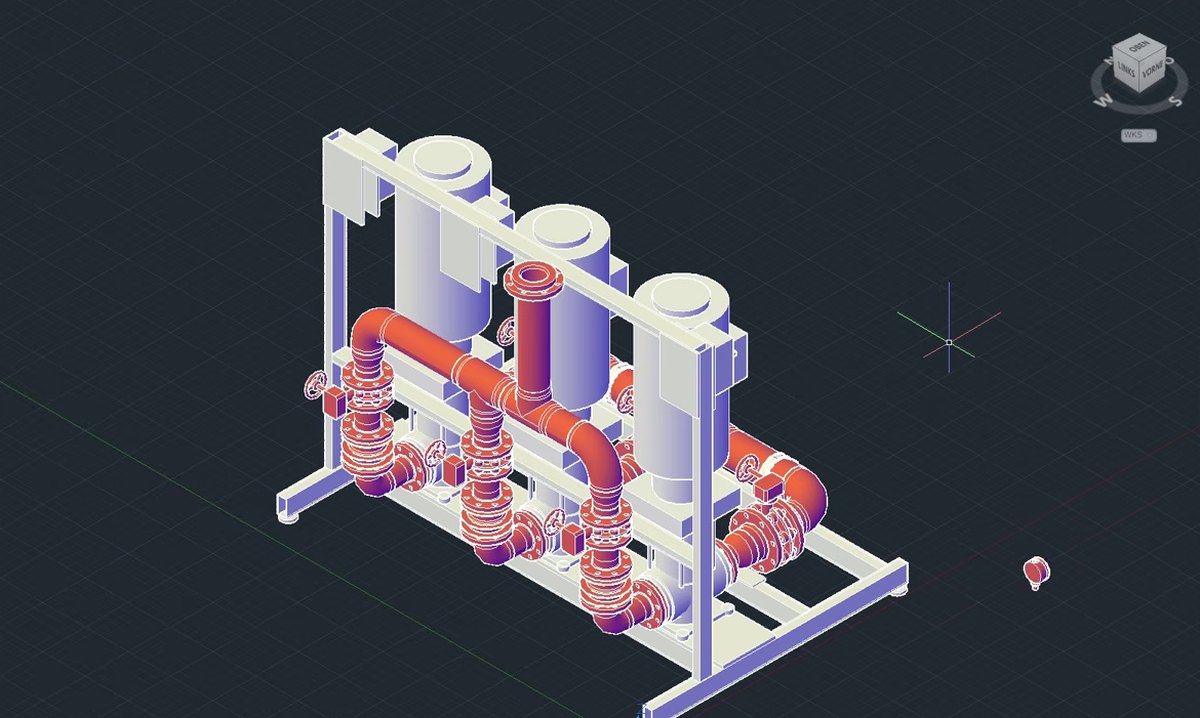
“Now the discharge side with valves, instruments and supports.”
Step by step in a dialogue: you give the next instruction, check the intermediate result and correct it where needed.
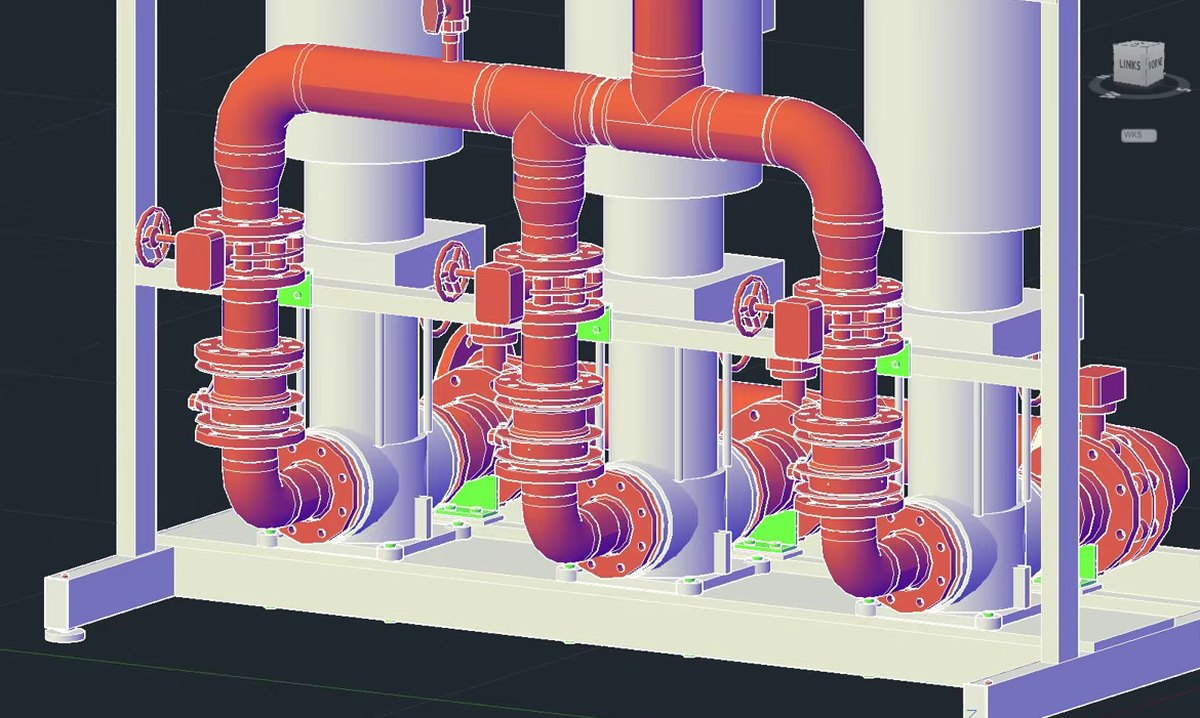
“Check the model for open connections and clashes.”
Claude can also check and evaluate. The engineering check stays with the designer, at the end of the video you see the manual review.
Core functions
82 tools for the whole workflow
Plant 3D MCP talks directly to the Plant 3D programming interface and works with the same objects as your designers. Every tool performs exactly one fixed Plant 3D operation with validated arguments. There is deliberately no tool that runs arbitrary commands.
Reading the project (8)
Line, valve and bill of material lists from the project database, every property of an object, tag search across all classes. Reading queries even work while Plant 3D is closed.
Changing project data (4)
Set properties one by one or in bulk, assign line numbers and merge duplicate line groups. Locked objects are never overwritten.
Working in drawings (9)
Zoom to a component, evaluate your selection, check connections and orphaned ports, manage xrefs, render views for reviews, read site plans and vendor drawings.
Checking a model (7)
Clashes, supports on the pipe axis and support spans, beam orientation, nozzles on the vessel. Plus the search for the best pipe route between two ports.
Building a model (37)
Pipes, routes, fittings and valves from the pipe spec, branches, supports, equipment with nozzles, steel, platforms, stairs, ladders, railings. Also check-in and check-out in collaboration projects.
Taking over an existing model (2)
A plant that only exists as a geometry export becomes real Plant 3D objects: equipment with nozzles, pipes in the right spec, steel by catalogue shape. Anything left as a placeholder is named.
Projects, pipe specs, isometrics (5)
New project from a template, add pipe specs and build them from catalogue pipes, production and quick isometrics per line with status and error log.
P&ID (7)
Place symbols, connect process and signal lines, insert valves and instruments inline, nozzles, linked annotations and off-page connectors.
Orthographic drawings (3)
Read views and their objects, dimension in model units and place Plant annotations with or without a leader.
Safety
Safe, even in a live project
Show first, then write
Changes to several objects come back as a plan and are only carried out after your confirmation.
Locks are respected
Locked objects and line groups are refused, never forced. Bulk changes always need a filter.
It checks its own work
With the checking tools Claude verifies what has just been built. Open dialogs in Plant 3D are reported, not clicked away.
Installation
Connected in four steps
1
Run the setup. It installs the plug-in for your user.
2
Start Plant 3D and open a project. The interface opens by itself.
3
Connect Claude. For Claude Code a single click in the Start menu is enough.
4
Ask for the status of Plant 3D. The answer names your open project.
Requirements: AutoCAD Plant 3D 2025, 2026 or 2027 on Windows and your own Claude account with Anthropic (Claude Code or Claude Desktop). No further software is needed.
Frequently asked questions
All about Plant 3D MCP
Plant 3D MCP is a free add-in by IntegaDesign that connects Claude, the AI assistant by Anthropic, to AutoCAD Plant 3D. It provides 82 tools that let Claude read and change project data, build and check models, and work on isometrics, P&IDs and orthographic drawings.
The Model Context Protocol is an open protocol that AI assistants use to work with software on your own computer. Plant 3D MCP publishes AutoCAD Plant 3D over this protocol as a set of fixed tools. Claude decides which tool to call, and each tool performs exactly one Plant 3D operation.
Plant 3D MCP works exclusively with Claude by Anthropic, in Claude Code or Claude Desktop. You need your own Claude account. For Claude Code a Start menu entry connects the add-in with one click.
AutoCAD Plant 3D 2025, 2026 and 2027 on Windows are supported. The package contains its own bridge for each release, no further software is needed.
Plant 3D MCP is free of charge. We provide it as is and without support. The cost of your Claude account depends on the plan you choose with Anthropic.
Claude can read line, valve and bill of material lists from the project database, set properties and line numbers, build pipes, valves, equipment, supports and steel, check clashes and supports, create isometrics and work on P&IDs and orthographic drawings. What exactly is created depends on your instructions.
Reading queries do. When Plant 3D is closed, the tool reads the project files directly, for example for a line list. Tools that write or work in a drawing need a running Plant 3D and say so.
Changes to several objects first come back as a plan and are only carried out after confirmation. Locked objects and line groups are refused, bulk changes need a filter, and open dialogs in Plant 3D are reported instead of clicked away. Still, always work with backups.
Plant 3D MCP itself sends nothing to the internet. Claude, however, reads the results of the tools and transfers them to Anthropic. You decide which data you give to Claude and you are responsible for it. With personal Claude accounts you should turn off the use of your data for AI training in Claude's privacy settings.
Run the setup, start Plant 3D with a project and use the P3DMCP command to check that the interface is open. Then connect Claude, for Claude Code via the Start menu entry. As a test, ask Claude for the status of Plant 3D.
Please read before use
Use at your own responsibility
We provide Plant 3D MCP free of charge, without warranty and without support.
- Your own Claude account is required. Plant 3D MCP works exclusively with Claude. You need your own Claude account with Anthropic. This account and the related contract are your responsibility and not part of our offer. We do not provide a Claude account and have no influence on Anthropic's service.
- Scope of access. As soon as you connect Claude to Plant 3D MCP, Claude can in principle access all data of the open Plant 3D project: project database, drawings, pipe specs, tags and file paths. Depending on how you have set up Claude, for example which folders, programs and permissions you grant Claude Code, access can go beyond that, up to further files on your computer. Only give Claude access to what it needs for the task.
- Your data, your responsibility. Plant 3D MCP itself sends nothing to the internet. Claude, however, reads what the tools return and transfers this information to Anthropic's service. You alone decide which information you or your staff give to Claude. You are fully responsible for the lawfulness of this transfer, in particular under data protection law, and for keeping any confidentiality obligations towards your clients. We accept no liability for this.
- No support, as is. We publish Plant 3D MCP as is. There is no entitlement to support, advice, bug fixes, updates or adaptations. We are happy to receive feedback and bug reports, but we cannot promise an answer or a fix.
- Check the results. Whatever is created with the help of Claude is a suggestion. Model changes, lists, isometrics and drawings must be checked by a qualified person before any use. The engineering responsibility for your design remains with you.
- No warranty, limited liability. As we provide the software free of charge, we give no warranty for freedom from errors, fitness for a particular purpose or availability, and accept no liability for work results, data loss or consequential damage. This does not affect our liability for intent and gross negligence, for fraudulently concealed defects, for injury to life, body or health, and under the German Product Liability Act.
- Back up your projects. Work with backups and, where possible, on a copy of your project first.
Important: turn off the use of your data for AI training
With personal Claude accounts (Free, Pro, Max and Ultra) you decide whether Anthropic may use your chats and also your Claude Code sessions to train future models. If you allow it, Anthropic keeps this data for up to five years, otherwise generally for 30 days. Before you point Claude at project data, make sure that training is turned off:
- Sign in at claude.ai with the account you also use for Claude Code or Claude Desktop.
- Open Settings from your profile and then Privacy. Direct link: claude.ai/settings/data-privacy-controls
- Switch the option “Help improve Claude” off.
- Then start a new session. The setting applies to new and resumed chats and sessions, not to data that has already gone into training runs in progress.
For use in a company we recommend a Claude Team or Enterprise account. According to Anthropic, inputs there are not used for training by default. Check Anthropic's current terms yourself, names and settings may change.
The licence agreement supplied with the download in German and English is authoritative.
Free download
Request Plant 3D MCP free of charge
Fill in the form and we will send you the download by email.
82 tools for Plant 3D 2025, 2026 and 2027
One click to connect Claude Code
From our daily project work
Free of charge, no support (as is)