4.10.2. Detect high and low points
On this page
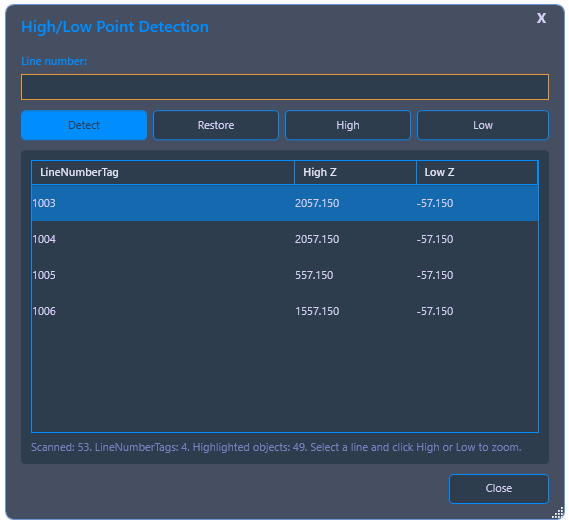
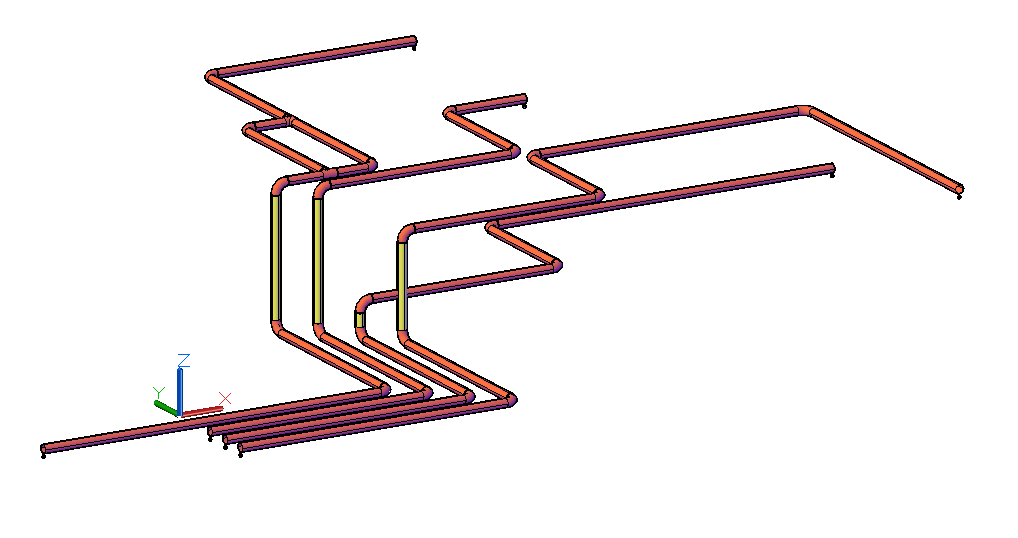
Determines the highest and lowest coordinates – either for the entire current drawing or for a single line number. The two points are highlighted in red in the 3D model and also displayed as text information in the dialog.
Ribbon button: Design > Detect High/Low Point
Command: PiCriHighLowPoint
Procedure:
- Start the command. Click Detect. PiCri determines the highest and lowest coordinates of all line numbers, highlights the associated locations in red, and displays the values as text.
- Use High and Low to zoom directly to the respective point in the model.
- Use Reset to remove the red highlight.