2.2.7. Uninstalling modules correctly
On this page
A clean uninstallation is crucial to ensure that no conflicts occur during later updates or reinstallations. Residues in the Autodesk directories can lead to loading errors, damaged functions or faulty project data.
Prerequisites
- Make sure that AutoCAD Plant 3D or Advance Steel are completely closed during the process, as running processes can prevent the deletion.
- You need administrator rights to access the Control Panel and the program directories.
Step-by-step instructions
- Open the Windows Control Panel and navigate to the Add or remove programs section.
- In the list of installed programs, look for the corresponding SuCri module or a related entry from IntegaDesign GmbH.
- Click Uninstall and follow the displayed instructions until the process is complete.
- Check the local Autodesk content areas under the path
C:\AutoCAD Plant 3D 20XX Contentas well as in project-related content folders. - Check whether the folder CPak IntegaDesign has been removed and make sure that the file StructuralCatalog.acat is no longer present within CPak Common.
- Navigate to the folder Customscripts and manually remove all entries that are assigned to the SuCri modules.
- Check the Autodesk user directory under the path
%AppData%\Autodesk\ApplicationPlugins. There, delete all entries (e.g. .bundle folders) that contain the name of the module or the SuCri extensions. - Finally, check the internal working directory under
%AppData%\IntegaDesign GmbHand delete it if necessary.
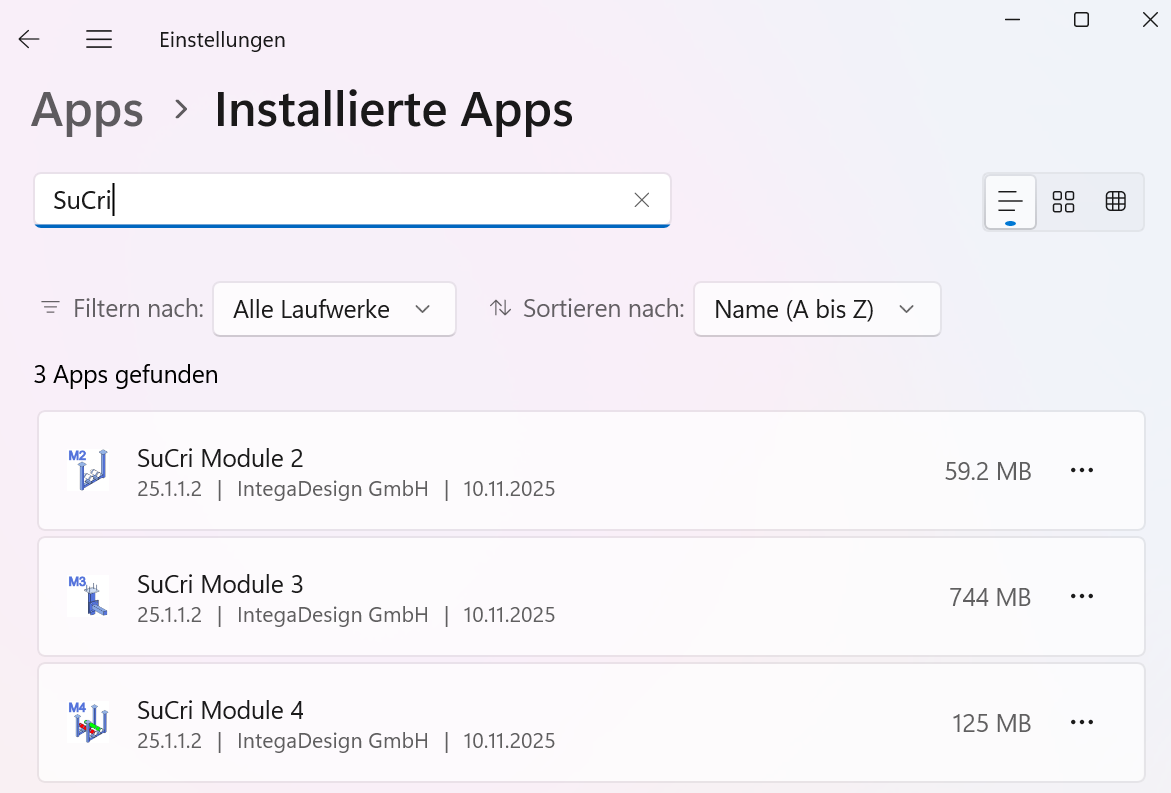
Expected result: After completing these steps, the module as well as all associated temporary data and configurations are completely removed from the system.
Important notes
- Data cleanup: The manual check of the directories is necessary because the Windows uninstallation often does not remove user-specific application data or reloaded content.
- Safety: By removing the working directory under AppData, you ensure that no old status values or outdated patcher information are carried over during a reinstallation.
Troubleshooting
- Files cannot be deleted: Make sure that no Autodesk background process is still active. If necessary, use the Task Manager to end remaining processes.