4.2.27. MTO Heights (SuCri2GetTotalHeight)
On this page
Overview
With the SuCri function MTO Heights you export the heights of all supports of the current drawing or of selected drawings of the project. The export is in Excel format and provides a clear list for further processing and documentation.
Where can I find the function?
"SuCri" tab > "Module 2" panel > manufacturer button of your licensed catalog > Dashboard > Quick Access (or Reports) > MTO Heights.
Alternatively in the SuCri tool palette under MTO & Reports > Heights. You open the palette in the dashboard via the pin icon in the title bar ("Pin to tool palette"). The command SuCri2GetTotalHeight can also be entered directly in the command line.
Plant 3D™ command
Property | Value |
| Command | SuCri2GetTotalHeight |
Icon | |
| Ribbon | SuCri > Module 2 > manufacturer button > Dashboard > Quick Access > MTO Heights |
| Tool palette | MTO & Reports > Heights |
| Keyboard shortcut | No default shortcut |
Video
How it works in detail
1. Open the project
- In AutoCAD Plant 3D, open the project with the supports to be exported.
- Expected result: The drawings are available in the Project Manager.
2. Call the "MTO Heights" command
- Start MTO Heights via the dashboard, the tool palette (Heights) or the command line.
- Expected result: The Select Drawings dialog opens.
3. Select drawings
- Under Drawing Source, select Current Drawing or Project, and for Project, mark the desired drawings.
- Confirm with OK.
- Expected result: SuCri reads the supports of the selected drawings and opens the save dialog.
4. Specify the location for the Excel report
- In the Save Excel Report dialog, SuCri suggests the file name "Total Height Project <project name> <time date>.xlsx".
- Select the desired directory, adjust the name if necessary and click Save.
5. Check the exported data
- After saving, Microsoft Excel opens automatically with the new file.
- Check the height values. The export template defines which columns the report contains.
- Expected result: The support heights are displayed clearly.
Settings
"SuCri" tab > "Settings" panel > Settings (command SuCriSettings), "Module 2" area:
- Export templates tab: With Total Height template > Open you change the layout and columns of the report in Excel; later exports use the modified template.
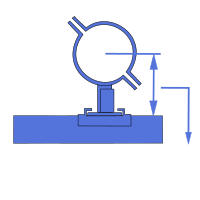
- General tab, MTO export group: Height reference in MTO (options: Top of pipe (TOP), Center of pipe (COP), Bottom of pipe (BOP); default value: Center of pipe (COP)) defines which point of the pipe the height of pipe shoes in reports refers to.
Application examples
Example 1: Height list for installation
You select the drawing source Project, mark all drawings of a construction section and receive a height list of all supports in an Excel file.
Example 2: Checking a single drawing
With the drawing source Current Drawing, you can quickly check the heights in the open drawing after changes.
Tips and best practices
- Scope: The drawings selected in the Select Drawings dialog are evaluated, not just the drawing in the foreground.
- Detection: Only elements that are correctly defined as "supports" in the system are exported.
- Performance: For very large projects, generating the Excel list can take some time.
Troubleshooting
- Excel does not open automatically: Check whether
.xlsxfiles are correctly associated with Microsoft Excel in Windows. Otherwise, open the file manually from the selected directory. - "No drawings selected. Operation cancelled.": With the drawing source Project, no drawing was marked.
- Missing supports in the report: Check whether the drawings concerned were selected in the dialog and whether the supports are not on frozen or hidden layers.
- Error message when calling the command: Check whether your SuCri plugin is up to date or, if necessary, contact IntegaDesign GmbH technical support.
Related articles
- MTO, exports the bill of materials of the supports.
- Load settings (SuCri2LoadSetting), describes the export templates.
Copyright © 2026 by IntegaDesign GmbH. All Rights Reserved.