4.5.7. Detach (SuCri4DetachSupport)
On this page
Overview
Detach removes individual components from an existing assembly. It is not sufficient to delete the SuNo in the properties of a component by hand, as the assembly would otherwise remain inconsistent.
This is needed when an already derived layout is to be adjusted afterwards.
Where can I find the function?
In the Module 4 window under Detach. Alternatively via the command line with SuCri4DetachSupport.
Plant 3D™ command
| Property | Value |
|---|---|
| Command | SuCri4DetachSupport |
Icon | |
| Ribbon | SuCri tab, Module 4 group, in the Module 4 window under Detach. |
| Keyboard shortcut | No default shortcut |
| From version | SuCri 25.1.1.1 |
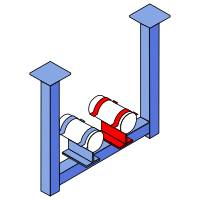
Video
How it works in detail
You select the objects to be removed and confirm with Enter. SuCri asks whether the cube should be regenerated, which you confirm. The assembly is then redefined.
Do not forget the associated anchors; they are usually located at the bottom of the component and must be detached as well. You can check the result at any time with the Select function: click a part, and everything that still belongs to it is highlighted.
Application examples
Example 1: Cleaning up a layout afterwards
The derived drawing shows parts that do not belong on the drawing. You detach them from the assembly, have the cube regenerated and update the view.
Example 2: Removing feet from the bill of materials
The base plates are procured separately and should not appear in the bill of materials of the assembly. After detaching, they disappear from the list and the layout.
Tips and best practices
- Not via the properties: Removing the SuNo by hand is not enough and leaves an inconsistent assembly.
- Include the anchors: They are easily overlooked and otherwise remain as leftovers in the assembly.
- Cross-check with Select: The quickest way to check the result.
Related articles
- Selection, shows what currently belongs to the assembly.
- Attaching, the basic command of Module 4, combining components into an assembly.
- Module 4, overview of all functions of Module 4.
Copyright © 2026 by IntegaDesign GmbH. All Rights Reserved.