2.3. First run, First steps
On this page
SuCri module, first run and licensing
After a successful installation, you start SuCri directly from Autodesk Plant 3D or Advance Steel. In this article you will learn how to register the software on first run, activate the license and add the required pipe specs to your project.
Prerequisites
- Successfully completed installation of the software.
- An active internet connection for license registration and activation.
- A project already open in Autodesk Plant 3D or Advance Steel.
Step-by-step guide
-
Open the Licencemanager: In the SuCri ribbon, in the Licences group, click the Manager button (padlock icon). Alternatively, enter the command
SuCriShowLicenseManager. -
Register a trial version: In the license manager, click the button with the key with plus icon. The Registration window opens.
-
Enter Name, Company name and Email in the input fields.
- Open and read the terms via the our terms link, then tick the checkbox and click Register (German interface: Registrieren). The 15-day trial license is activated directly on this computer.
- Activate a purchased license: In the license manager, first click the Login button. The actual license manager then opens. Enter your company license key there. You will then find your company licenses on the Customer licenses tab. Click Retrieve customer licenses, select the desired product in the license list and transfer the license to your computer with the Pull button. You activate a single license on the Single license tab with your license key via Activate license.
- Add pipe specs: Open the Project Manager in Plant 3D, navigate to Pipe specs, right-click and select Copy specs to project... and load the supplied pipe specs from the IntegaDesign Cpak folder.
- Activate the pipe spec: In the ribbon, go to the Home tab > Part Insertion group, select the SuCri pipe spec and place a first component in model space.
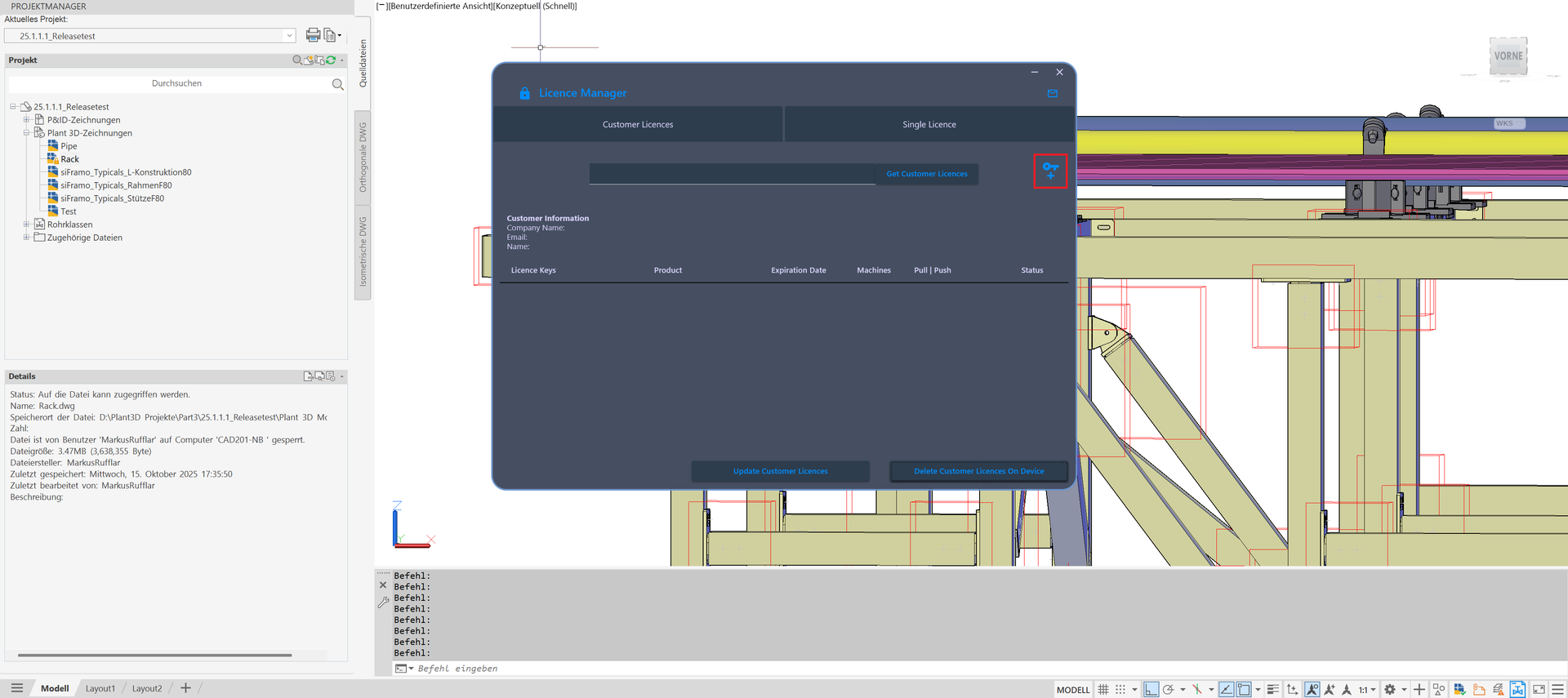
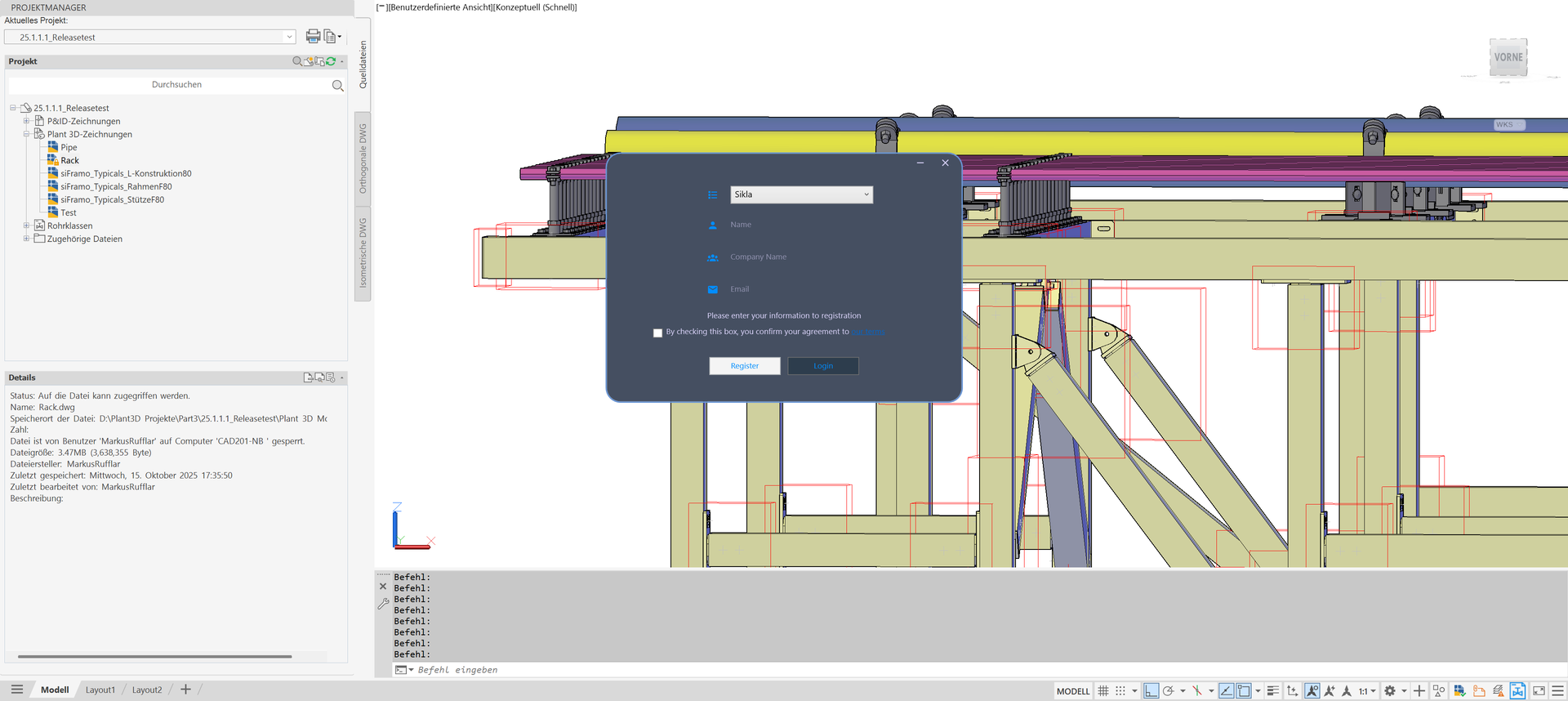
Expected result: In the SuCri ribbon, the buttons of your licensed manufacturers appear in the module groups. Components can now be placed correctly in the model from the selected pipe spec.
Important notes
Tip: If you want to transfer the license to another computer, simply release it again in the license manager using the Push function. The license can then be obtained on another workstation via Pull.
- Make sure that the license is shown as active (green) in the license manager.
- Note that an internet connection is strictly required for the Pull (obtain license) and Push (release license) functions.
- With the command
SuCriAutoPullLicenseyou specify whether activated licenses are pulled automatically at startup (answer Yes or No). - You change the language of the interface, including that of the license manager, in the SuCri ribbon under Settings. It applies to all modules.
- The document SuCri Getting Started & command overview offers a compact introduction to working with SuCri.
Troubleshooting
- Ribbon not visible: Check whether the module's bundle folder (for example
SuCri_Module2.bundle) exists under%AppData%\Autodesk\ApplicationPluginsand whether your Plant 3D version is supported by this SuCri version (see 2.1. System requirements). - Manufacturer button missing: A manufacturer button only appears if your active license includes that manufacturer. Check the license status in the license manager.
- Message "Email already registered": An account already exists for this email address. Use the Customer licenses tab or contact our support.
- Message "Please read our terms before you agree.": First open the our terms link and then tick the checkbox.
- Components missing from the selection: Check whether the pipe specs were actually copied into the current project. A reference to the global catalog folder is often not sufficient for active use in the project.
- License status stays red: Check your firewall settings. The license manager must be able to communicate with the registration server.
Related articles
Copyright © 2026 by IntegaDesign GmbH. All Rights Reserved.