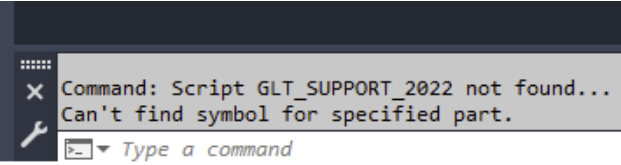
8.2.1. Error message: "Can't find symbol for specified part"
On this page
Learn how to resolve the error message "Can't find symbol for specified part" in Plant 3D. A correct configuration of the paths and scripts is essential for the error-free placement of components.
Prerequisites
- You are using Autodesk AutoCAD Plant 3D.
- The SuCri extension is installed.
- You have an active license for component placement.
Step-by-step instructions
-
Check the content paths
Make sure that all relevant catalog and support data is located in the correct content folder. Compare the path stored in SuCri with your current project path.
Result: The content (support catalogs, symbols, scripts) can be found by the software again. -
Check and copy CustomScripts
Manually copy all necessary scripts into the
CustomScriptsfolder if they are missing there. If in doubt, use the original scripts from the SuCri installation. -
Register the scripts in Plant 3D
Enter the command PlantRegisterCustomScripts in the Plant 3D command line and confirm with Enter. This officially registers the scripts for the current installation.
-
Check the license status
Check whether your SuCri license is active and still valid. Note that no new components can be placed with expired trial versions.
Important notes
- Avoid multiple installations: If several Plant 3D or SuCri versions are installed in parallel, conflicts with the script paths can occur. Consolidate your system to a single version.
- Clean uninstallation: Remnants of old versions often cause incorrect paths to be referenced. In case of persistent problems, perform a complete reinstallation.
- Best practice: In the event of error messages, always check the content paths first and run the registration command.
Troubleshooting
- Problem: Components cannot be placed despite correct paths.
Solution: Check whether a license is active; components that have already been placed are retained even without a license, which can be misleading about the status. - Problem: Scripts are not recognized.
Solution: Run PlantRegisterCustomScripts again and make sure that there are no remnants of a faulty uninstallation in theCustomScriptspath.
Copyright © 2026 by IntegaDesign GmbH. All Rights Reserved.