4.4.19. Deleting a connection
On this page
Deleting a connection
In this article you learn how to correctly remove connections in Autodesk Advance Steel. Since products are placed via the technology of intelligent connections, there are specific peculiarities to note during the deletion process.
Prerequisites
- The project is open in Autodesk Advance Steel.
- An intelligent connection has already been placed.
Step-by-step guide
-
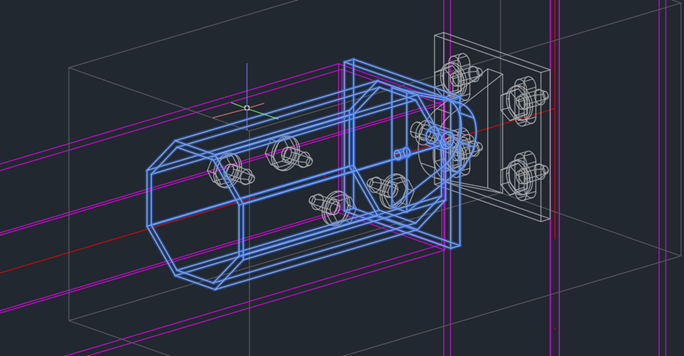
Identify the connection box or an element of the connection in your drawing.
Result: The connection with its dependencies is visually marked.
-
To remove the entire connection including all generated elements, select a part or a beam processing created by the connection (e.g. a cut) and press the Del key.
Result: All elements, welds, screws, and processings that were generated by this connection object are completely deleted.
Important notes
- Dissolving the intelligence: If you only delete the connection box, the inserted parts remain present in the drawing. Only the context (the "intelligence") is removed.
- Manual reworking: Deleting the box is useful for manually bringing components into positions that are currently not covered by the standard logic.
- Bills of materials: Dissolving the intelligence (deleting the box) has no effect on the capture of the product in the bill of materials.
- Special parts & blocks: Products are managed as special parts that use AutoCAD blocks. Even if you delete all connections of a type, the block definitions remain in the drawing database.
Troubleshooting
It is advisable to regularly clean up the drawing database in order to remove unused block definitions from deleted special parts.
Copyright © 2026 by IntegaDesign GmbH. All Rights Reserved.