4.4.15.1. Placing connections
On this page
In this guide you will learn how to place connections with SuCri Module 3 in Advance Steel™. You choose the connection type that matches the beam configuration, select the profiles in the model and then place the desired connector from a list. The procedure is the same in AutoCAD Plant 3D™.
Prerequisites
- Software: Advance Steel™ or AutoCAD Plant 3D™ is installed.
- SuCri: Module 3 is loaded and licensed.
- Working model: A drawing with profiles (beams) is open.
Video example
Step-by-step guide
-
Call the command:
On the SuCri tab, Module 3 group, click Connections, or enter
SuCri3ShowSelectConnectionin the command line. The Choose selection-method for inputs window opens. -
Identify the connection type:
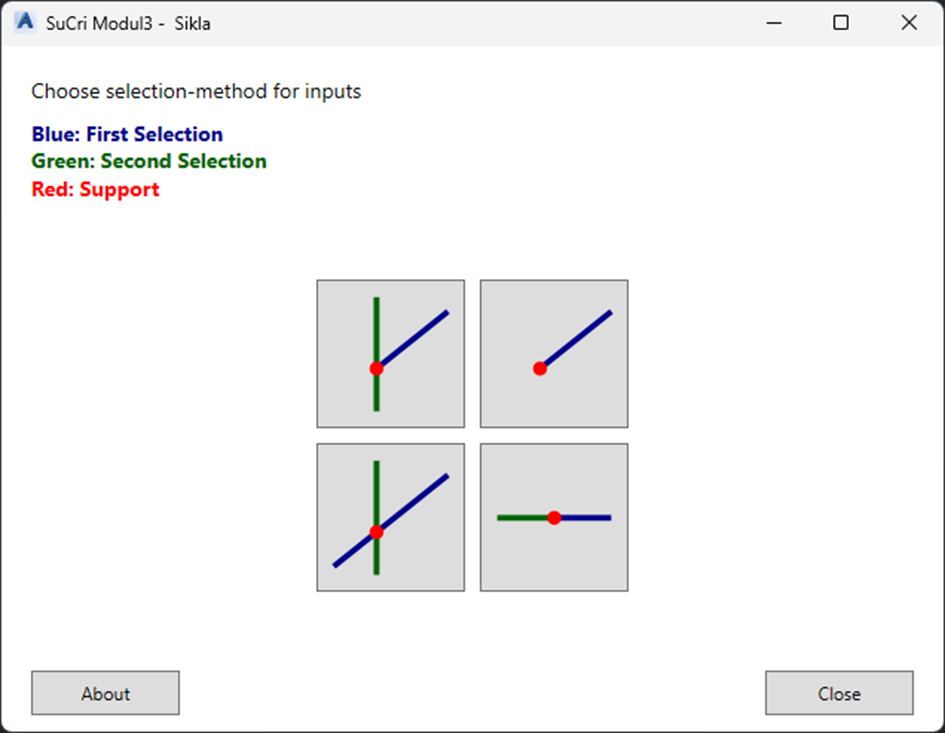
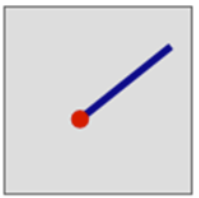
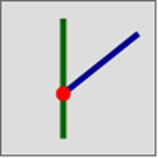
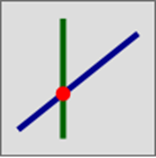
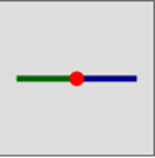
The window offers seven connection types: Collision (T), Free end (I), Crossing (X), Joint (V), 3 corner (Y), 4 corner (K) and Parallel (P). When you hover the mouse over a button, it shows a preview image. The color legend means: green first selection (main profile), blue second selection, red support. Four of the buttons in the image:
Free end Collision Crossing Joint -
Select profiles:
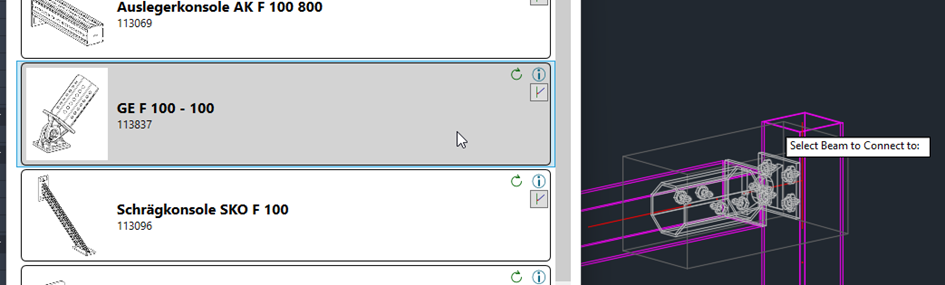
Click the button for your installation situation. The window is hidden so that you can select the profiles in the model. First, at Select Beam to Connect to (main Beam), select the main profile, and then, at Select Beam to Connect, select the second profile. For Free end, one profile is sufficient; for 3 corner and 4 corner, you select two or three further profiles after the main profile.
-
Choose a connection from the list:
After the selection, a list of matching connections appears with image, designation and item number. Above the list, SuCri shows the Current Selection Mode and the Driver names of the selected profiles. Select the desired entry to carry out the placement immediately. In Advance Steel™, use the Profiles welded together checkbox to specify whether the connection parts are additionally welded to the main profile (effective if Auto create weld is active in the Module 3 settings).
-
Optional multiple placement:
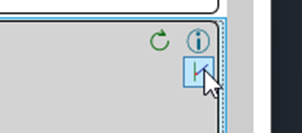
You can select further installation situations directly for the same product by using the connection type button within the selected connection.
Note: The input runs in a loop. You can end it with the Esc key.
Important notes
- Updating: The circular arrow icon can be used to update the connection after catalog updates.
- Information: The Info button opens the product page in the web browser.
- Navigation: The Back button in the connection list takes you back to the selection of the connection type.
- Finishing: In the connection list, you exit the dialog via Close; on the first page, via Close or the X in the title bar. The About button on the first page shows information about the program.
- Direct access: If Module 3 is pinned to the tool palette, the buttons in the Connections group start each connection type directly with the profile selection, without the first page of the dialog.
Troubleshooting
- Window does not appear: Check the spelling of the command and whether Module 3 is loaded and licensed. If the command line reports Command already running..., the dialog is already open and may be in the background.
- No connections in the list: The selected profiles do not match the selected connection type (for example, no real crossing for Crossing), or there is no matching connection for these profiles. The dialog then returns to the first page.
- Message 2 Beams required or 1 Beam required: No valid profile was selected.
- Main window stays hidden: Check whether the profile selection has been completed or whether the window is in the background.
Related articles
- Open connection dialog, overview of the dialog and all connection types.
- Update or copy connection, replace connectors or transfer them to further profiles.
- Deleting a connection, remove connections correctly.
Copyright © 2026 by IntegaDesign GmbH. All Rights Reserved.