2.2.4. Module 3 (ADVS), Installation guide
On this page
Installing and configuring Advance Steel Module 3 (ADVS)
In this guide you will learn how to correctly set up Module 3 for Advance Steel using the provided installer. This process is essential in order to make the advanced functions and specific database structures usable in your CAD environment.
Prerequisites
- The installation package for Module 3 is available locally on your system.
- You have administrator rights on the target computer.
- Advance Steel is closed during the entire installation process.
Step-by-step guide
-
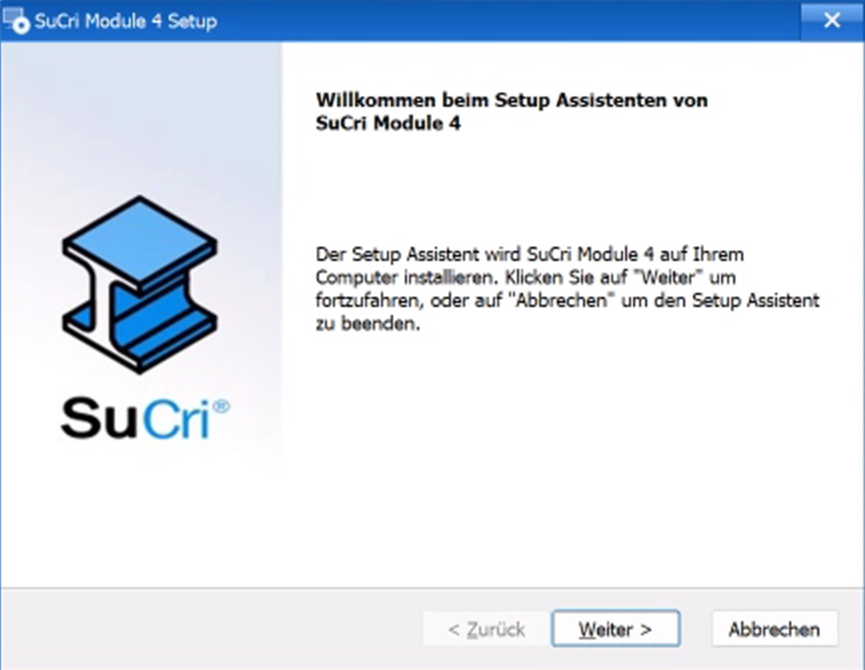
Start the installation by running the supplied installer.
-
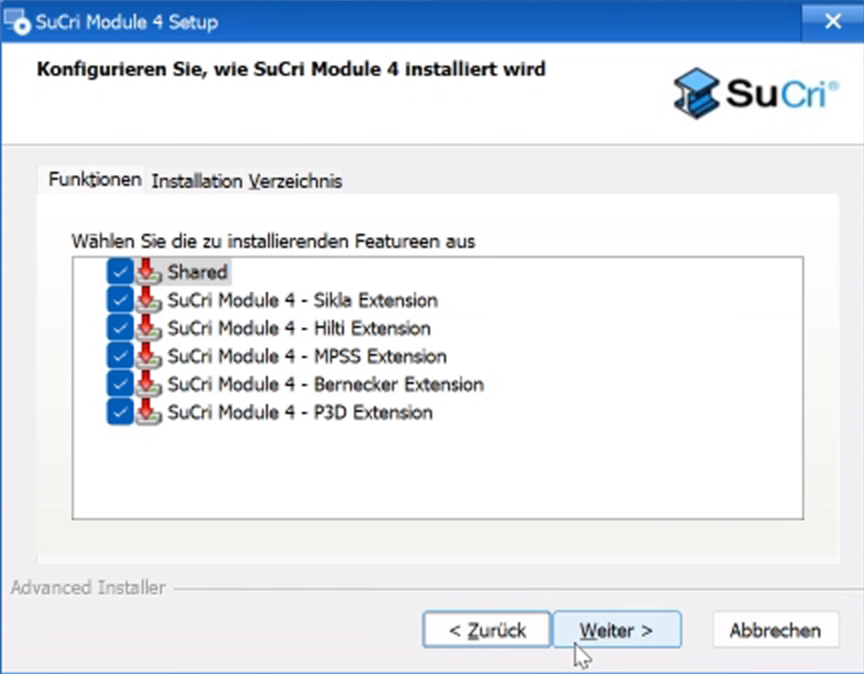
In the dialog, select the Extensions you want.
-
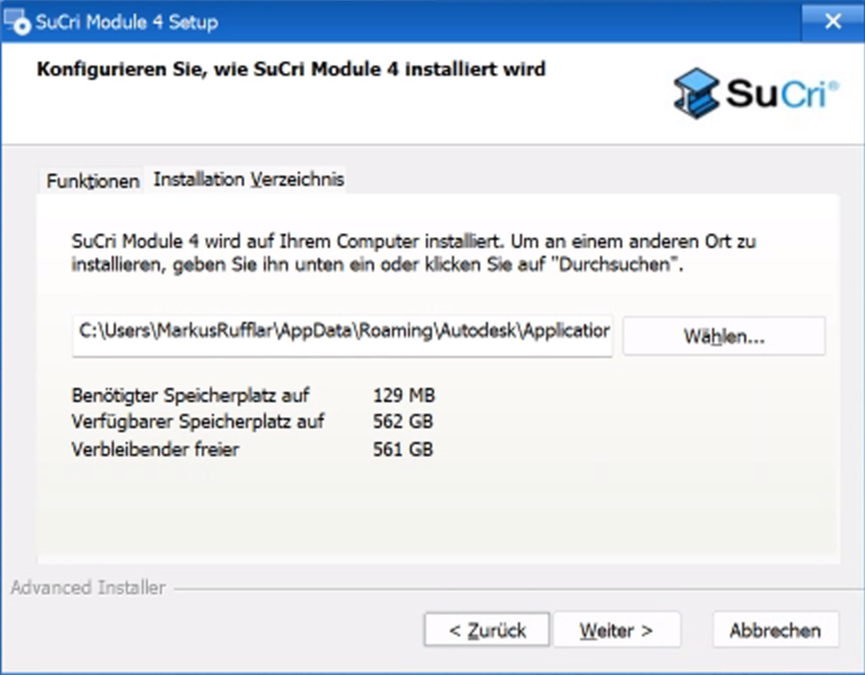
Confirm the installation path. By default the bundle is installed in the APPDATA directory of your user profile.
-
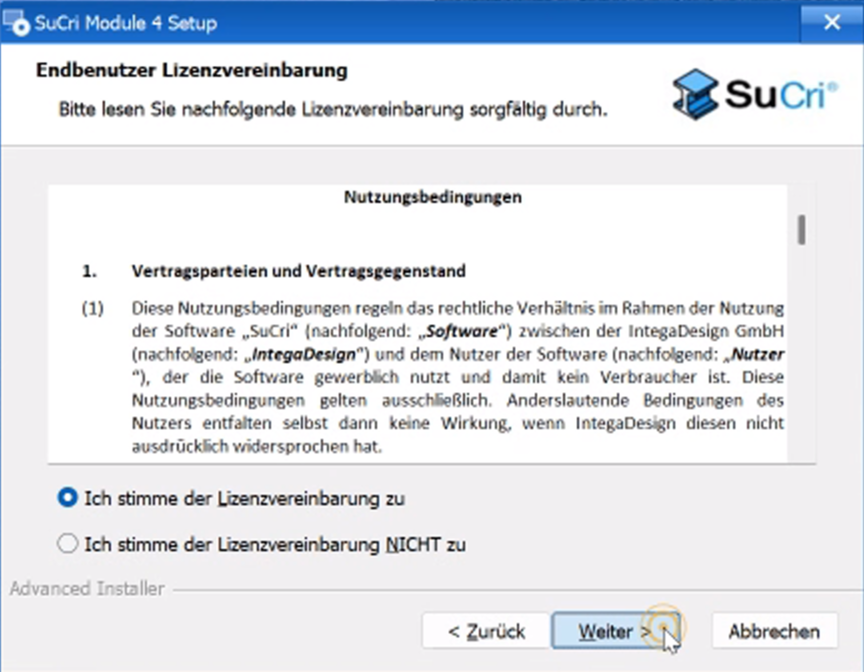
Read and accept the terms of use to continue.
-
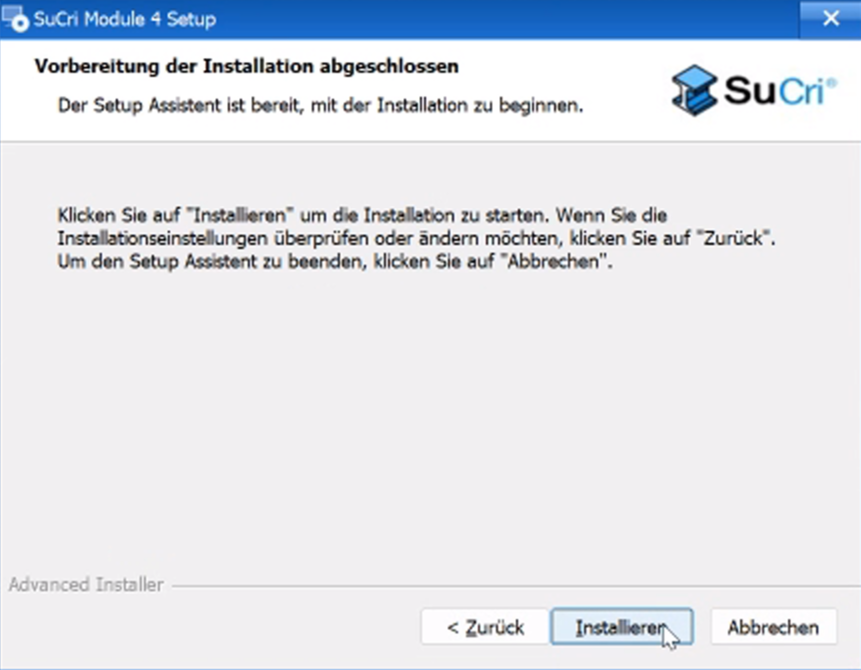
Start the copy process by clicking the Install button.
-
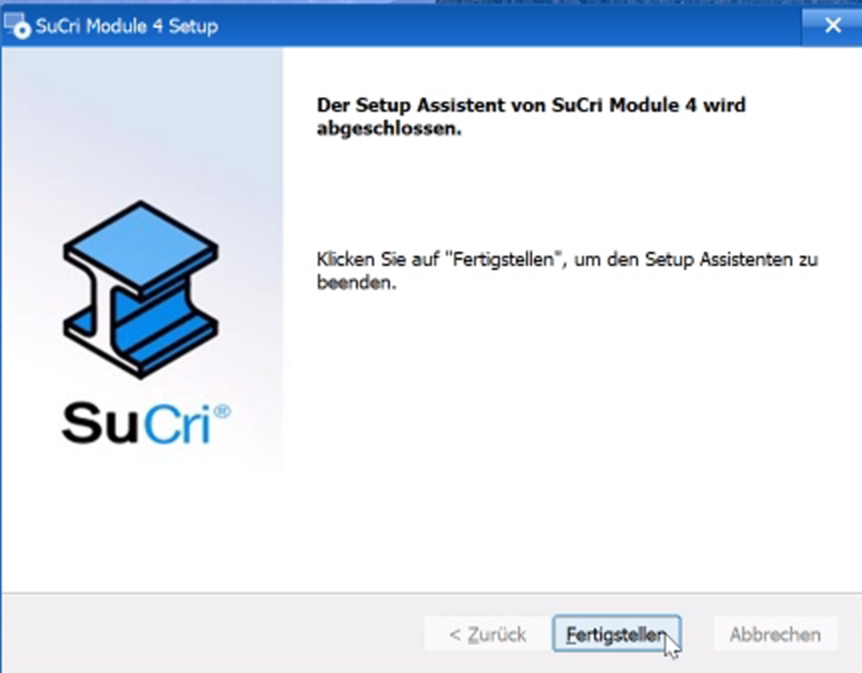
Once the process is complete, click Finish.
Result: The plugin bundle has been successfully copied into the directory
C:\Users\Username\AppData\Roaming\Autodesk\ApplicationPlugins.
Adapting the Advance Steel databases
After the files have been copied, the databases must be updated with the integrated patcher tool:
- In Windows Explorer, navigate to the folder
%AppData%\IntegaDesign GmbH\SuCri\Modul3. - Run the application
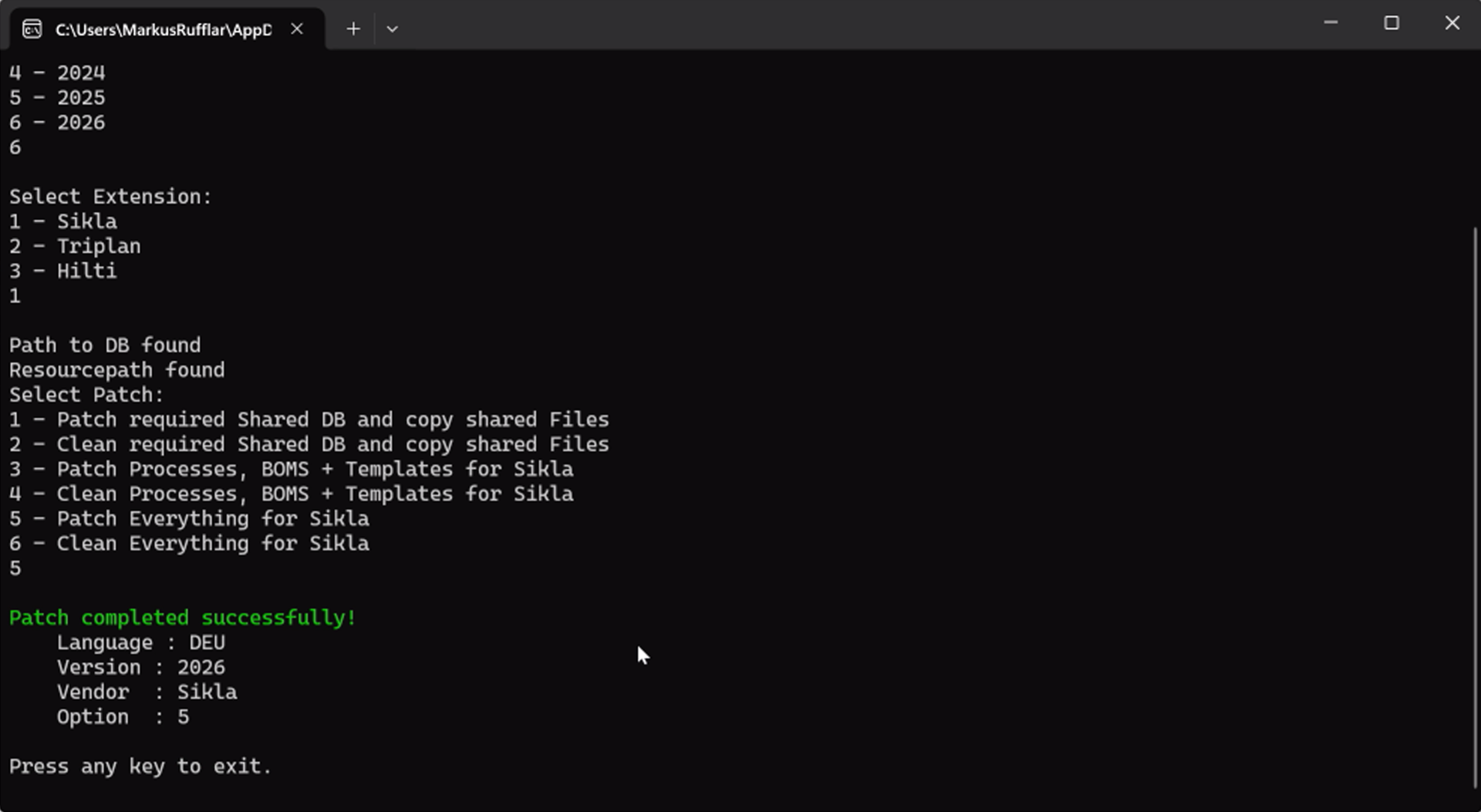
SuCri_AS_DB_PATCHER.exeby double-clicking it. -
Procedure for a new installation or update:
- If an older version of Module 3 was installed: First select option 6 (cleanup) to safely reset old structures.
- Start the patcher again and select option 5 to fully regenerate all databases and entries.
- Procedure for existing extensions: If active Module 3 functions are already in use in your environment, select only option 3 in order to update just the basic information.
Important notes
-
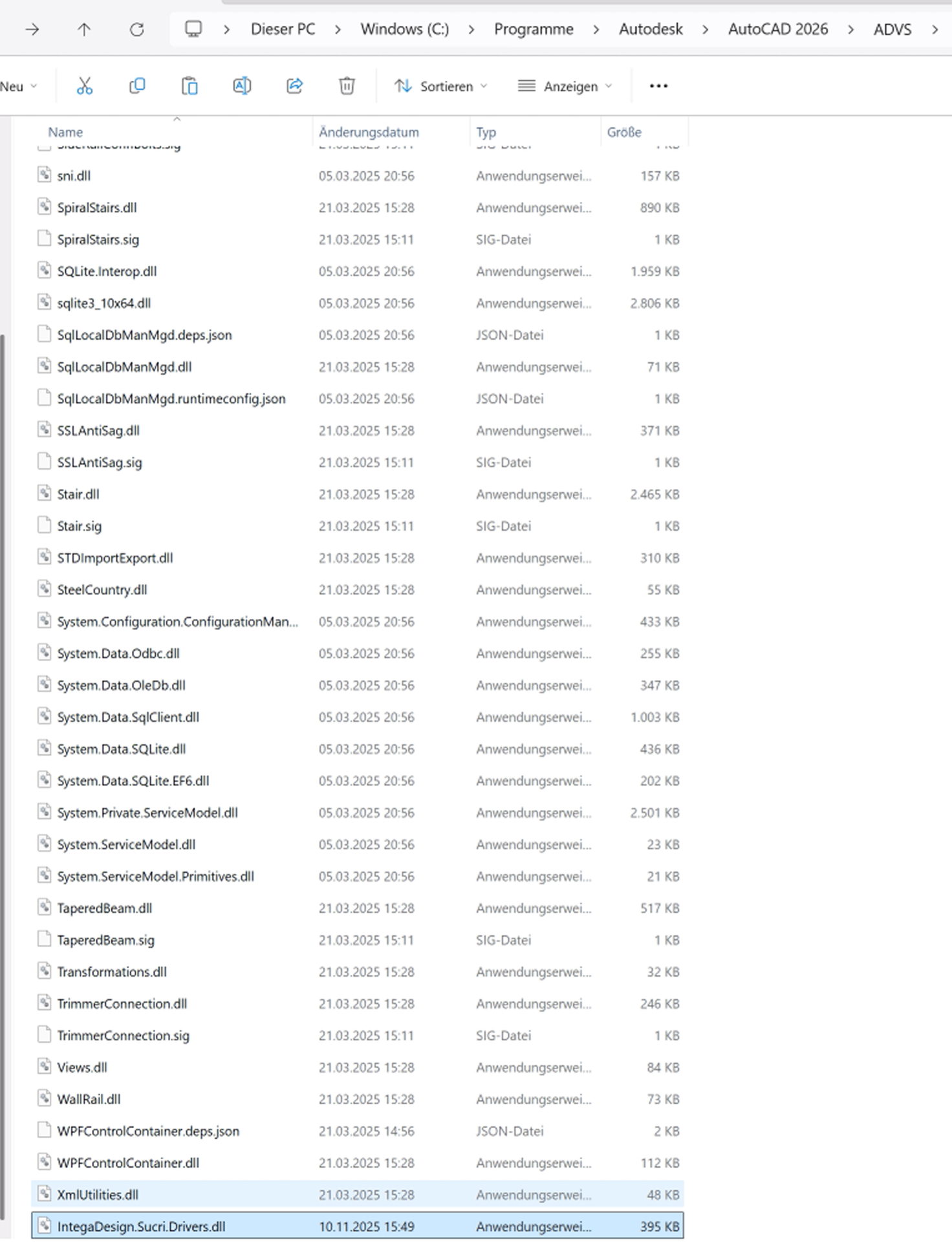
Advance Steel 2025 or newer: For these versions a manual copy step is required. Copy the file
IntegaDesign.SuCri.Drivers.dllmanually.
Source:%AppData%\Autodesk\ApplicationPlugins\SuCri_Modul3.bundle\Binaries\2025
Target directory (default):C:\Program Files\Autodesk\AutoCAD 2025\ADVS - System permissions: Please note that moving files into the Program Files directory requires administrative rights.
Troubleshooting
Problem: In the profile selection within the software, the "All" option is missing.
This behavior usually occurs when an incompatible screen scaling or a very high display resolution is active in the Windows system settings.
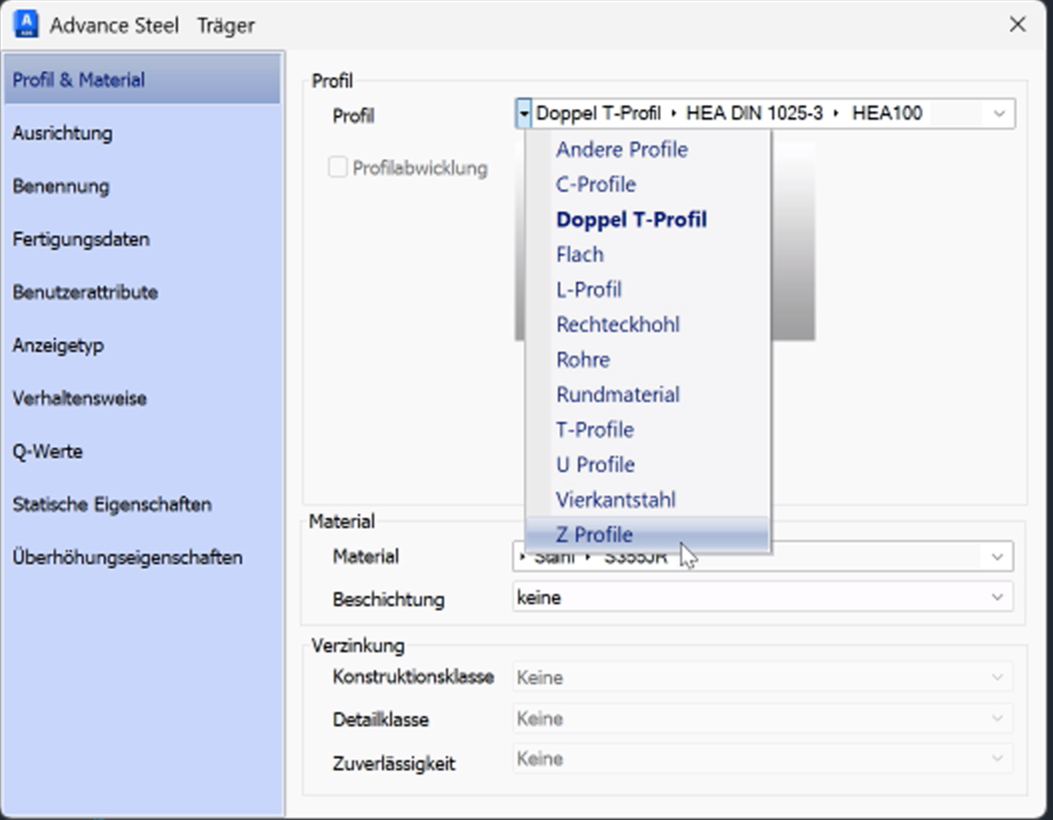
Solution: Adjust the compatibility settings of the Advance Steel shortcut. Enable the option Override high DPI scaling (setting: System) so that all graphical interface elements can be calculated and displayed correctly.