8.5.1. Problem with decimal separator in ADVS 2026 report generation
On this page
Problem with decimal separator in ADVS 2026 report generation
Optimize the configuration of Autodesk Advance Steel 2026 by adjusting the decimal separator. In this article, you learn how to generate reports correctly and avoid problems in the MTO evaluation.
Prerequisites
- Installed version of Autodesk Advance Steel 2026.
- Access to the Windows Control Panel or the BOM Editor within the software.
Step-by-step instructions
Since Autodesk Advance Steel 2026 (ADVS), the English notation with a period (".") as the decimal separator apparently seems to be expected more strongly. If a comma (",") is set in your Windows region settings, this leads to incorrect reports.
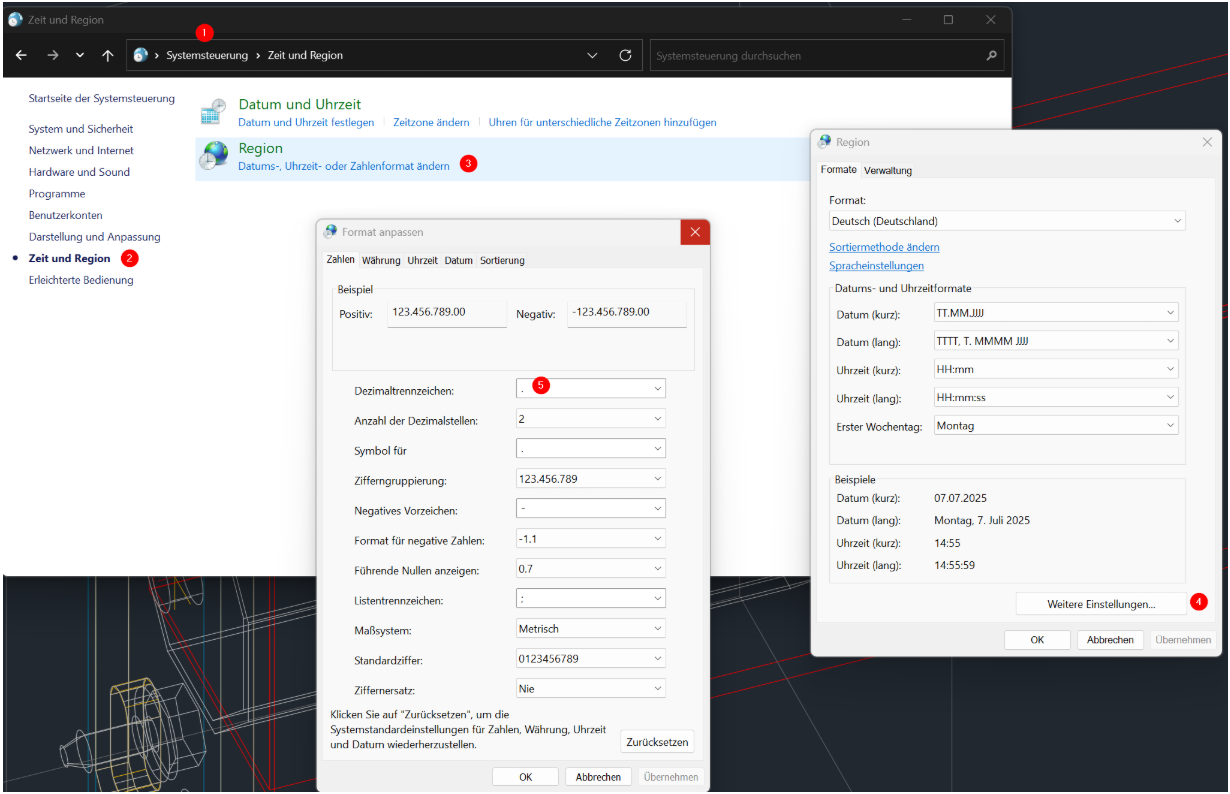
Option 1: Adjusting the Windows region settings (recommended)
- Open the Control Panel.
- Navigate to the menu item Clock and Region.
- Click Region or Change number formats.
- On the Formats tab, select the Additional settings button.
- In the Decimal symbol field, change the character from
,to.. - Confirm all dialogs with OK.
Result: After this adjustment, the MTO reports are calculated correctly when they are generated again.
Option 2: Adjustment in the BOM Editor (alternative)
- Open the BOM Editor in Advance Steel.
- Select the affected report template.
- Look for the corresponding weight fields and set the OutputFormat to the value
General.
Result: The system now uses a general format, which works around the problem without a global Windows change.
Important notes
- Best practice: We recommend the primary solution via the Windows settings to ensure a consistent system configuration across all evaluations.
- Warning: If you use other software solutions that strictly require a comma as the separator, use the alternative solution via the BOM Editor instead.
Troubleshooting
- Problem: Reports still show no values or incorrect totals despite the change.
- Solution: Restart Advance Steel after changing the Windows region settings so that the system variables are read in correctly.
Copyright © 2026 by IntegaDesign GmbH. All Rights Reserved.