4.4.18. Update or copy connection
On this page
Update or copy connection
In this guide you will learn how to update existing connections in Autodesk Advance Steel or transfer them to other beam combinations. Since the internal copy mechanisms of Advance Steel are technically not supported for these specific components, you use the integrated context menu entries for this.
Prerequisites
- The product's connection box must be visible and selectable in the model.
- The corresponding beams for a new connection must already be placed in the model.
Step-by-step guide
-
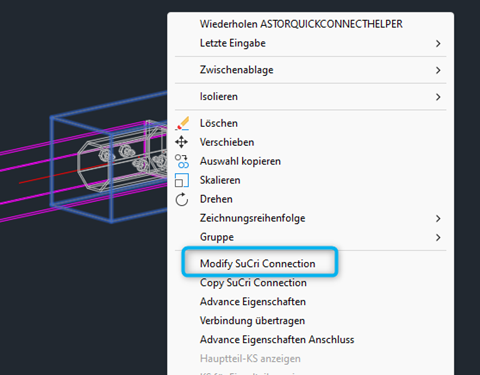
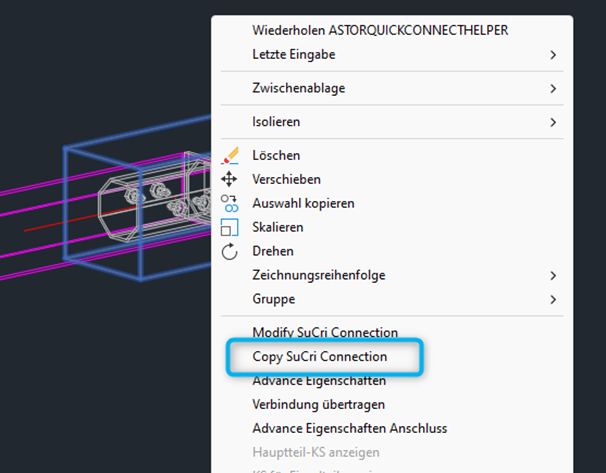
Select the product's connection box in the model with the right mouse button to open the context menu.
Result: The context menu shows you the specific options Modify SuCri Connection and Copy SuCri Connection. -
Click on the menu entry Modify SuCri Connection if you want to change or update the existing connection.
Result: The SuCri dialog opens and lists all alternative products for the chosen beam combination. -
Select the menu entry Copy SuCri Connection to copy the connection to other locations in the model.
Result: A selection loop is started. Follow the prompt and select the corresponding beam combinations one after the other.
Important notes
- Ending the loop: You can exit or cancel the selection loop during copying at any time by pressing the Esc key.
- For technical reasons, use only these specialised commands and not the standard copy functions of Autodesk Advance Steel.
Copyright © 2026 by IntegaDesign GmbH. All Rights Reserved.