4.2.1. Attaching (SuCri2AttachSupport)
On this page
Overview
With the Attach function you combine several components into a support unit and assign them a common SU number (support unit). This number keeps the parts logically together and is the basis for further SuCri functions such as Select or Info, which address a support unit based on its assignment.
Without attaching, each component remains separate; only with an assigned SU number can a support be checked, selected and evaluated as a unit in bills of materials and isometrics.
Where can I find the function?
"SuCri" tab > "Module 2" panel > manufacturer button of your licensed catalog > Dashboard > Quick Access (or Secondary Steel) > Attach.
Alternatively in the SuCri tool palette under Support Unit (SU) > Attach. You open the palette in the dashboard via the pin icon in the title bar ("Pin to tool palette"). The command can also be entered directly in the command line.
Plant 3D™ command
Property | Value |
Command | SuCri2AttachSupport |
Icon | |
Ribbon | SuCri > Module 2 > manufacturer button > Dashboard > Quick Access > Attach |
Tool palette | Support Unit (SU) > Attach |
Keyboard shortcut | Not assigned |
From version | AutoCAD Plant 3D 2022 |
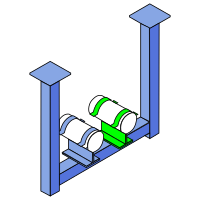
Video: Attaching in practice
How it works in detail
After starting the function, select the components that are to form a unit: either one after the other by clicking or via a window selection. Confirm the selection with the right mouse button or with Enter. A selection made before starting the command is taken over.
Supports, steel profiles, concrete parts, plates and 3D solids can belong to the support unit.
The Enter SU number dialog then opens:
- SuCri suggests a free SU number (Suggestion). If the selection already carries an SU number, this number is suggested.
- The Free numbers list shows further available numbers. You can take over one of them or enter your own identifier.
- If the number is already assigned, the dialog warns you, for example "The SU number … is already used in this drawing.", "… is already used in another drawing of this project." or "… has already been assigned in this project."
- If a number is in the SU list of the project but is no longer used by any object (orphaned number), you can take it over with Clean up and use.
With OK the support unit is created: SuCri sets the SU assignment on all selected components and fills the "SuNo" property. With Cancel nothing is changed.
You define the structure of the suggested number in the settings: "SuCri" tab > "Settings" panel > Settings (command SuCriSettings), "Module 2" section, "General" tab, "Attach support (SU number)" group:
- SU number format: Template for the number, for example
SU{FreeNumber}or{Tag}-SU{FreeNumber}.{FreeNumber}is mandatory, further properties in curly brackets are optional. Default value:SU{FreeNumber}. - SU number digits: Number of digits of the free number including leading zeros (1 to 6). Default value: 3.
Application examples
Example 1: Creating a support as an assembly
A beam, a hanger and the associated profiles are to be managed as one support. You select all parts and assign a common SU number with Attach; afterwards the assembly can be selected in one step with Select.
Example 2: Basis for bill of materials and evaluation
For a support to appear as a unit in bills of materials and evaluations, its parts must first be grouped via Attach. Only the common SU number makes the assignment evaluable.
Tips and best practices
- Only attach components that technically form a unit (supports, steel profiles, concrete parts, plates, solids); pipes do not belong to the SU.
- Each SU number should be unique within the project to avoid errors in bills of materials. The dialog warns you about numbers that are already assigned.
- With Manage (SuCri2ManageSuNo, tool palette > Support Unit (SU)) you list all SU numbers of the project (used, orphaned, free), jump to an SU and clean up orphaned numbers.
- The SU number is set by Attach; a manual entry in the AutoCAD property "SuNo" alone is not sufficient.
- The SuCri plugin must be loaded and licensed, and you must be in an editable P3D file.
Troubleshooting
- Button grayed out: Check whether the plugin is loaded correctly and whether you are in an editable P3D file.
- Component cannot be selected: Make sure that the object is not on a locked layer and is not part of an external reference (XRef).
- SU number is not set: Check the command line for error messages and whether the selected objects are valid supports, profiles, concrete parts, plates or solids.
- Message "The SU number … has been assigned … but is not yet used by any object": The drawing with this number may not have been saved yet. Save the affected drawing or choose another number.
Related articles
- Selection, selects all components of the same support unit in one step.
- Detach, removes individual components from the assembly again.
- Info, outputs the data of an assembly in the command line.
Copyright © 2026 by IntegaDesign GmbH. All Rights Reserved.