4.3.10.6. X-connection, Open connection dialog (SuCri3ShowSelectConnection)
On this page
Overview
The X-connection connects two intersecting profiles. In the connection dialog, the corresponding button is called Crossing. It also works if the profiles come from different systems; the video shows a system profile and an HEA-100 standard profile.
Where can I find the function?
In the connection dialog (SuCri tab, Module 3 group, Connections button, or command SuCri3ShowSelectConnection) via the Crossing button (X). If Module 3 is pinned to the tool palette, the Crossing button in the Connections group starts the same selection directly, command SuCri3ConnectCrossing.

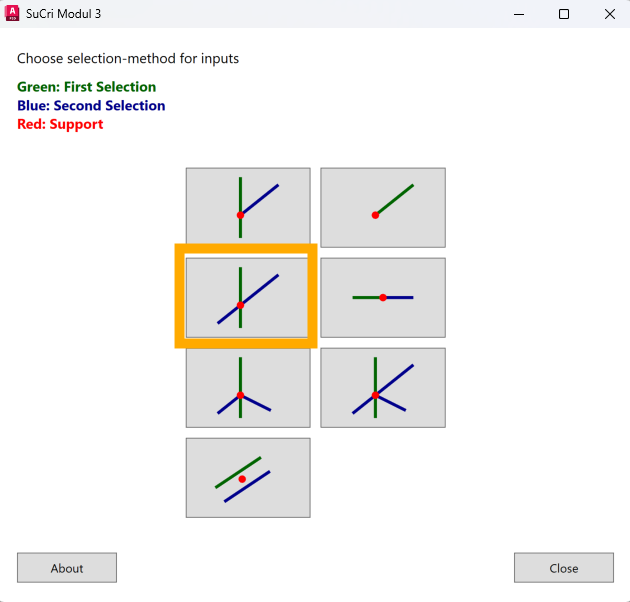
Step by step
- Start the connection dialog via the SuCri tab, Module 3 group, Connections button, or with
SuCri3ShowSelectConnection. - Click the Crossing button. The dialog is hidden during the selection.
- At the prompt Select beam to connect to (main beam), select the main profile.
- At the prompt Select Beam to Connect, select the second profile.
- The dialog shows the list of connectors that match these profiles. Click an entry. The connection, including screws, is created in the model immediately.
- Close the dialog with Close, or return to the selection of the connection type with Back.
Video: X-connection in practice
How it works in detail
After both profiles have been selected, SuCri suggests the matching connectors; the video shows a beam clamp. For the X-connection, SuCri also checks the distance between the profiles. If it does not fit, the command line reports:
Connection '<Name>' requires distance = <target>, current distance = <actual>. Move the second profile <difference> closer to the main profile (or further away from the main profile).
Tips and best practices
- Mixed profiles are no obstacle: System profiles and standard profiles can be connected as long as a suitable connector exists.
- Check the distance: If no connector is offered, read the required distance in the command line.
Troubleshooting
- Dialog returns without a list: The distance between the profiles does not match the connector. Move the second profile by the reported difference or adjust the tolerance.
Related articles
- Module 3 (P3D), overview of all functions of Module 3 in Plant 3D™.
- Troubleshooting Module 3 (P3D), known problems and solutions for Module 3 in Plant 3D™.
Copyright © 2026 by IntegaDesign GmbH. All Rights Reserved.