4.3.10.3. Connection box, Open connection dialog (SuCri3ShowSelectConnection)
On this page
Overview
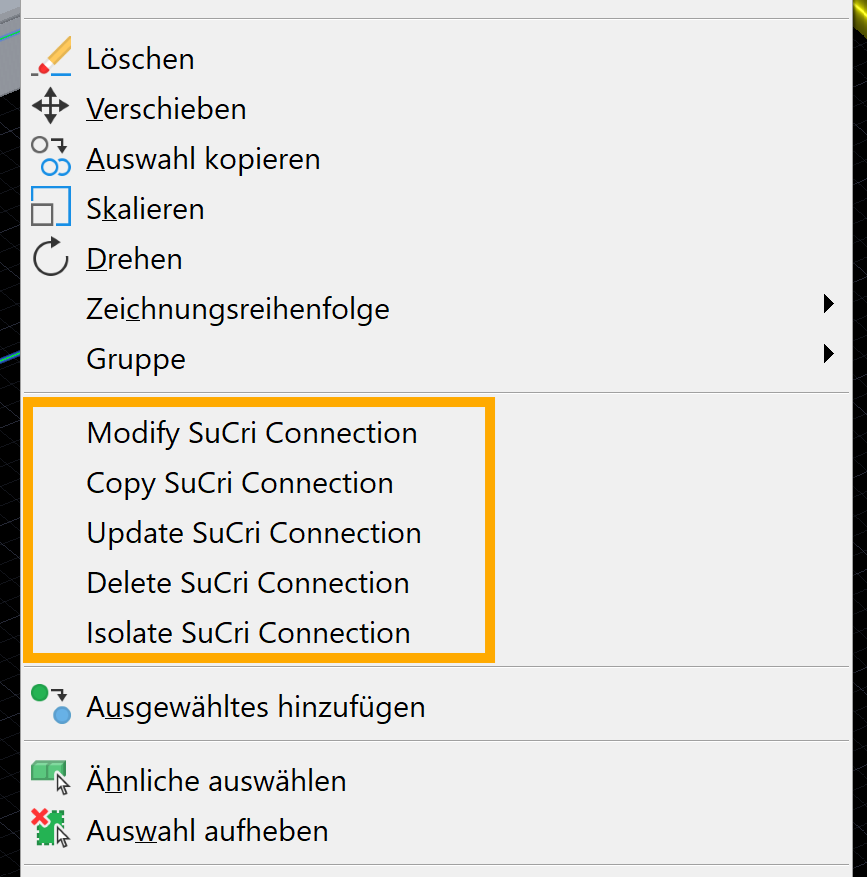
Every connection created in Plant 3D™ receives a connection box, a wireframe box around the connection. Via the context menu of this box, you can modify, copy, update, delete or isolate the connection without having to rebuild it.
Where can I find the function?
Select the connection box of a placed connection and right-click to open the context menu. The commands are located in the SuCri Connection submenu. The submenu only appears when a SuCri connection box is selected.
Step by step
- Click the connection box of a connection.
- Right-click to open the context menu and point to SuCri Connection.
- Select Modify, Copy, Update, Delete or Isolate.
- With Modify, the selection page of the connection dialog opens with the current connector. Click a different entry to swap it.
- With Copy, you select the main member and the second member in the same way as when creating. The prompt repeats until you cancel with Esc.
Video: Connection box in practice
How it works in detail
- Modify: opens the selection page with all connectors that match the stored members. The current connector is highlighted. Clicking a different entry replaces the connector including its bolts.
- Copy: transfers the same connector to further members. The command remains active so that you can create many connections of the same type one after the other. If the selected members do not match the connector, the command line reports Error copying ..., and the next prompt follows.
- Update: rebuilds the connection from its stored data. The command line reports SuCri P3D connection updated successfully.
- Delete: deletes the connection. For I-connections, any member cut backs made by the connection are reversed in the process.
- Isolate: hides everything except the objects of this connection (AutoCAD command Isolate Objects). The command line states the number of isolated objects.
All components of a connection are listed in the Data Manager and can be output in any bill of materials. You can show or hide the connection boxes of all connections with SuCri3ShowConnectionBox (tool palette, Extras group, Connection boxes).
Application examples
Example 1: Many identical connections
A structure has numerous connections of the same type. Place one connection, select its connection box and use Copy to create all further connections one after the other.
Example 2: Inspecting a connection closely
With Isolate, you view a single connection without distracting surroundings. You can show the remaining objects again via the AutoCAD isolation functions.
Tips and best practices
- Copy instead of rebuilding: For connections of the same type, copying is faster than defining each connection individually.
- Update after grip editing: If parts of a connection have been accidentally distorted, Update restores the original state.
Troubleshooting
- No SuCri Connection entry in the context menu: No SuCri connection box is selected. If necessary, show the connection boxes with
SuCri3ShowConnectionBox. - Editing Connection Fail, License not valid: There is no valid Module 3 license for the manufacturer of the connector.
- Connection cannot be edited. Check the LOG-File!: The stored members were not found or no longer match. Details can be found in the log file.
Related articles
- Module 3 (P3D), overview of all functions of Module 3 in Plant 3D™.
- Troubleshooting Module 3 (P3D), known problems and solutions for Module 3 in Plant 3D™.
Copyright © 2026 by IntegaDesign GmbH. All Rights Reserved.