4.3.10.2. T connection, Open connection dialog (SuCri3ShowSelectConnection)
On this page
Overview
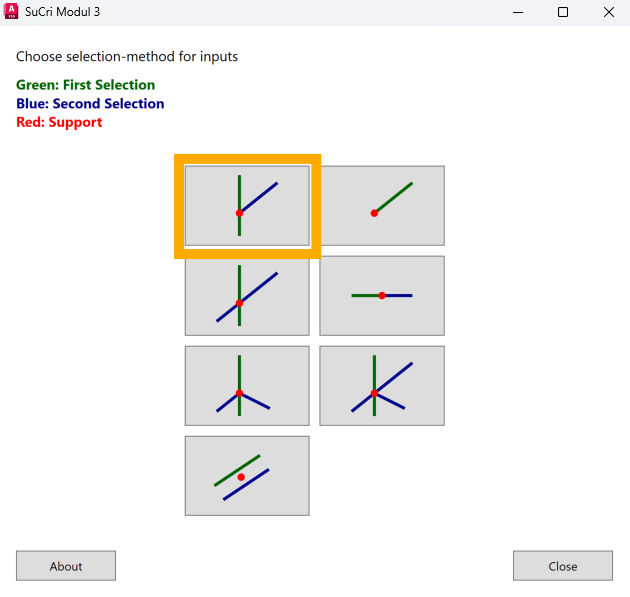
The T connection connects an attaching profile to a continuous main profile, so the profile butts against the main profile. In the connection dialog, the corresponding button is called Collision. The prerequisite is profiles for which the manufacturer provides this connection type.
Where can I find the function?
In the connection dialog (SuCri tab, Module 3 group, Connections button, or the SuCri3ShowSelectConnection command) via the Collision button (T). If Module 3 is pinned to the tool palette, the Collision button in the Connections group starts the same selection directly, command SuCri3ConnectCollision.

Step by step
- Start the connection dialog via the SuCri tab, Module 3 group, Connections button, or with
SuCri3ShowSelectConnection. - Click the Collision button. The dialog is hidden during the selection.
- At the prompt Select Beam to Connect to (main Beam), select the main profile.
- At the prompt Select Beam to Connect, select the second profile.
- The dialog shows the list of connectors that match these profiles. Click an entry. The connection, including the bolts, is created in the model immediately.
- Close the dialog with Close, or return to the selection of the connection type with Back.
Video: T connection in practice
How it works in detail
SuCri determines the arrangement from the two profiles and offers all connectors that the manufacturer provides for this profile combination. After the selection, the connection including the bolts is in the model.
In the Data Manager, you will find all parts that belong to this connection under the supports. This means they can be fully included in a bill of materials.
The side to which the leg of the connector points depends on the click point on the main profile (see Align connector).
Tips and best practices
- Keep to the order: First the continuous main profile, then the abutting profile.
- No suggestions? The profiles are not intended for this connection type, or the distance or angle is outside the tolerance.
Troubleshooting
- Dialog returns without a list: Read the command line. If the distance is wrong, it states the required and the actual distance.
- Connector points to the wrong side: Create the connection again and click the main profile on the desired side.
Related articles
- Module 3 (P3D), overview of all functions of Module 3 in Plant 3D™.
- Troubleshooting Module 3 (P3D), known problems and solutions for Module 3 in Plant 3D™.
Copyright © 2026 by IntegaDesign GmbH. All Rights Reserved.