4.3.10.10. Aligning horizontal I connection
On this page
Overview
For the I connection on a horizontal profile, the clicked face determines the alignment of the connection. This allows you to control the direction in which the base plate and bolts point.
Where can I find the function?
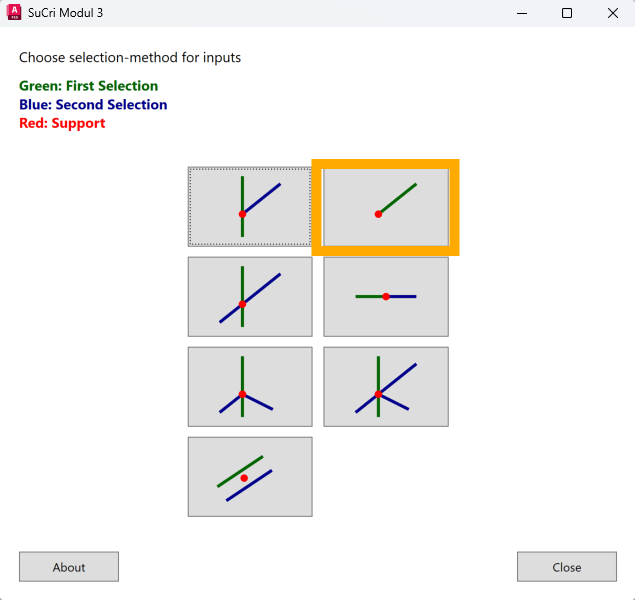
In the connection dialog (SuCri tab, Module 3 group, Connections button, or command SuCri3ShowSelectConnection) via the Free end (I) button. If Module 3 is pinned to the tool palette, the Free end button in the Connections group starts the same selection directly, command SuCri3ConnectFreeEnd.

Step by step
- Start the connection dialog and click Free end.
- On the horizontal profile, specifically click the face toward which the connection should point.
- Select the connector, in the video the base plate pointing sideways.
- In the Bolts/Anchors window, select the appropriate bolts. They align in the direction of the selected face.
- For the opposite direction, repeat the process and click the opposite face.
Video: Aligning horizontal I connection in practice
How it works in detail
In the video, the same connection is placed twice: once by clicking one side face, once by clicking the opposite one. The connection aligns itself to the clicked face in each case. This way you influence the position already while placing.
Tips and best practices
- Pay attention to the face: What matters is the face you click when selecting the profile.
- Consider the assembly direction: The bolts should point to where they will be accessible later.
Troubleshooting
- Connection points in the wrong direction: Delete it via the connection box and place it again by clicking the desired face.
Related articles
- Module 3 (P3D), overview of all functions of Module 3 in Plant 3D™.
Copyright © 2026 by IntegaDesign GmbH. All Rights Reserved.