4.3.10. Open connection dialog (SuCri3ShowSelectConnection)
11 articles
Overview
Open connection dialog calls up the SuCri Module 3 window, with which you create steel construction connections between profiles in Plant 3D™. You first select the connection type, then the profiles in the model. SuCri then offers all connectors that match the selected profiles and your license. The generated components are entered in the Data Manager and can be output in any bill of materials.
Where can I find the function?
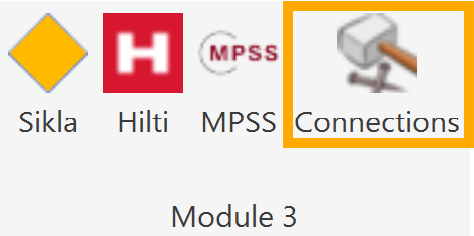
SuCri tab, Module 3 group, Connections button. Alternatively via the command line with SuCri3ShowSelectConnection. If Module 3 is pinned to the tool palette, you start the individual connection types directly via the buttons of the Connections group.
Plant 3D™ command
Property | Value |
Command | SuCri3ShowSelectConnection |
Icon | |
Ribbon | SuCri > Module 3 > Connections |
Tool palette | Module 3 > Connections (a separate command for each connection type, see below) |
Keyboard shortcut | No default shortcut |
From version | SuCri 25.1.1.1 |

Video: Open connection dialog in practice
How it works in detail
When opening, SuCri reloads the vendor data. If the dialog is already open, the command line reports Command already running....
The first page (Choose selection-method for inputs) shows a color legend for the icons: green the first selection (main profile), blue the second selection, red the connection point. Below are seven buttons for the connection types. When you hover over a button with the mouse, it shows a preview image. In the tool palette, the buttons have the following names:
- Collision (T): profile meets a main profile, command
SuCri3ConnectCollision. - Free end (I): end connection on a single profile, command
SuCri3ConnectFreeEnd. - Crossing (X): two crossing profiles, command
SuCri3ConnectCrossing. - Joint (V): two profiles meet end to end, command
SuCri3ConnectJoint. - 3 corner (Y): three profiles in one node, command
SuCri3Connect3Corner. - 4 corner (K): four profiles in one node, command
SuCri3Connect4Corner. - Parallel (P): two parallel profiles, command
SuCri3ConnectParallel.
After the profile selection, the dialog switches to the selection page. It shows the current selection mode, the driver names of the detected profile arrangement and the list of matching connectors with image, designation and item code. A click on an entry creates the connection immediately. At the bottom are the Back and Close buttons. If no connection matches, the dialog returns to the first page.
Using the About button on the first page, you display information about the program; Close closes the dialog.
Workflow in the connection dialog
The individual connection types and work steps are described in these subarticles:
- 4.3.10.1 Basic procedure
- 4.3.10.2 T connection
- 4.3.10.3 Connection box
- 4.3.10.4 Align connector
- 4.3.10.5 V-Connection
- 4.3.10.6 X-connection
- 4.3.10.7 Adjust profiles for connection
- 4.3.10.8 P-connection
- 4.3.10.9 I-Connection
- 4.3.10.10 Aligning horizontal I connection
- 4.3.10.11 Internet Info
Tips and best practices
- Order of selection: Always select the main profile first, then the profile to be connected.
- Watch the command line: If no connection is offered, the command line often states the reason, for example a missing distance.
- Quick access: If you use it frequently, pin Module 3 to the tool palette. The buttons of the Connections group start the profile selection directly, without the first page of the dialog.
Troubleshooting
- Command already running...: The connection dialog is already open, possibly behind other windows. Close it or continue working in the open dialog.
- Dialog returns without a result: There is no matching connector for the selected profiles, or the distance or angle is outside the tolerance. Check the command line.
- Connection found, but the license is invalid: A matching connector exists, but belongs to a manufacturer for which there is no valid Module 3 license.
Related articles
- Module 3 (P3D), overview of all functions of Module 3 in Plant 3D™.
- Troubleshooting Module 3 (P3D), known problems and solutions for Module 3 in Plant 3D™.
Copyright © 2026 by IntegaDesign GmbH. All Rights Reserved.
Still a question open?
Write to us, we answer within 24 hours on business days.
Request a consultationMore knowledge bases