4.5.15. Dimension view (SuCri4PlantOrthoDimension)
On this page
Overview
Auto Dimensions places the dimensions of a view according to the Module 4 settings, at any time, not just when the drawing is created. This helps if a dimension was accidentally moved, changed or deleted, or if a view has been newly added.
Where can I find the function?
In the Module 4 window under Drawings and under Quick Access, in each case the Auto Dimensions button. Command line: SUCRI4PlantOrthoDimension.
If the Module 4 window is pinned to the tool palette, the function is located on the Module 4 tab of the SuCri tool palette in the Annotation group, Dimensions button.
Plant 3D™ command
Property | Value |
Command | SUCRI4PlantOrthoDimension |
Icon | |
Ribbon | SuCri > Module 4 > Module 4 window > Drawings > Auto Dimensions |
Tool palette | Module 4 > Annotation > Dimensions |
Keyboard shortcut | No default shortcut |
From version | SuCri 25.1.1.1 |
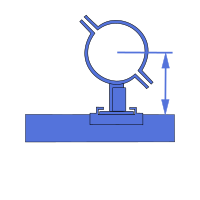
Video: Dimensions
How it works in detail
Select the viewport: The command line prompts "Select viewport:". Select exactly one ortho viewport by its frame.
Define how existing dimensions are handled: The command line asks "Do you want to delete the old dimensions?":
- 0. Append: Existing dimensions and annotations remain, the new ones are added.
- 1. Replace Auto Generated (default): Only the dimensions and annotations generated by SuCri for this view are deleted and placed again. Manually placed ones are retained.
- 2. Replace All: In addition, all dimensions located in the area of the viewport are deleted, including manually placed ones.
Dimensioning: SuCri places the dimensions as defined in the Module 4 settings on the Dimensions tab. There, for each dimension type, it is specified whether it is generated and for which views. Distances such as the minimum distance to the edge and the distance between dimension chains also come from the settings.
Application examples
Example 1: Restoring dimensions after rework
Some dimensions were accidentally deleted. You select the viewport and the default Replace Auto Generated. The automatic dimensions are back as defined in the settings, and your manual dimensions remain.
Example 2: Dimensioning a new view
You have added a view afterwards. A call with Append dimensions it without changing anything in other dimensions.
Tips and best practices
- Replace instead of tidying up: If the dimensions have become jumbled, replacing them is faster than correcting them by hand.
- The settings are the basis: How dimensioning is done is defined in the Module 4 settings, not in the command.
- Use Replace All with care: This option also deletes manually placed dimensions in the area of the viewport.
Troubleshooting
- Wrong drawing: The command only runs in a layout of an ortho drawing. In a 3D model drawing or on the "Model" tab, SuCri reports this and aborts. Switch to the layout of the ortho drawing and start the command again.
- "This action can only be performed on a single ortho viewport": The selection captured several objects. Select a single viewport by its frame.
- "The selected object is not a viewport": Click the frame of the view, not an object inside it.
- No dimensions are generated: Check in the settings whether automatic dimensioning is switched off (DisableAutoDimension) and whether the desired dimension type is active for this view.
Related articles
- Module 4 Settings, all settings of Module 4, including dimensioning.
- MinDimFromEdge, minimum distance of the dimensions to the edge.
- DimSpace, distance between dimension chains.
- LayerNameDimension, layer on which the dimensions are located.
- Advance Steel steelwork is not dimensioned, help if steelwork is not dimensioned.
Copyright © 2026 by IntegaDesign GmbH. All Rights Reserved.