4.3.10.9. I-Connection, Open connection dialog (SuCri3ShowSelectConnection)
On this page
Overview
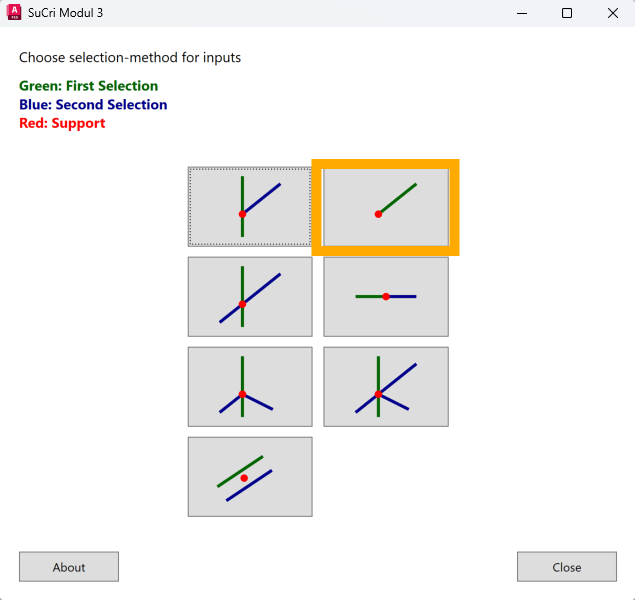
The I-connection answers the question of how a profile is connected to a wall or floor. In the connection dialog, the corresponding button is called Free end. Unlike the other connection types, a single profile is sufficient; a counterpart such as a foundation is not needed. The preview image of the button also shows this.
Where can I find the function?
In the connection dialog (SuCri tab, Module 3 group, Connections button, or command SuCri3ShowSelectConnection) via the Free end button (I). If Module 3 is pinned to the tool palette, the Free end button in the Connections group starts the same selection directly, command SuCri3ConnectFreeEnd.

Step by step
- Start the connection dialog via the SuCri tab, Module 3 group, Connections button.
- Click the Free end button.
- At Select Beam to Connect, select the profile. Click near the profile end where the connection is to be created.
- Select the connector in the list, for example a four-hole base plate, an angle or a wall connector.
- In the Bolts/Anchors window that opens next, select the anchors or screws for the base material.
- Close the dialog with Close.
Video: I-connection in practice
How it works in detail
With your mouse click you determine at which end of the profile the connection is placed. The end connectors that the manufacturer provides for this profile are available for selection.
If a group of anchors or screws belongs to the selected connector, the Bolts/Anchors window opens directly afterwards. After this selection, everything is placed, the connection box appears, and all parts are available in the Data Manager for the bill of materials.
If an I-connection is deleted via its connection box, SuCri reverts the profile cutbacks of the connection.
Tips and best practices
- The click point decides: The connection is created at the clicked end. This is the most common cause of a connection at the wrong profile end.
- Anchor selection is part of it: The Bolts/Anchors window is part of the process. Select the suitable anchors there.
- Horizontal profiles: For horizontal profiles, the clicked face determines the direction of the connection (see Aligning horizontal I connection).
Troubleshooting
- Message 1 Beam required: No valid profile was selected.
- Connection at the wrong end: Delete the connection via the connection box and place it again with a click near the desired end.
Related articles
- Module 3 (P3D), overview of all functions of Module 3 in Plant 3D™.
- Troubleshooting Module 3 (P3D), known problems and solutions for Module 3 in Plant 3D™.
Copyright © 2026 by IntegaDesign GmbH. All Rights Reserved.