4.5.3. Update scale of all views (SuCri4ChangeAllViewScale)
On this page
Overview
Scale All Views scales all views of an ortho drawing in one pass and re-creates dimensions, annotations and centerlines to match the new scale. In standard Plant 3D™, the dimensioning does not follow along when scaling and has to be reworked for each view.
You need the function when you want to create space in the layout, for example because another view has to be placed on the sheet.
Where can I find the function?
In the Module 4 window under Quick Access, button Scale All Views. Command line: SUCRI4ChangeAllViewScale.
If the Module 4 window is pinned to the tool palette, the function is located on the Module 4 tab of the SuCri tool palette in the Update & Scale group, button Scale All.
Plant 3D™ command
Property | Value |
Command | SUCRI4ChangeAllViewScale |
Icon | |
Ribbon | SuCri > Module 4 > Module 4 window > Quick Access > Scale All Views |
Tool palette | Module 4 > Update & Scale > Scale All |
Keyboard shortcut | No default shortcut |
From version | SuCri 25.1.1.1 |
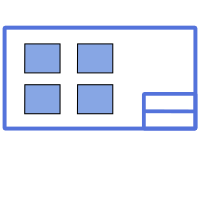
Video: Scale all views
How it works in detail
Open the ortho drawing: The command runs in the layout of an ortho drawing. No selection is necessary; SuCri takes all views of the sheet.
Define how existing dimensions are handled: The command line asks "Do you want to replace old annotation and dimensions?" with these options:
- 0. Append: Existing dimensions and annotations remain, and the new ones are added.
- 1. Replace Auto Generated (default): Only the dimensions and annotations generated by SuCri for this view are deleted and re-created. Manually placed ones are retained.
- 2. Replace All: In addition, all dimensions located in the area of the viewport are deleted, including manually placed ones.
- 3. No Change: Only scaling is performed; dimensions and annotations are neither deleted nor re-created.
Select the scale: The Select Ortho View Scale window shows the scales from the Standard view scales setting (StandardViewScale), insofar as they exist in the drawing as annotation scales. Via Custom you enter your own scale. Confirm with OK.
Result: SuCri changes the scale and adjusts the size of each viewport in the same ratio so that the visible area is retained. The centerlines of the profiles are re-created according to the Show profile centerlines setting. Except with No Change, SuCri re-creates the dimensioning of the orthogonal views or the annotation of the iso views and re-creates the view headers.
Exceptions: The layout plan ("Layout" view) and views located in the iso drawing area keep their scale.
Application examples
Example 1: Space for an additional view
After a model change, another view is to be added to the sheet. You reduce all views from 1:10 to 1:20 with 1. Replace Auto Generated and then have space without touching a single dimension by hand.
Example 2: Scaling only
The dimensioning was deliberately supplemented by hand and is to remain untouched. With 3. No Change, SuCri only changes the scale. Afterwards, check the position of the dimensions, as they are not re-created.
Tips and best practices
- Replace rather than keep: Retained dimensions rarely still fit after a scale change. The default Replace Auto Generated preserves your manual dimensions.
- Maintain the scale list: Which scales are offered is controlled by the standard view scales in the Module 4 settings.
- Single view: If only one view is to be scaled, use
SUCRI4ChangeViewScale.
Troubleshooting
- Wrong drawing: The command only runs in a layout of an ortho drawing. In a 3D model drawing or on the "Model" tab, SuCri reports this and cancels. Switch to the layout of the ortho drawing and start the command again.
- Desired scale is missing from the list: It is not included in the standard view scales or does not exist in the drawing as an annotation scale. Use Custom or extend the setting.
- Iso view was not scaled: Views in the iso drawing area are deliberately excluded.
- No view headers: The layer for headers is locked. Unlock it and repeat the command.
Related articles
- StandardViewScale, defines which scales are available for selection.
- ShowProfileCenterline, controls whether profile centerlines are drawn.
- Update all views (SuCri4PlantOrthoUpdateAllView), updates all views after model changes.
- Module 4, overview of all functions of Module 4.
Copyright © 2026 by IntegaDesign GmbH. All Rights Reserved.