4.3.10.5. V-Connection, Open connection dialog (SuCri3ShowSelectConnection)
On this page
Overview
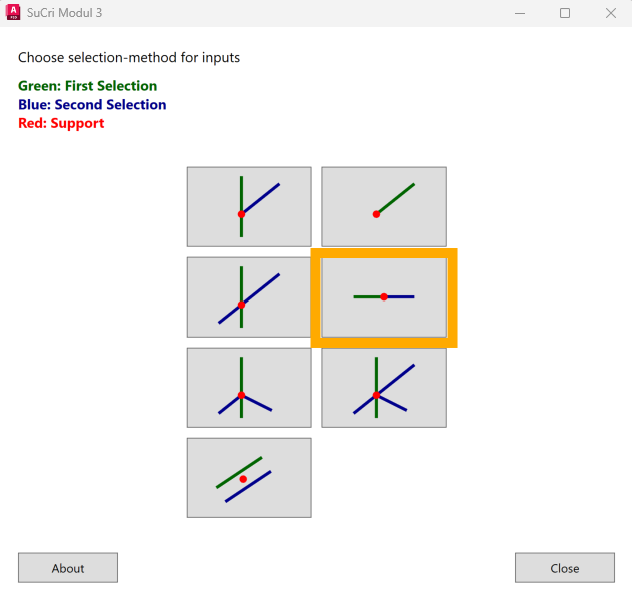
The V-Connection connects two profiles that butt end to end. In the connection dialog, the corresponding button is called Joint. The manufacturer's matching joint connector is placed.
Where can I find the function?
In the connection dialog (SuCri tab, Module 3 group, Connections button, or command SuCri3ShowSelectConnection) via the Joint button (V). If Module 3 is pinned to the tool palette, the Joint button in the Connections group starts the same selection directly, command SuCri3ConnectJoint.

Step by step
- Start the connection dialog via the SuCri tab, Module 3 group, Connections button or with
SuCri3ShowSelectConnection. - Click the Joint button. The dialog is hidden during the selection.
- At the prompt Select beam to connect to (main beam), select the main profile.
- At the prompt Select Beam to Connect, select the second profile.
- The dialog shows the list of connectors that match these profiles. Click an entry. The connection is created in the model immediately, including the bolts.
- Close the dialog with Close, or return to the selection of the connection type with Back.
Video: V-Connection in practice
How it works in detail
After both profiles have been selected, SuCri offers the joint connectors that the manufacturer provides for these profiles. All bolts and single parts are entered in the Data Manager and can be output in any BOM.
Tips and best practices
- Align the profiles: The two profiles must lie in one line within the tolerance, otherwise no connector is offered.
Troubleshooting
- No connector offered: Check the position and profile type as well as the tolerance settings.
Related articles
- Module 3 (P3D), overview of all functions of Module 3 in Plant 3D™.
- Troubleshooting Module 3 (P3D), known problems and solutions for Module 3 in Plant 3D™.
Copyright © 2026 by IntegaDesign GmbH. All Rights Reserved.