4.3.10.1 Basic procedure, Open connection dialog (SuCri3ShowSelectConnection)
On this page
Overview
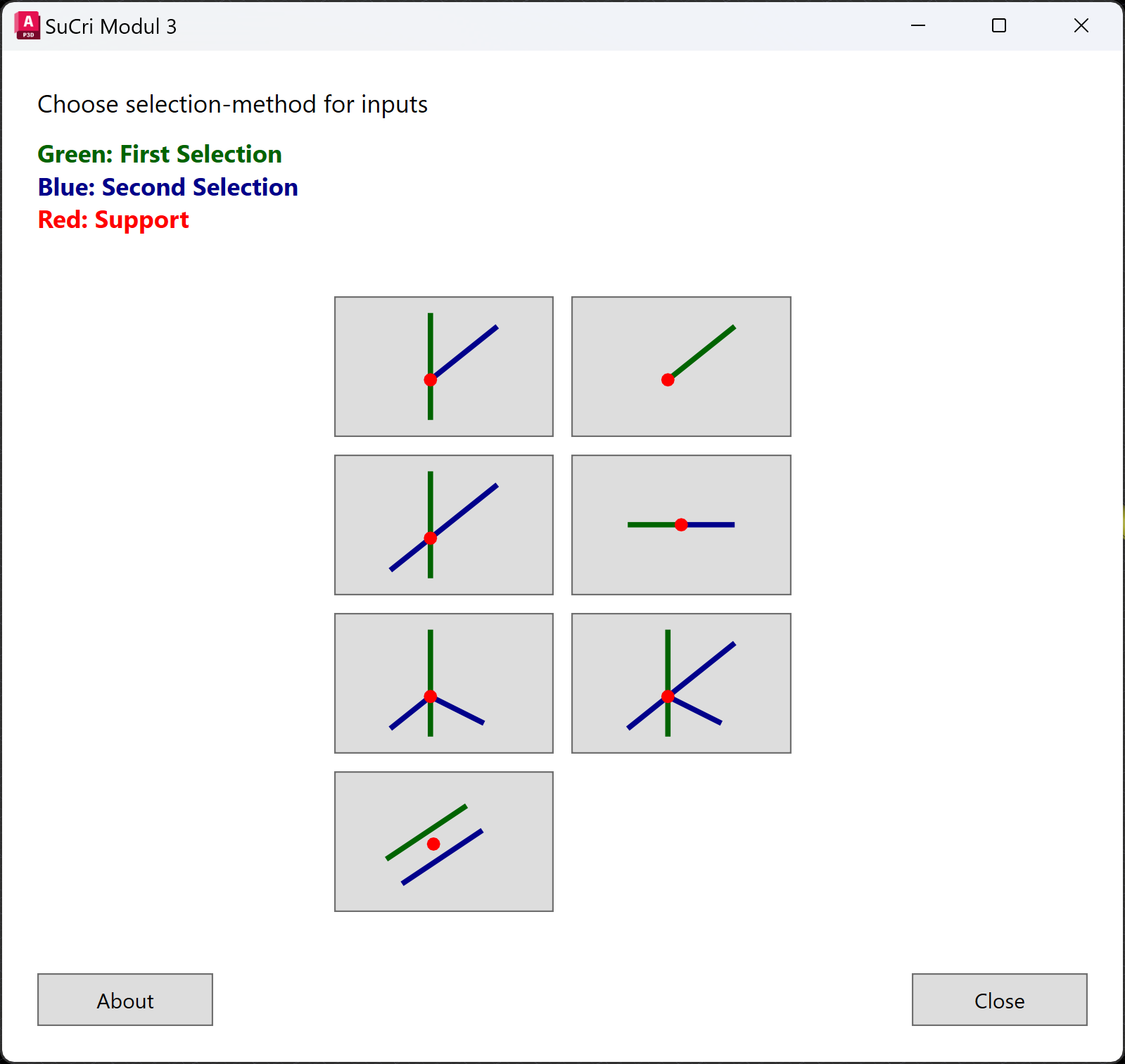
With Module 3, you create steel connections directly in Plant 3D™. The connection types provided by the manufacturer are available, including T, I, X and V. Often several connectors are available for the same profile arrangement. The generated components are entered in the Data Manager and can therefore be read out in any bill of materials.
The procedure is the same for all connection types: select the connection type, select the main profile, select the profile to be connected, select the connector from the list.
Where can I find the function?
SuCri tab, Module 3 group, Connections button. Alternatively via the command line with SuCri3ShowSelectConnection.
Step by step
- Start the connection dialog via the SuCri tab, Module 3 group, Connections button.
- Click the button of the desired connection type. When you hover the mouse over it, each button shows a preview image of the arrangement.
- At Select beam to connect to (main beam), select the main profile.
- At Select Beam to Connect, select the second profile. For the I-connection this step is omitted; for 3 corner and 4 corner you select two or three further profiles here.
- Click the desired entry in the list of matching connectors. The connection is created immediately. Clicking another entry replaces it.
- If a selection of bolts or anchors belongs to the connector, the Bolts/Anchors window also opens. Select the appropriate part there.
- Finish with Close.
Video: Basic procedure in practice
How it works in detail
From the selected profiles, SuCri determines the profile arrangement and compares it with the connection definitions of the installed manufacturer catalogs. Only connectors whose definition matches the profile type, angle and distance and for whose manufacturer a valid Module 3 license exists are offered. The list is sorted alphabetically by name. If exactly one connector matches, it is selected directly.
The colors on the first dialog page help with orientation: green stands for the first selection (main profile), blue for the second selection, red for the connection point.
In addition to the image, name and item code, each entry in the list has small buttons. With the icon of the connection type, you select new profiles and place the same connector at another location. The prompt repeats until you cancel with Esc.
Application examples
Example 1: Same connector at several locations
After placing the first connection, click the icon of the connection type in the list entry and select the next profile pairs one after the other. This creates many connections of the same kind without restarting the dialog.
Tips and best practices
- Keep to the order: First the main profile, then the profile to be connected.
- Pay attention to the click point: For some connection types, the point at which you click the profile determines the orientation or the profile end of the connection.
Troubleshooting
- No list appears, dialog returns: There is no matching connector for the arrangement. Check the command line and the tolerance settings.
- Message 2 Beams required or 1 Beam required: No valid profile was selected. Select steel profiles.
Related articles
- Module 3 (P3D), overview of all Module 3 functions in Plant 3D™.
- Troubleshooting Module 3 (P3D), known problems and solutions for Module 3 in Plant 3D™.
Copyright © 2026 by IntegaDesign GmbH. All Rights Reserved.